Kaish App written walkthrough
Follow the coaching workflow below; Global Presentations and cloud sync are documented separately in the Learning Center.
Learn how Kaish moves from capture or coding to review, teaching, presentations, and sharing.
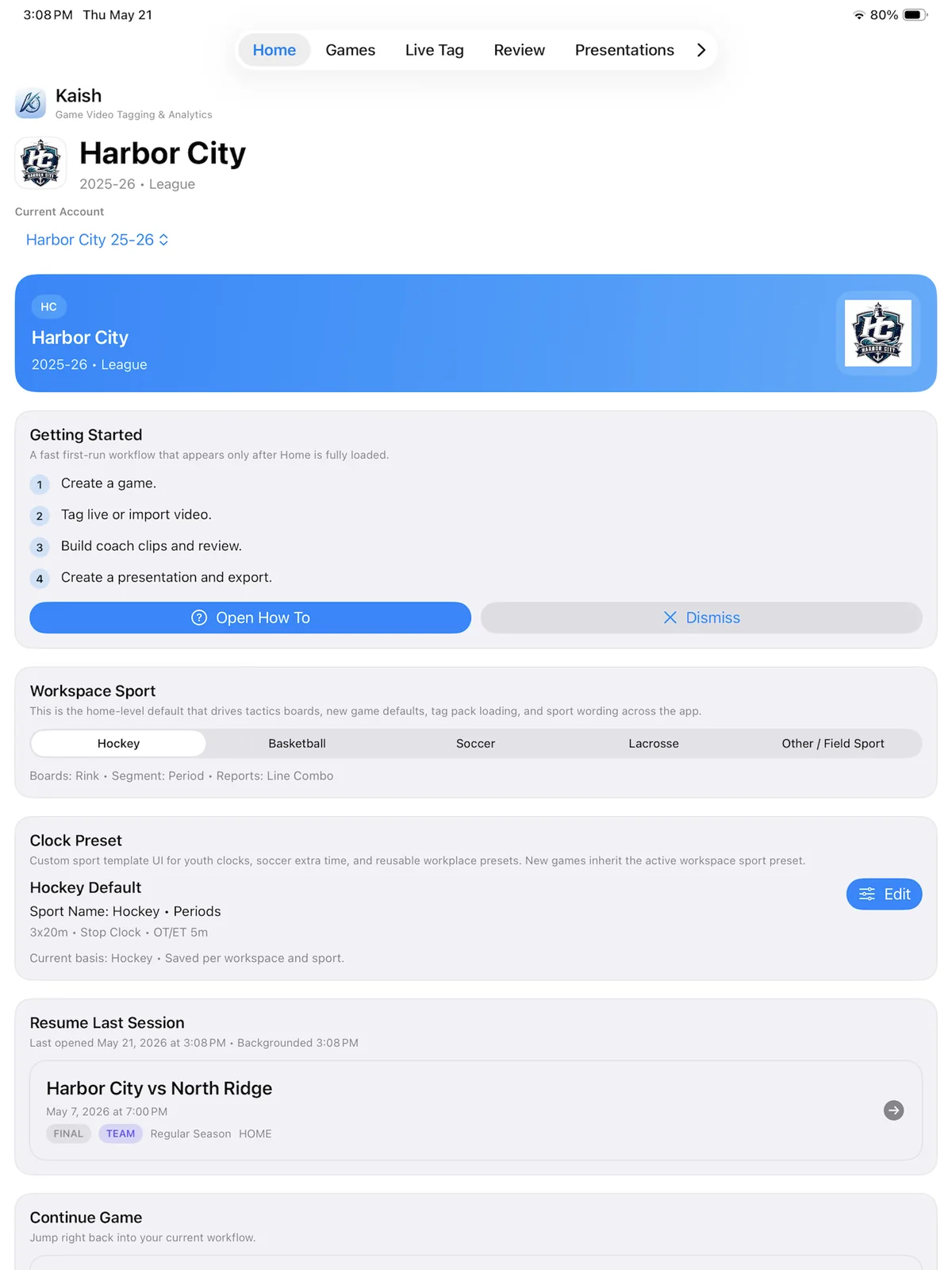
Product walkthrough
Start from the active team workspace and continue into the coaching tools.
Use the step-by-step workflow below for game setup and tagging, video review, clips, notes, presentations, full-screen controls, and MP4 export.
Follow the coaching workflow below; Global Presentations and cloud sync are documented separately in the Learning Center.
Step 1
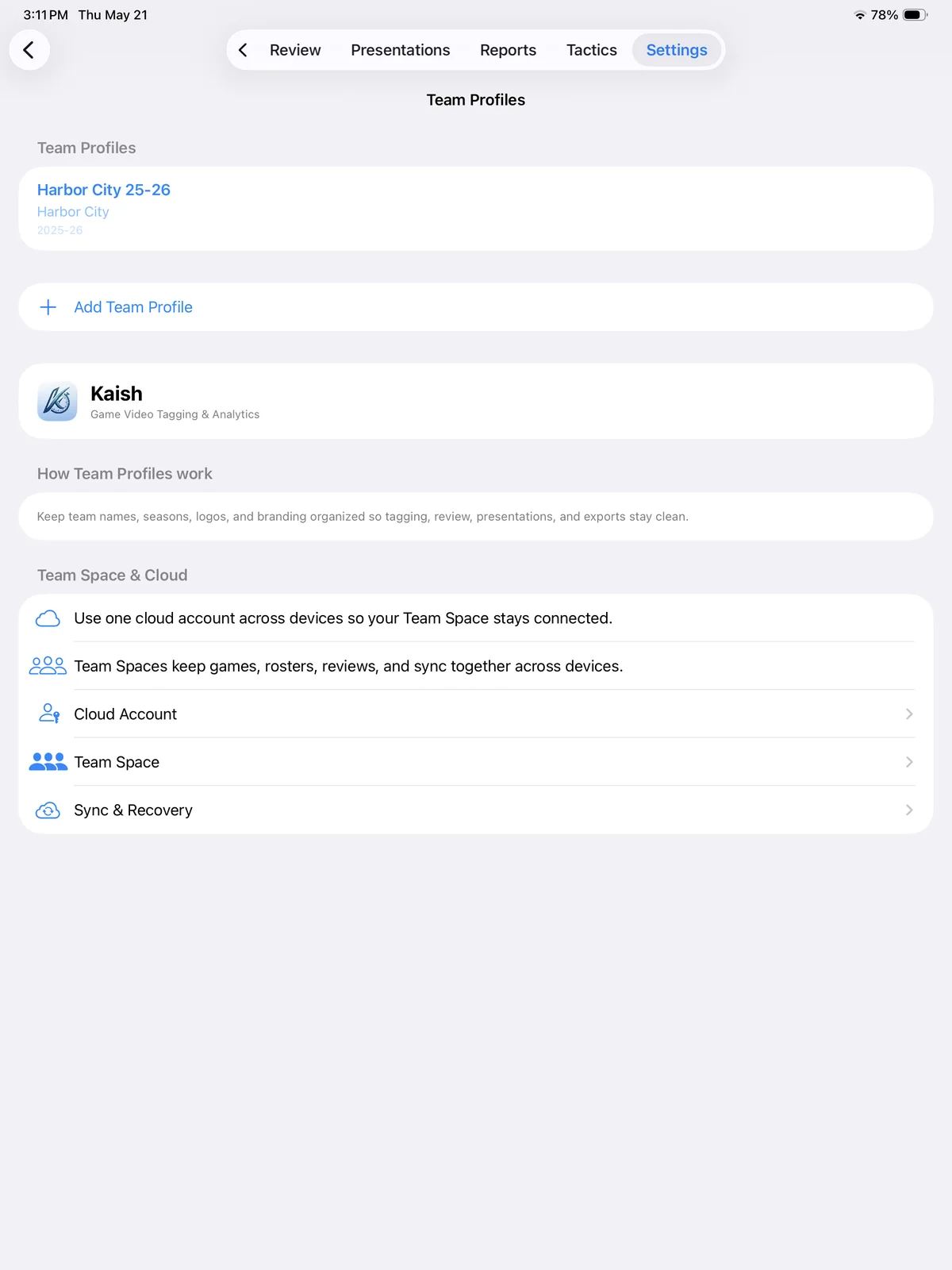
Choose your workspace, plan, and team context before starting your video workflow. Kaish keeps games, rosters, clips, reports, and presentations organized by workspace.
Workflow preview
Organize games, plans, and team context before review.
Step 2
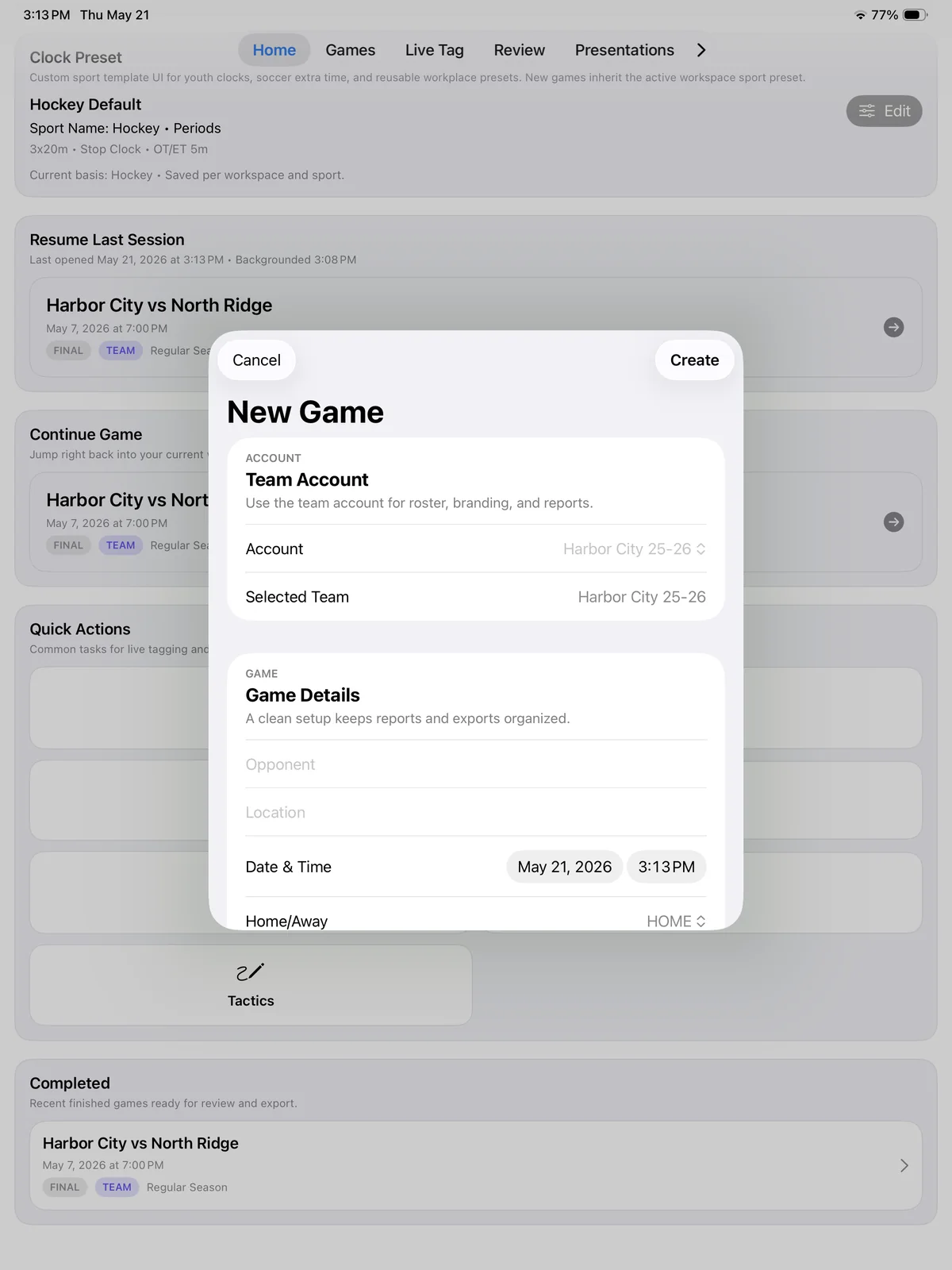
Create a game with opponent, date, location, sport, segment setup, and notes. Kaish supports different sport structures such as periods, quarters, and halves.
Product walkthrough
Set opponent, sport, date, and segment structure.
Step 3
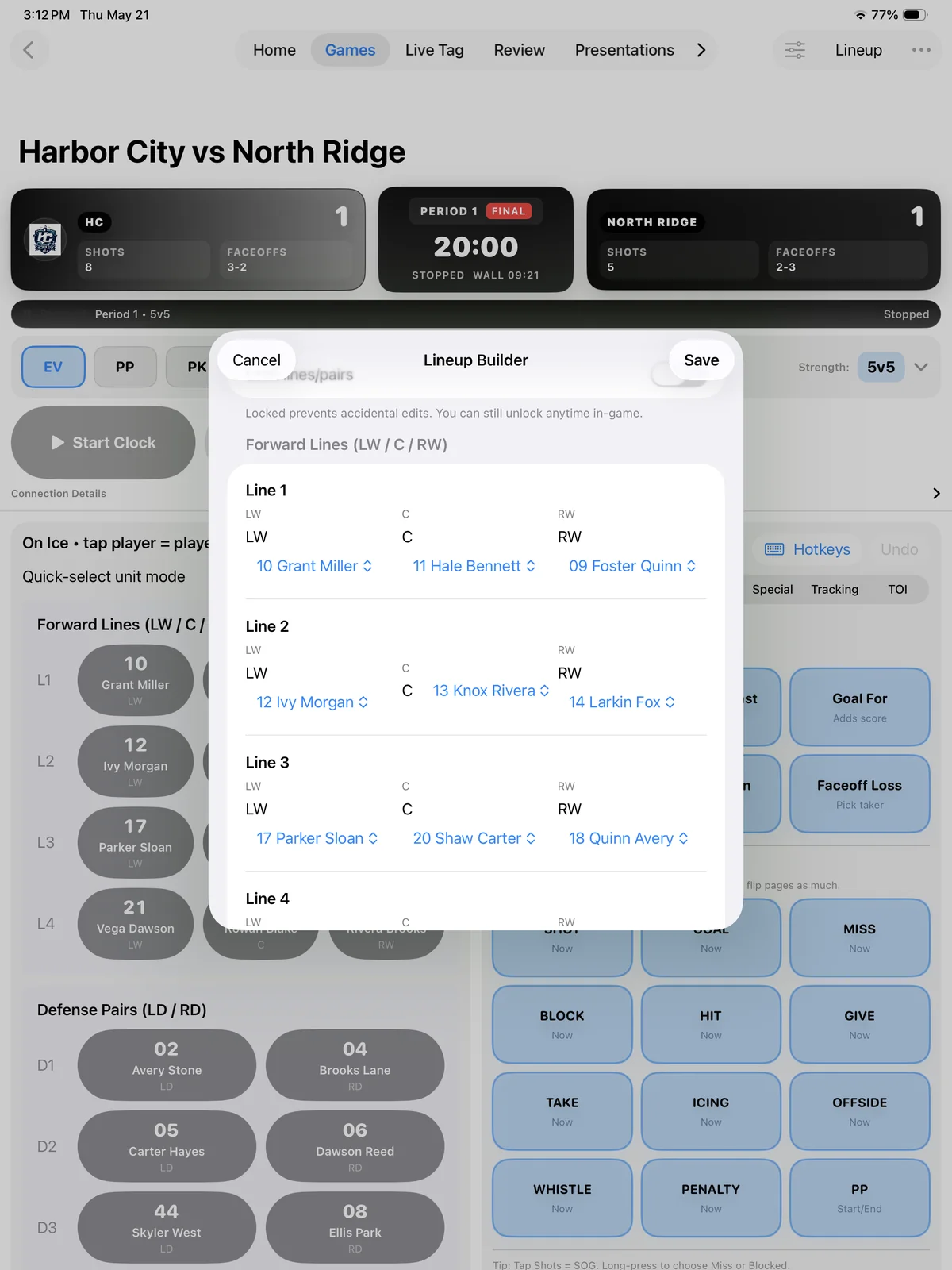
Use your roster and lineup context so tags, shifts, player cards, reports, and teaching clips stay connected to the right players.
Workflow preview
Connect players, numbers, and lineups to every tag.
Step 4
During the game, use Kaish to tag key events, player shifts, shots, goals, faceoffs, teaching moments, and other coach-defined actions.
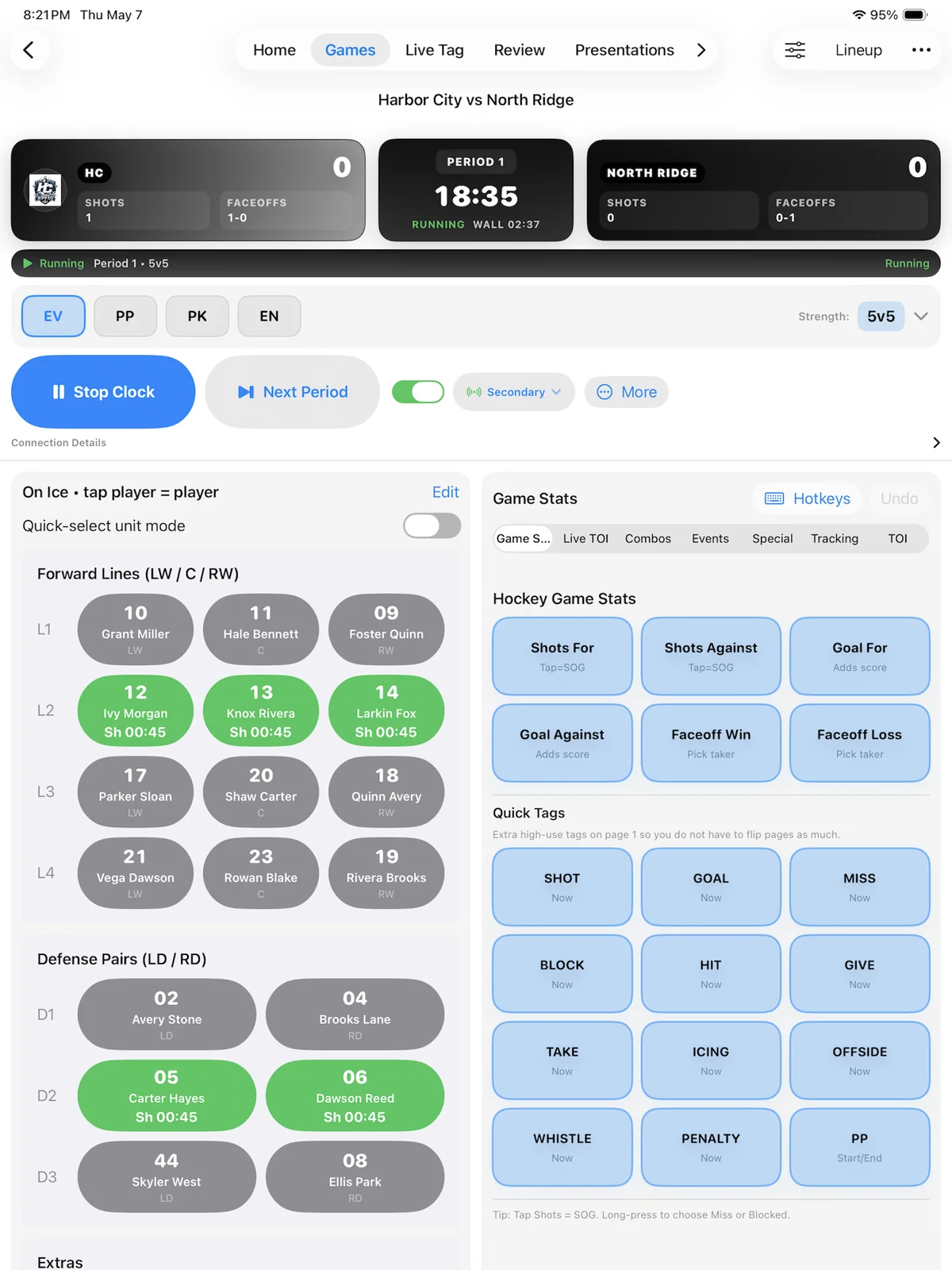
Capture workflow
Tag game events quickly while the play is happening.
Step 5
Kaish App review tagging can be customized for coaching and scout-style workflows. Build review tag profiles with custom names/codes, hotkeys, pre-roll/post-roll, and optional note prompts.
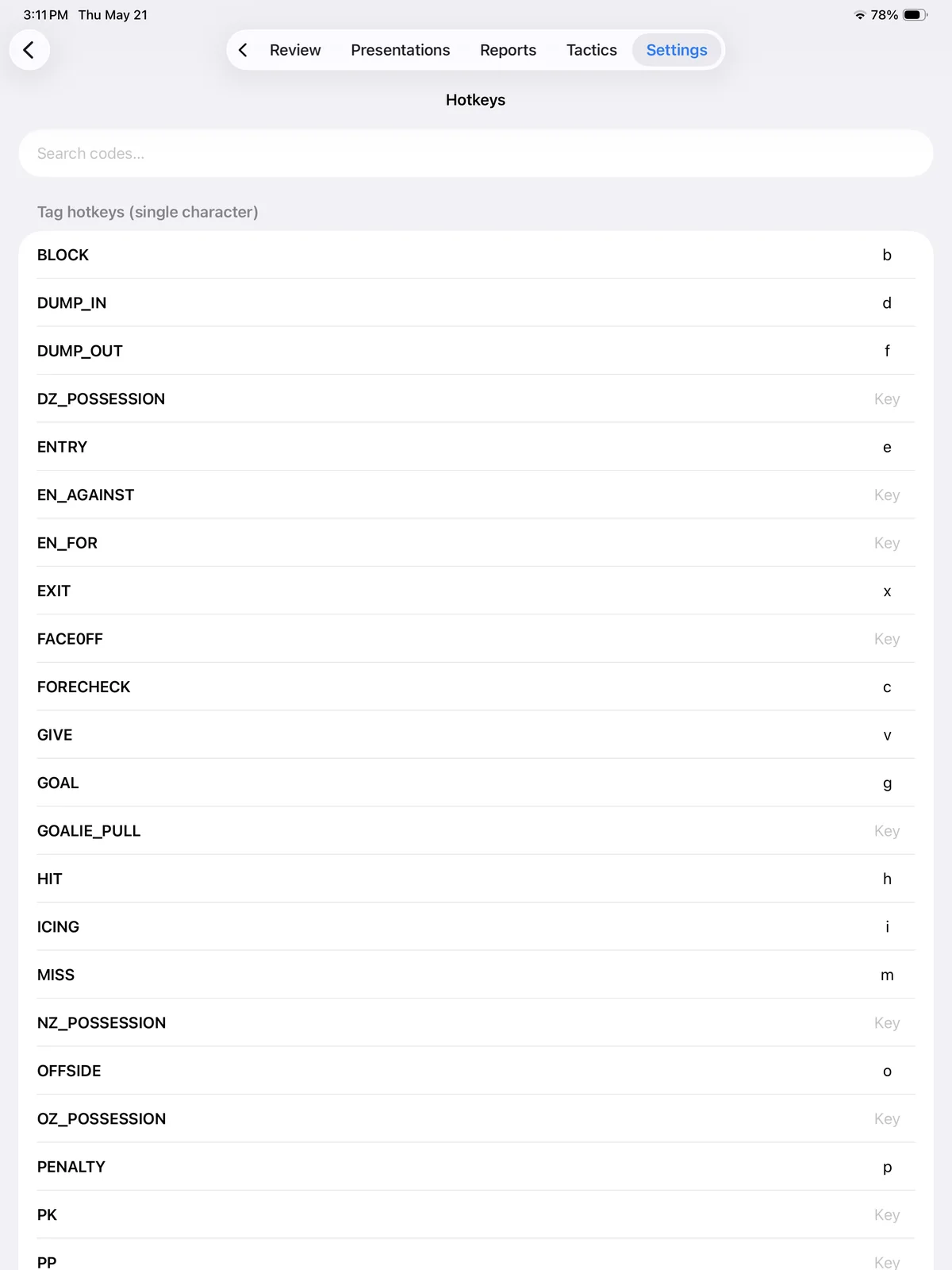
Review workflow
Keep the most-used review actions close to the keyboard.
Step 6
Attach full-game or segment video, then use Set Sync to match a known game clock moment to the video timeline. App-created tags use that sync point for accurate playback.
Capture-imported tags stay on their original video timeline. Current portable packages may contain media, while legacy or reference-style packages can transfer timing and sync metadata but still require local video to be attached or relinked.
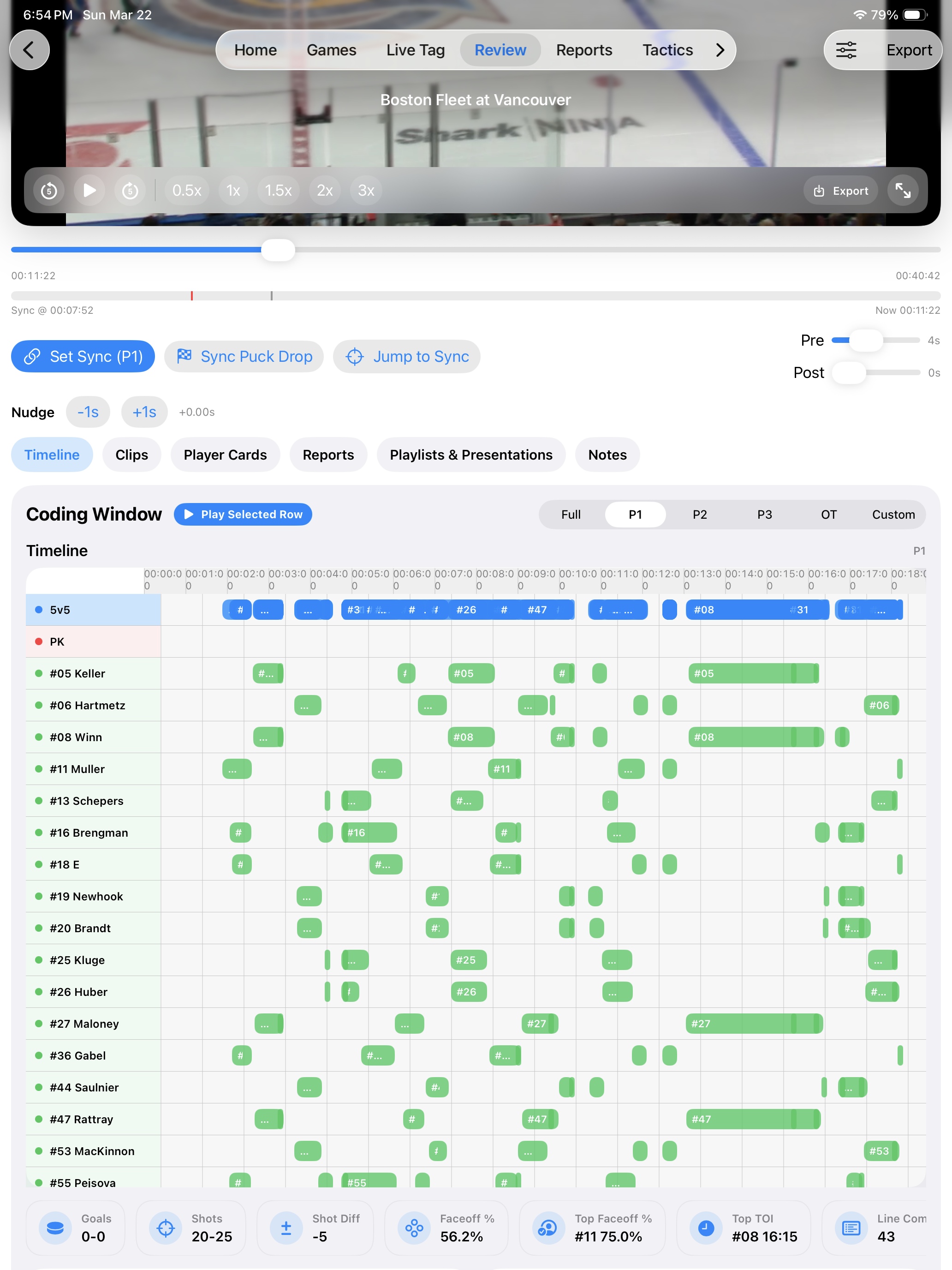
Sync workflow
Match a known game clock moment to the attached video.
Step 7
The Review timeline organizes tags and clips so coaches can quickly find teaching moments, play clips, build queues, and filter by period, tag, or context.
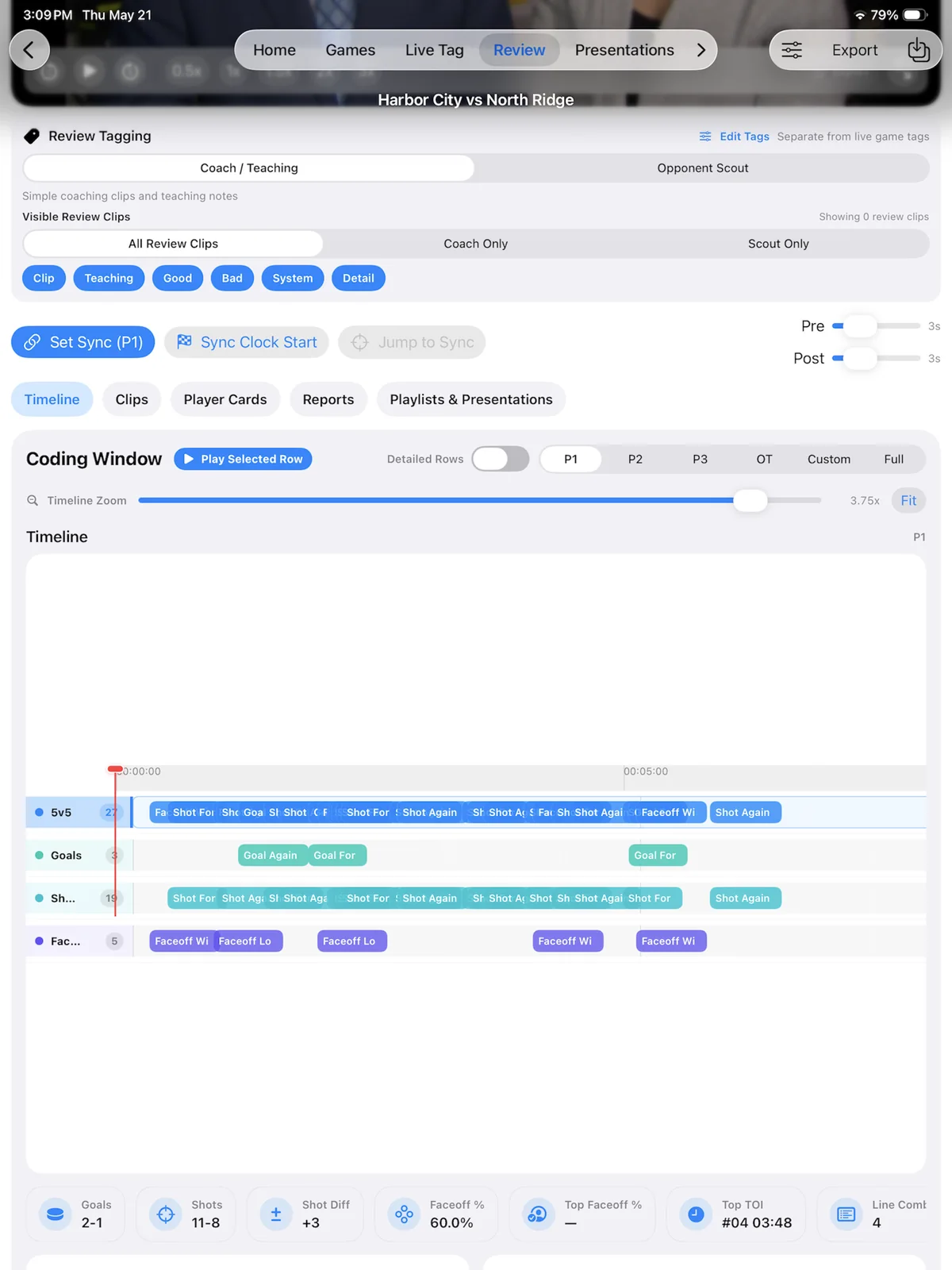
Review workflow
Filter clips, review details, and keep the game in context.
Step 8
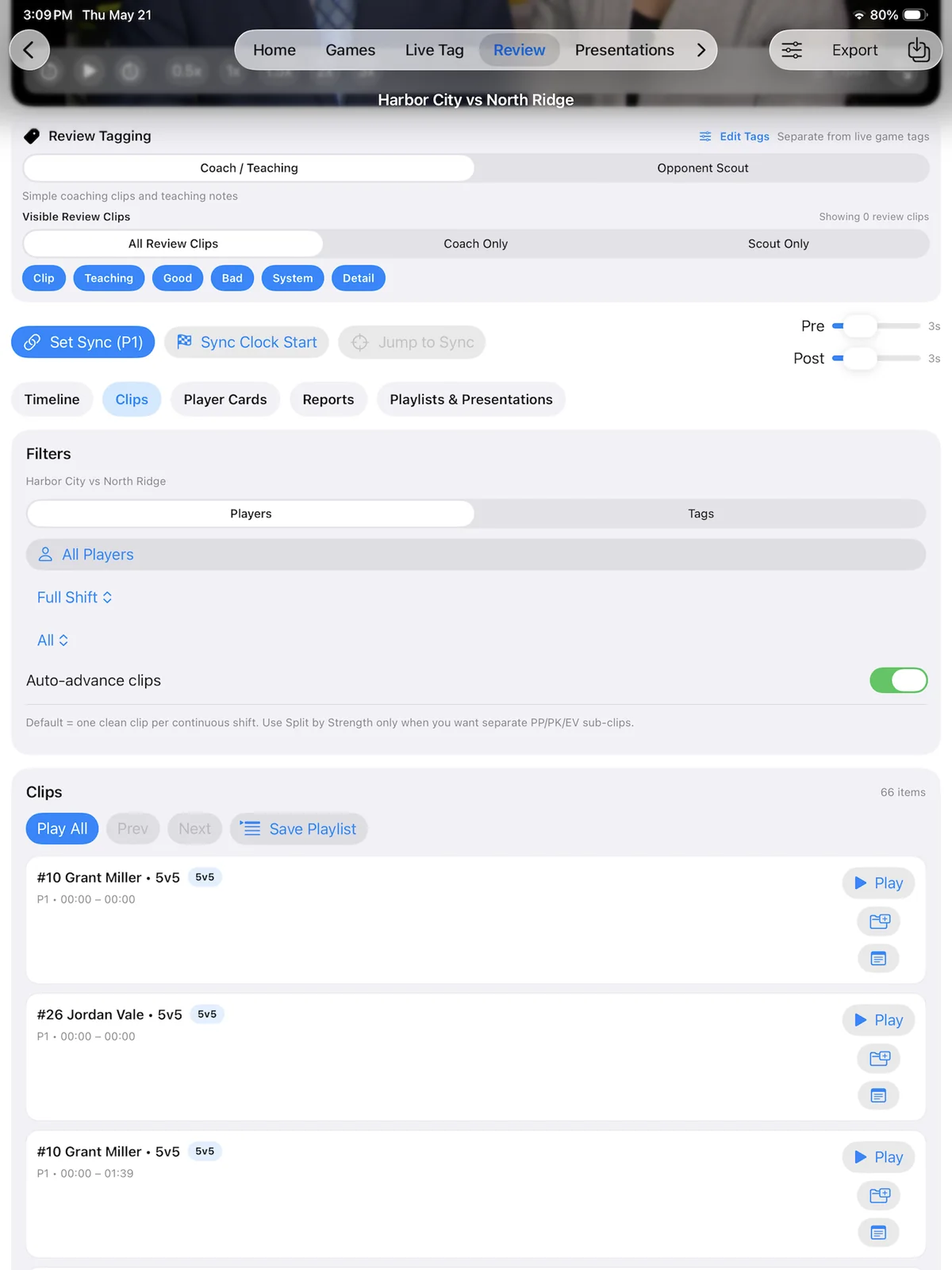
Coaches can add notes to Review tags and clips during review. Tags can be configured to prompt for notes immediately, including in fullscreen teaching workflow.
Review workflow
Use the clip-level actions to add coaching context to the selected review moment.
Step 9
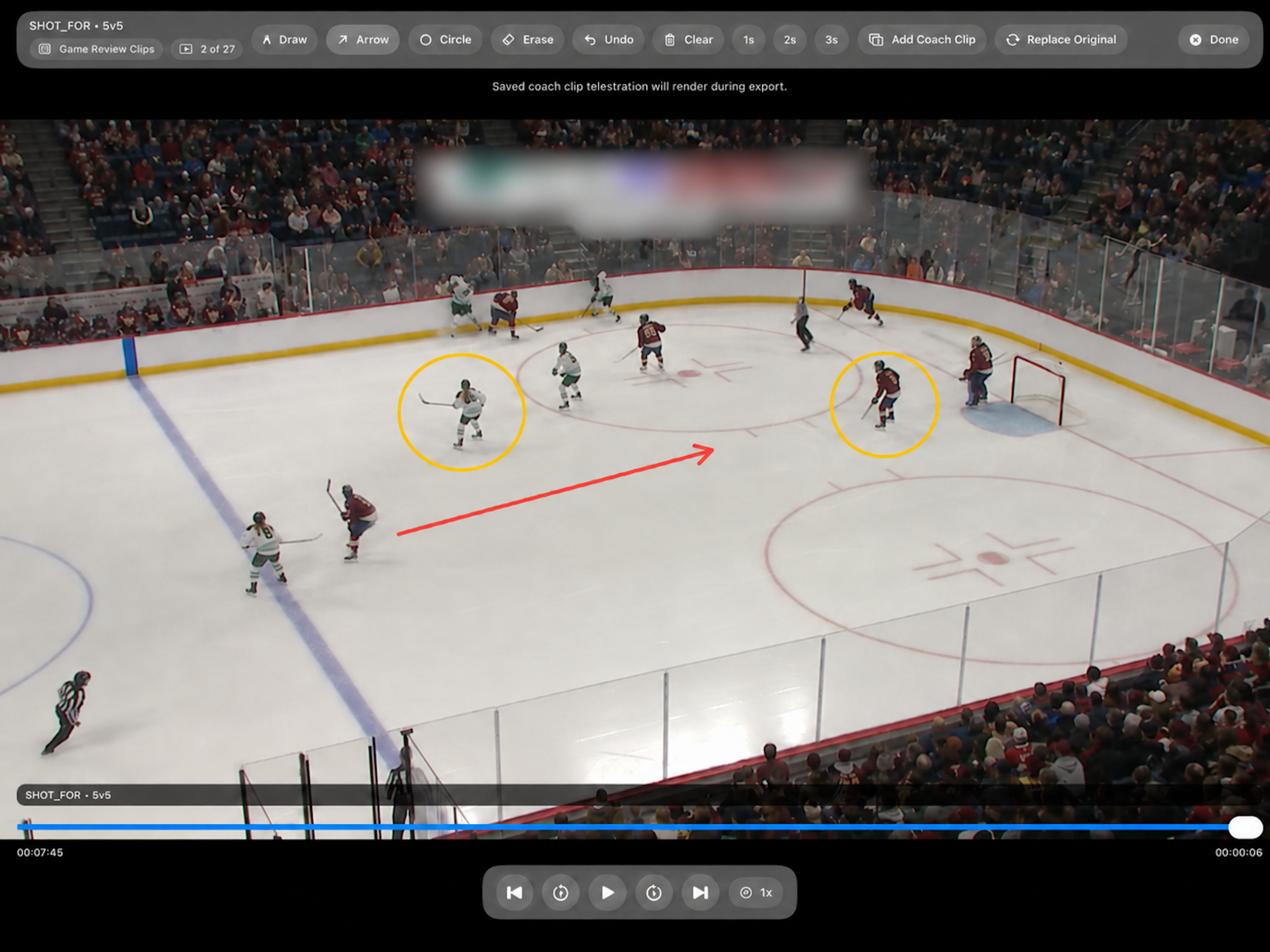
Use fullscreen review to focus on the video, tag key moments, add notes, and coach from the clip without losing the teaching context.
Review workflow
Pause on a teaching moment, add a note or drawing, and continue through the clip sequence without leaving fullscreen review.
Step 10
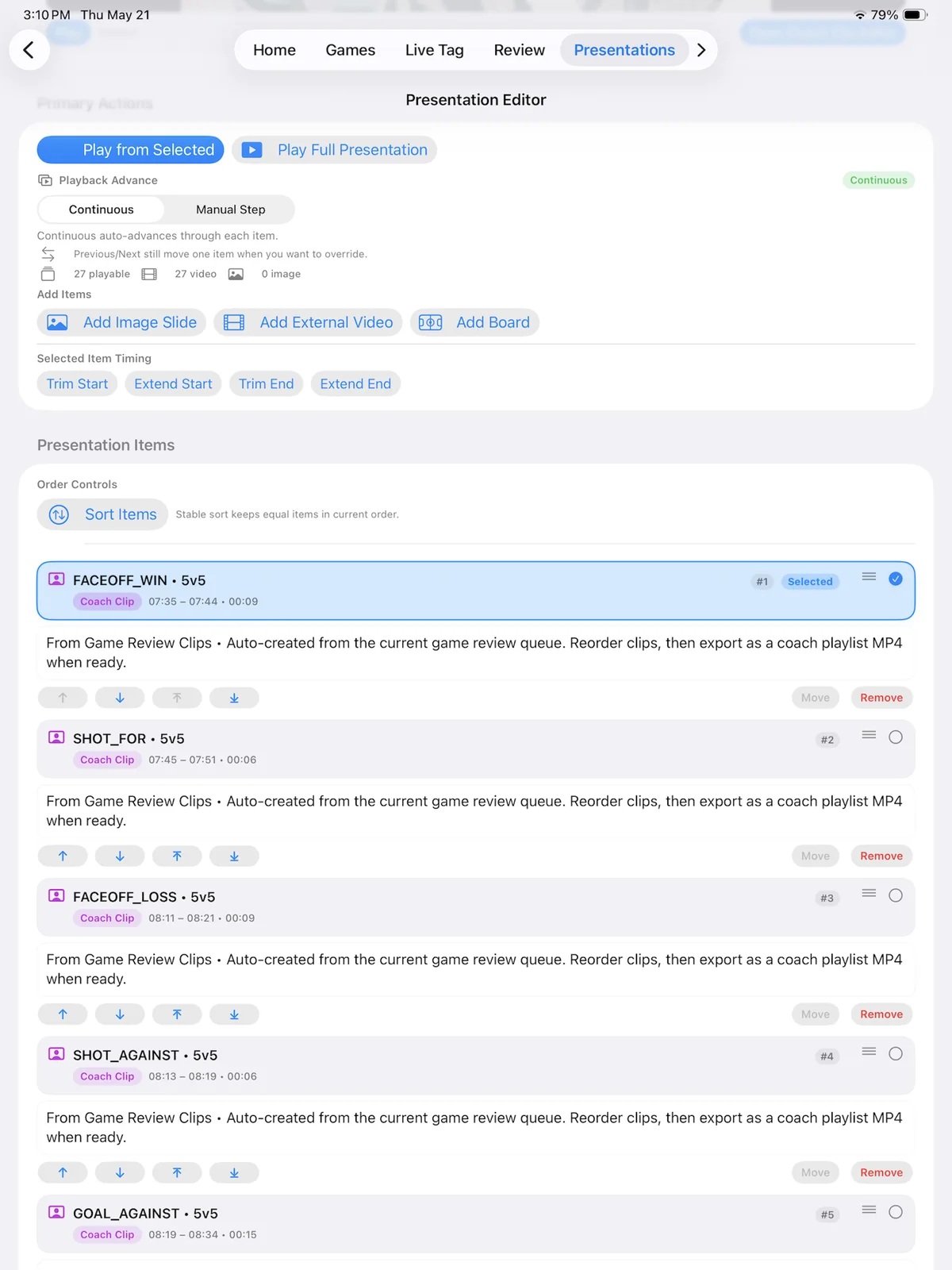
Turn review clips into a teaching presentation. Rename clips, organize the order, add notes, and present a clean teaching sequence to players or staff.
Product walkthrough
Build teaching sequences from clips, notes, and media.
Step 11
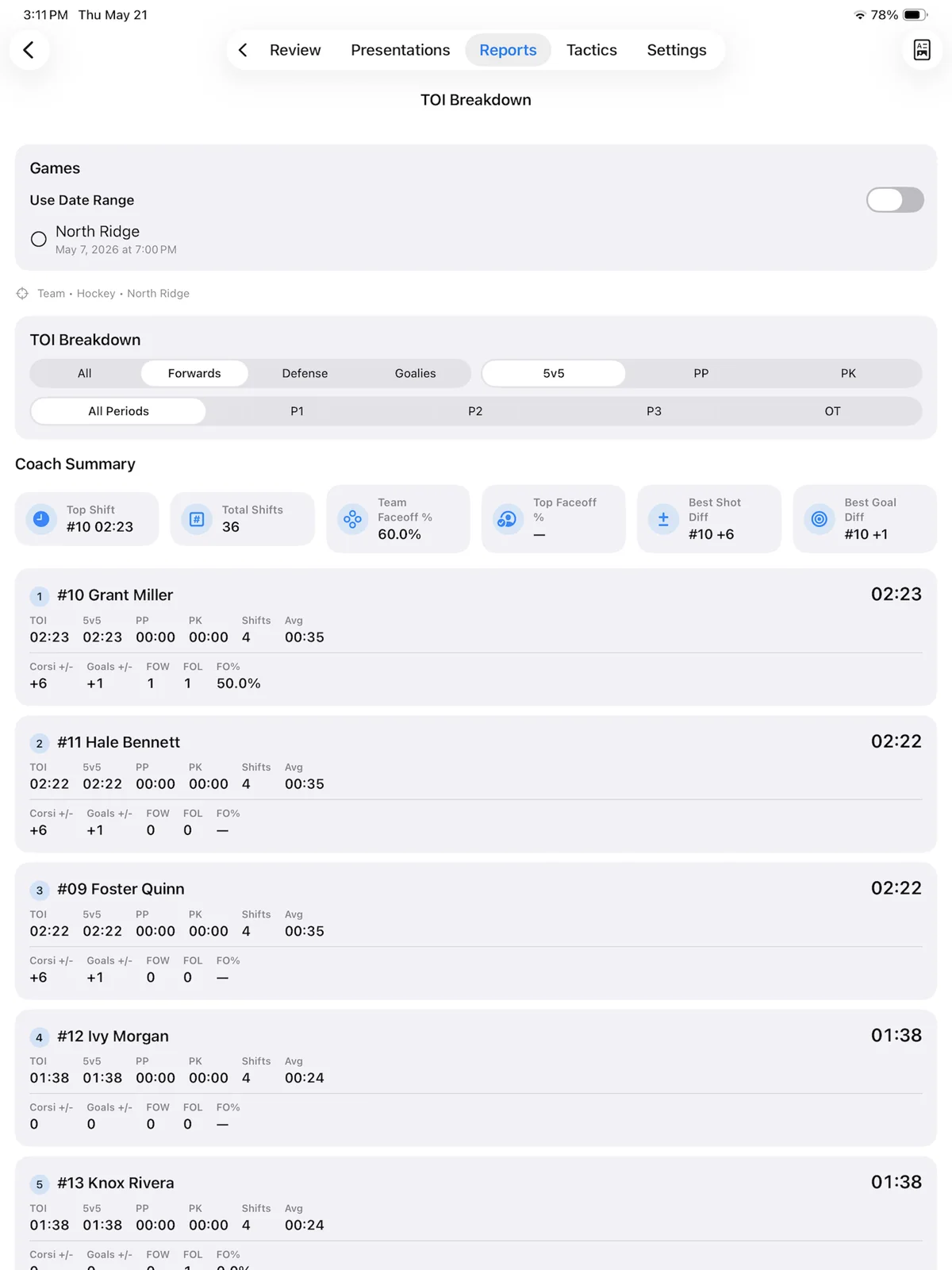
Kaish turns tagged games into useful reports, including player cards, Time on Ice, shift counts, average shift, and strength-based breakdowns.
Reporting view
Turn live tags into useful player and game reports.
Step 12
Export clips, share packages, use Sync & Recovery, and move work between devices when needed. Sync anchors transfer with shared packages, while local video files must be attached or relinked on each device.
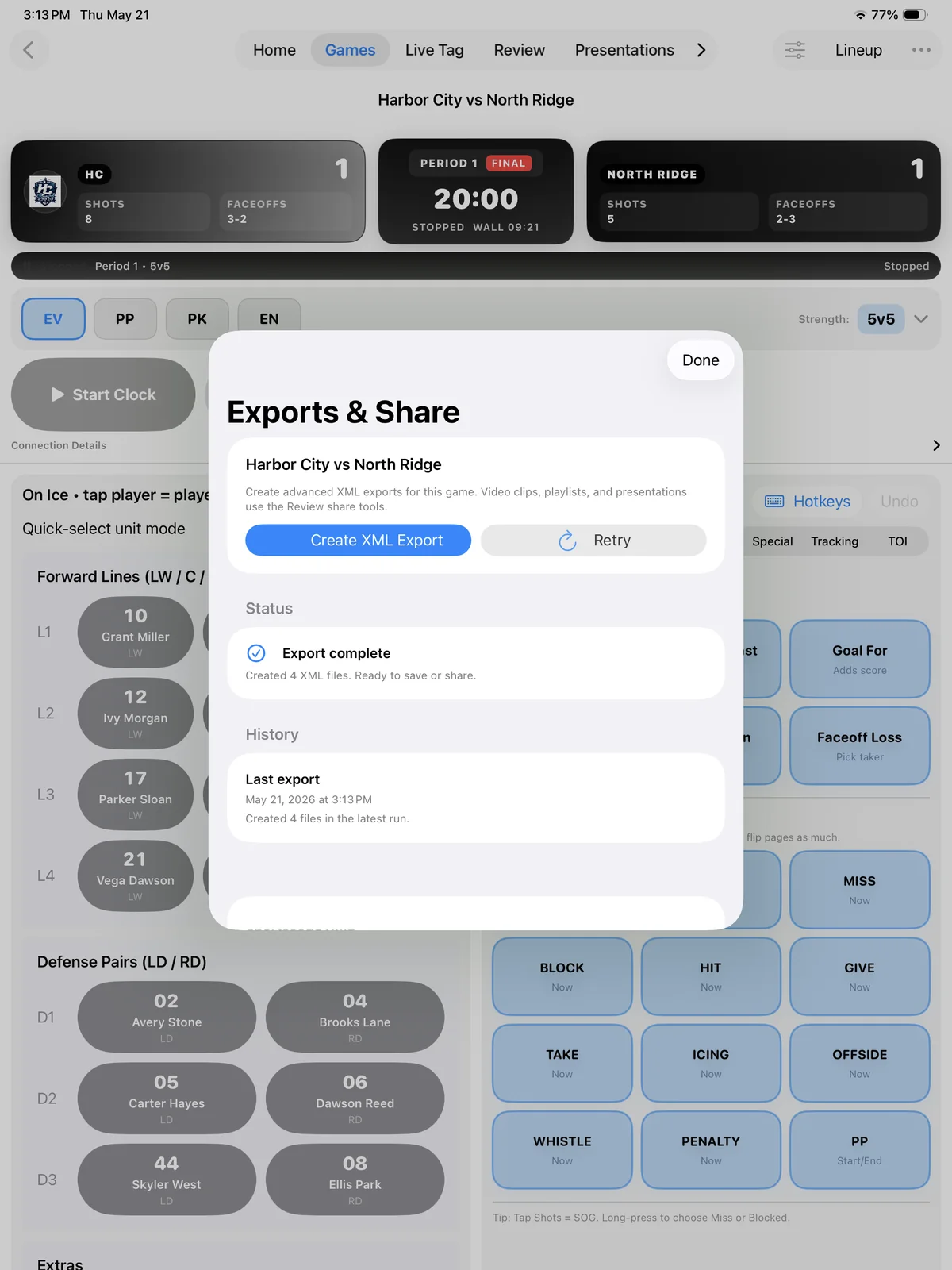
Export workflow
Confirm the requested output finishes before moving or sharing it.
Player sharing
Player Library in Kaish Web gives invited players a secure Shared with you view without opening staff coaching tools. Owners and admins control accounts, audiences, expiration, and viewing progress.
Important: Publish to Whole Team in Kaish App is an explicit shortcut for every enabled player account. Use Kaish Web instead whenever content is intended only for selected groups or players.
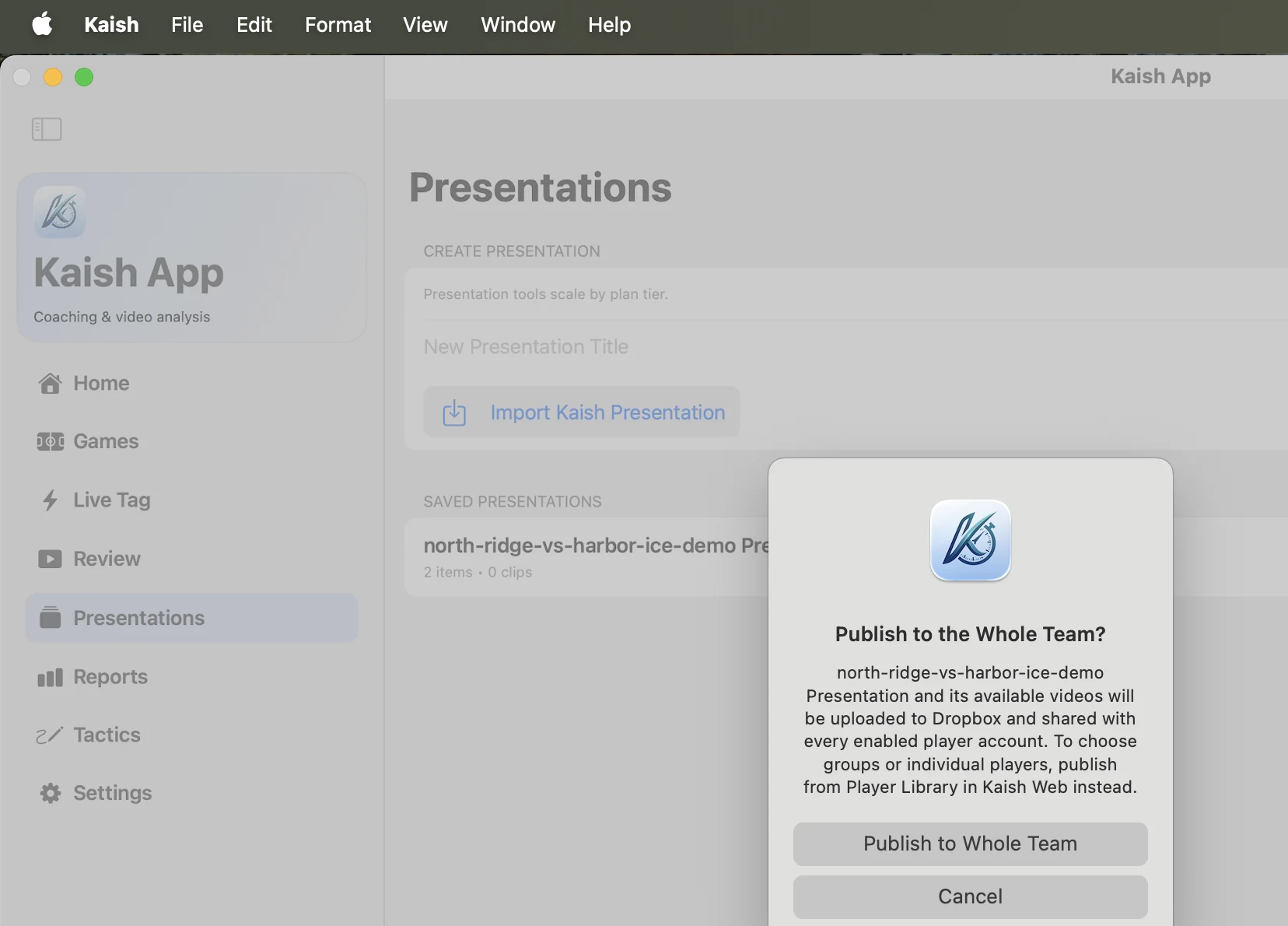
Kaish App
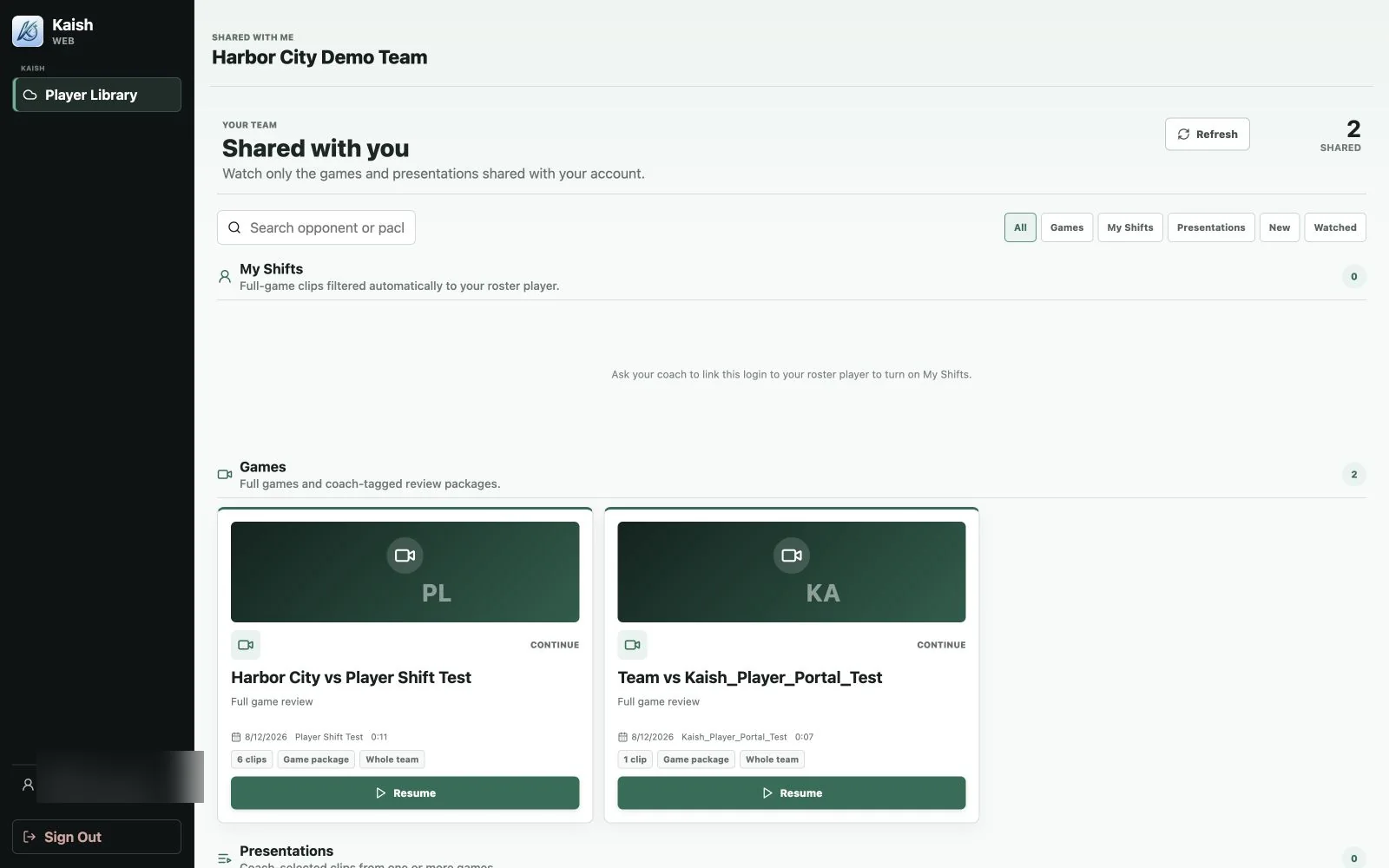
Kaish Web
Step 13
Kaish Capture is the Mac companion for reliable recording and simple markers. Live Capture supports the compatible sources exposed in Setup, including direct Blackmagic hardware, FaceTime/USB/UVC/Continuity cameras, and OBS Virtual Camera. Code Existing Video handles already-recorded footage.
.kaishcode packagesKaish Analyst is the advanced Mac analysis workstation for professional video staff.
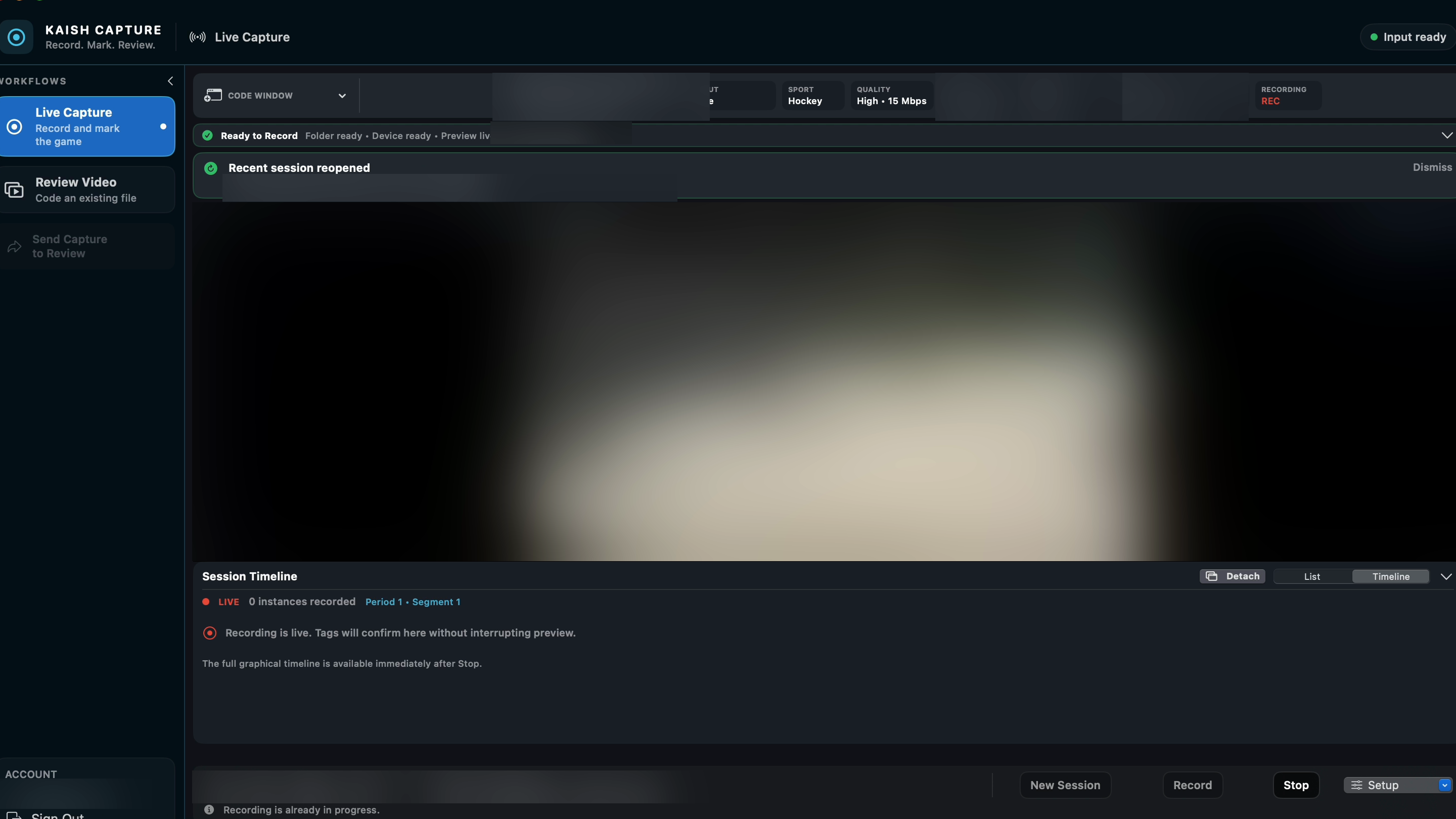
Live capture workflow
Choose a compatible source, confirm the live preview, select a destination, start recording, and add simple markers without interrupting the feed.
Step 14
Import an already-recorded game, scrub through the video, create review tags, add notes, review clips on the timeline, save an editable .kaishcode project, and export a Share File for Kaish App.
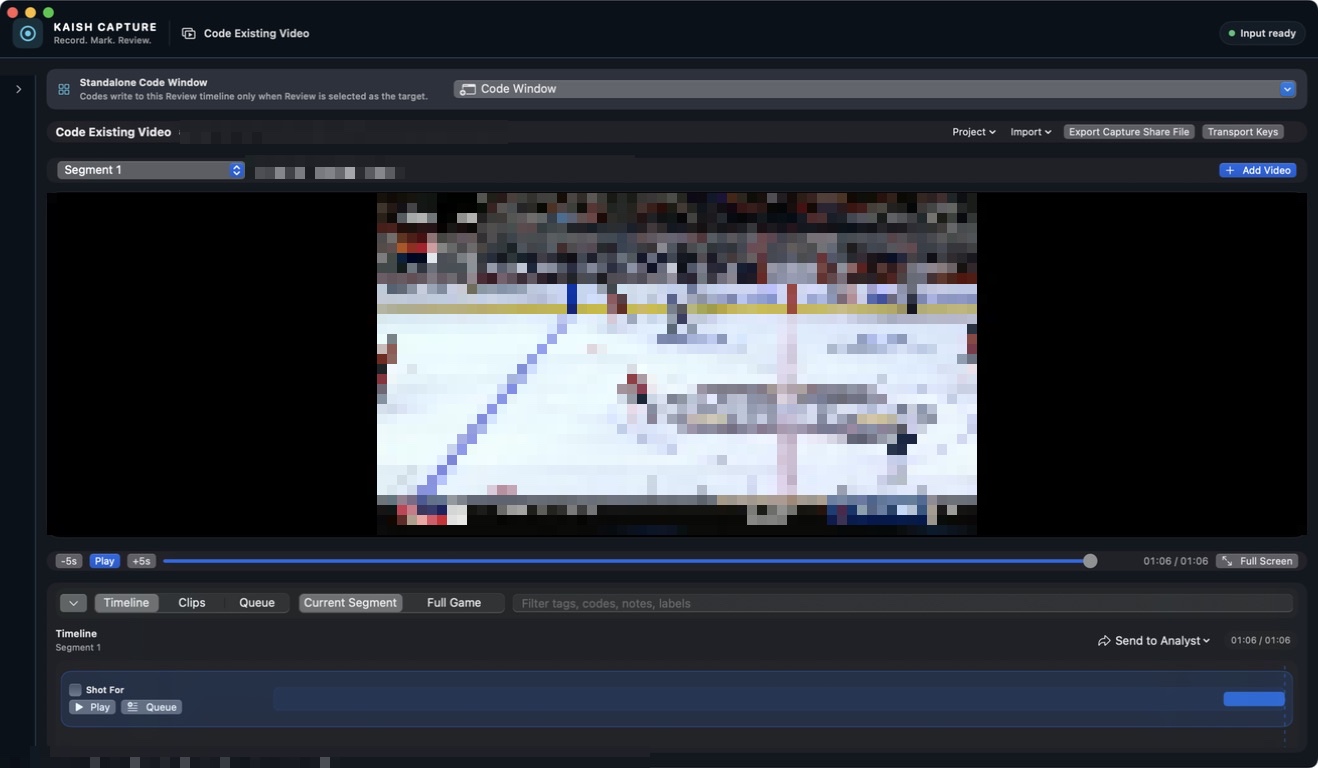
Kaish Capture
Play recorded video and review its coded events on the timeline.
Step 15
In Kaish App, finish the game with End Game/finalization first, then import the Capture Share File into the selected segment. Imported Capture tags are treated as video-time aligned.
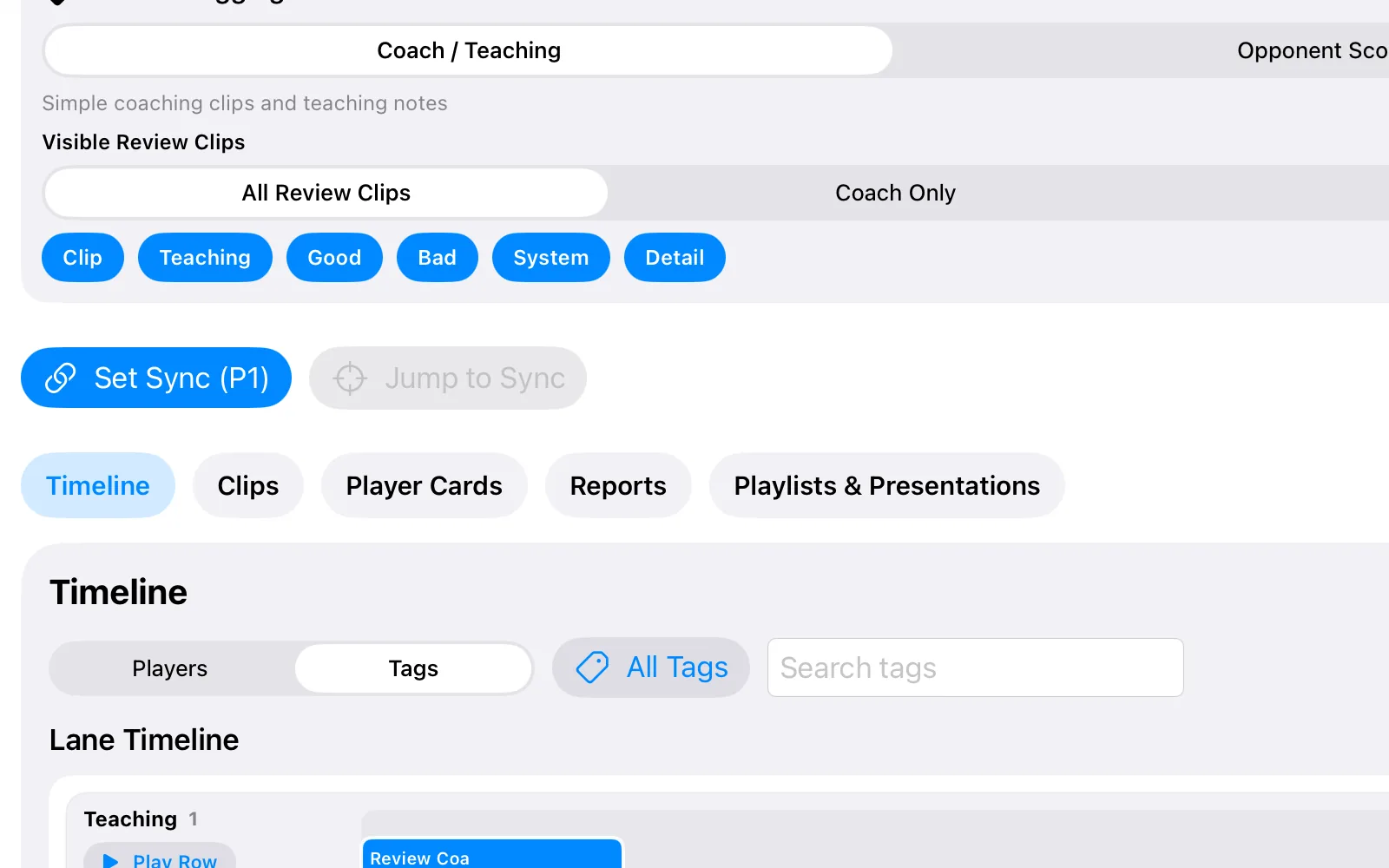
Kaish App
Open Review and confirm that early, middle, and late tags align with the attached video.
Step 16
Kaish Analyst is the professional Mac workspace for deeper review, clip organization, presentations, and output.
.kaishcode media and review bounded events on a graphical timeline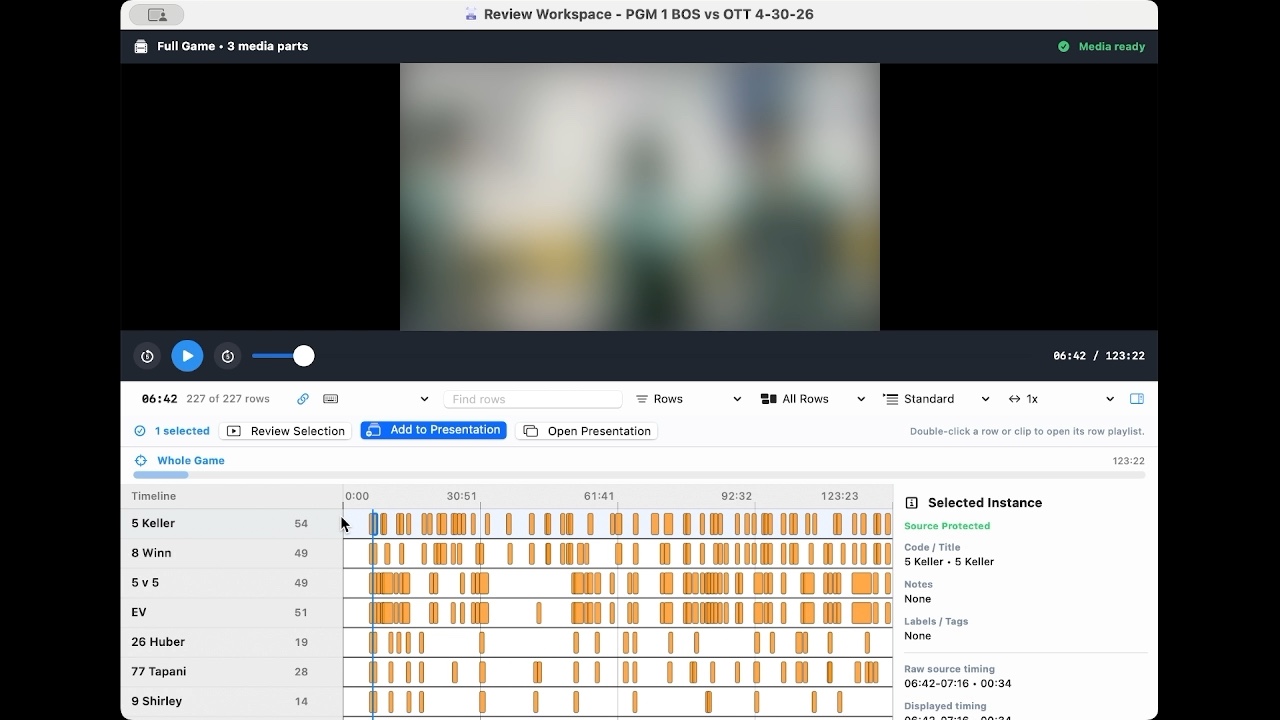
Kaish Analyst
Play a bounded teaching moment while keeping source timing visible.
Step 17
Kaish Scout is a separate web scouting and evaluation workflow for reports, notes, watchlists, player tracking, and evaluations.
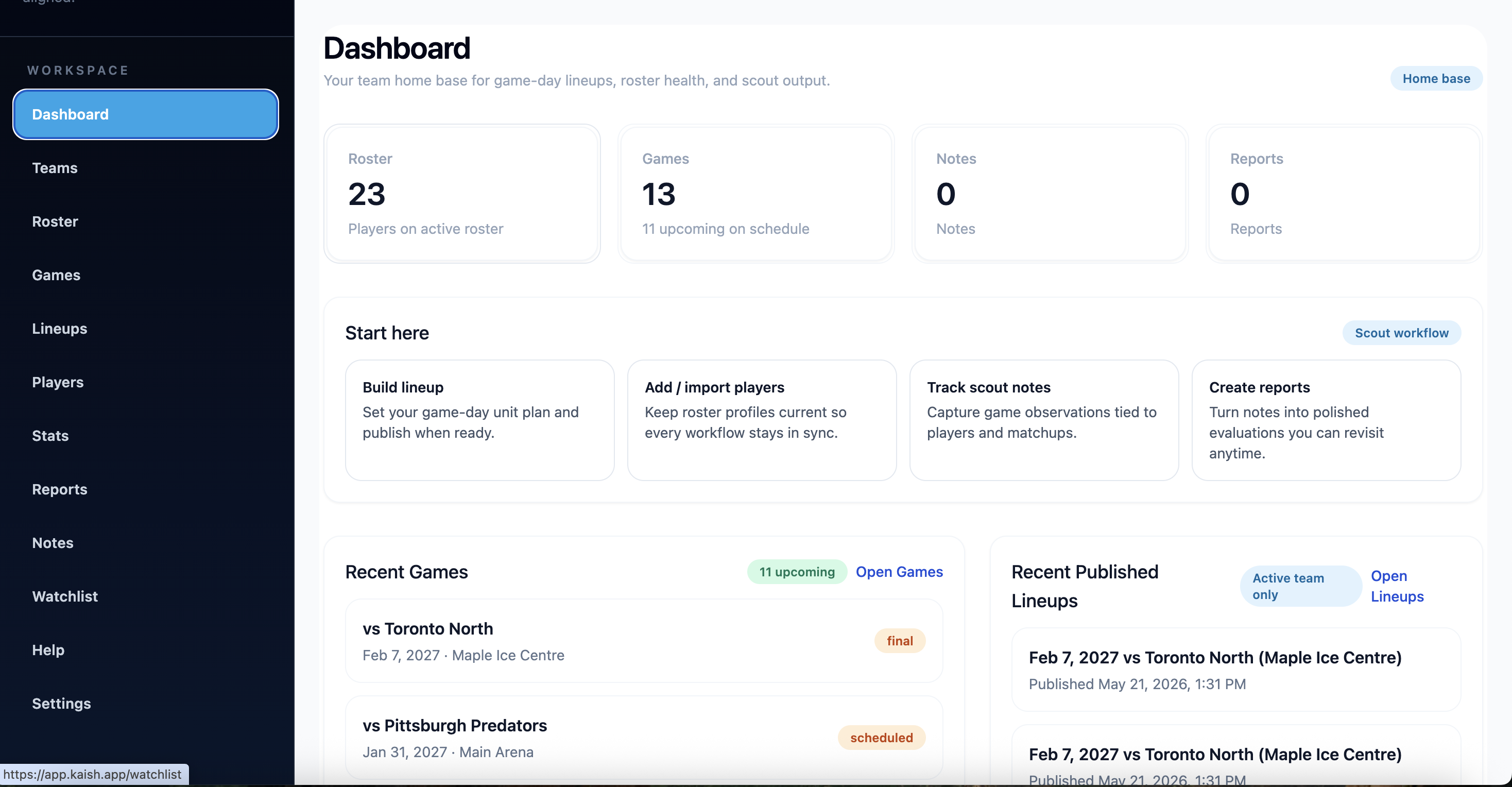
Scout workflow
Move from the team dashboard into games, players, reports, notes, and watchlists.
Step 18
Best for: Coaches and teams that need game video tagging, review, clips, reports, presentations, and export.
View App PlansBest for: Advanced video teams that need a premium Mac analysis workstation for coding, review, Clip Bins, presentations, coach drawing, and XML workflows.
Learn About Kaish AnalystBest for: Teams using a Mac-based capture/tagging workflow with advanced video setup.
Learn About CaptureBest for: Scouts, evaluators, clubs, and teams tracking players, notes, watchlists, reports, and evaluations.
Explore Kaish ScoutStep 19
No. You can tag the game live and attach/sync video later.
Set Sync matches a known clock moment to your attached full-game or segment video so app-created tags play at the correct time.
Yes. Kaish is built for multi-sport coaching workflows, including hockey, soccer, basketball, lacrosse, and other adaptable team workflows. Baseball-specific workflows are planned after launch.
Kaish App is the video coaching workflow for tagging, review, clips, presentations, and reports. Kaish Scout is a separate web evaluation workflow for reports, notes, watchlists, player tracking, and evaluations.
Team plans use secure website checkout. Pro and Elite can be purchased through secure website checkout or through the App Store; available introductory pricing can differ by checkout channel.
Yes. Use Live Capture for live games or Code Existing Video for post-game coding, then finalize the app game and import the Capture Share File.
User Guides
New to Kaish? Download the Quick Start Guide for the fastest setup path, or use the Complete User Manual for detailed workflows across Kaish App, Kaish Capture, and Kaish Scout.
Start with Kaish App for tagging, review, presentations, and reports. Use Kaish Scout for evaluation workflows, Kaish Capture for Mac capture, and Kaish Analyst for advanced Mac analysis.