Kaish Capture

Kaish Capture for Mac

Capture live games or code existing video in the Kaish coaching workflow.

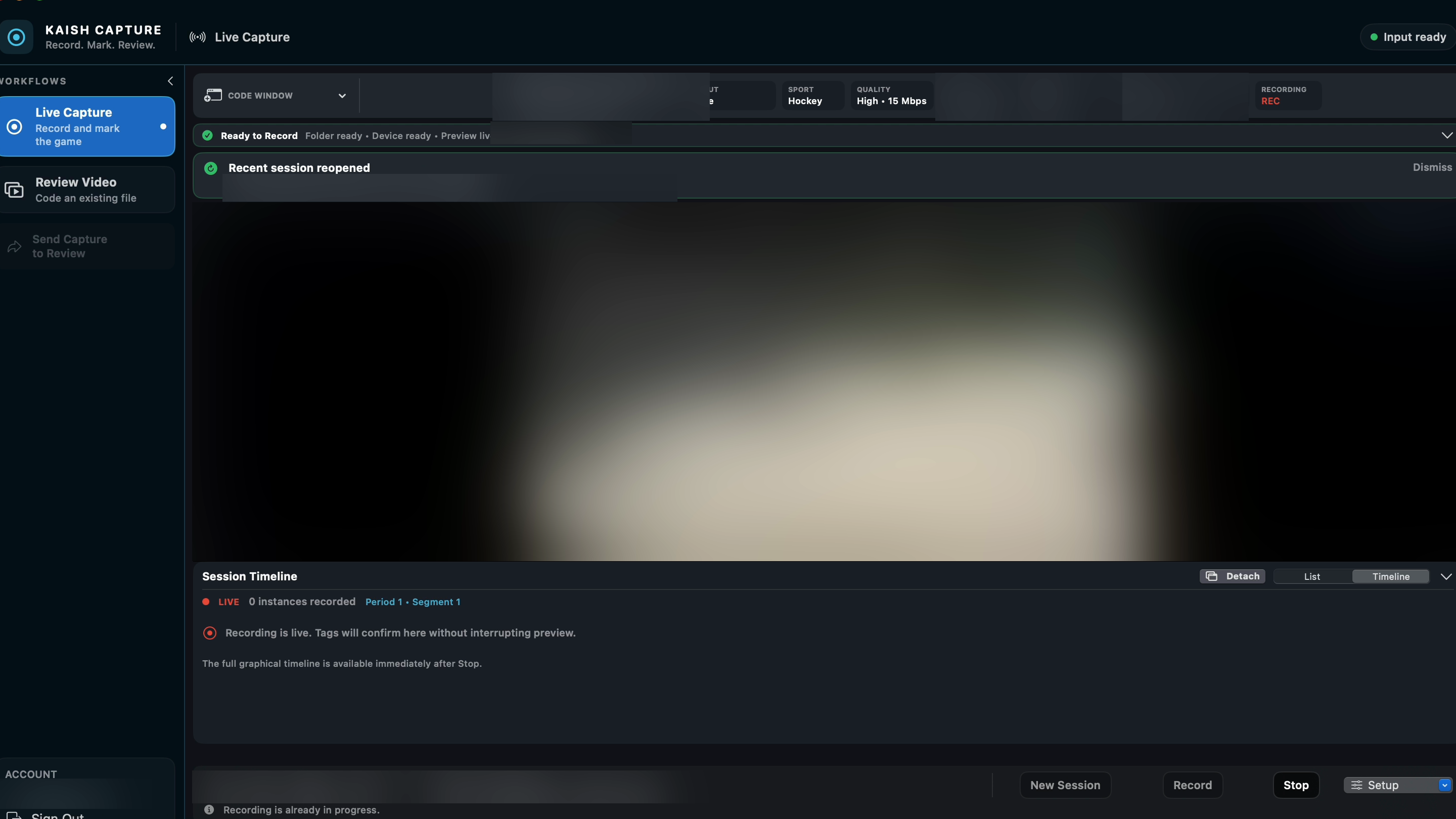
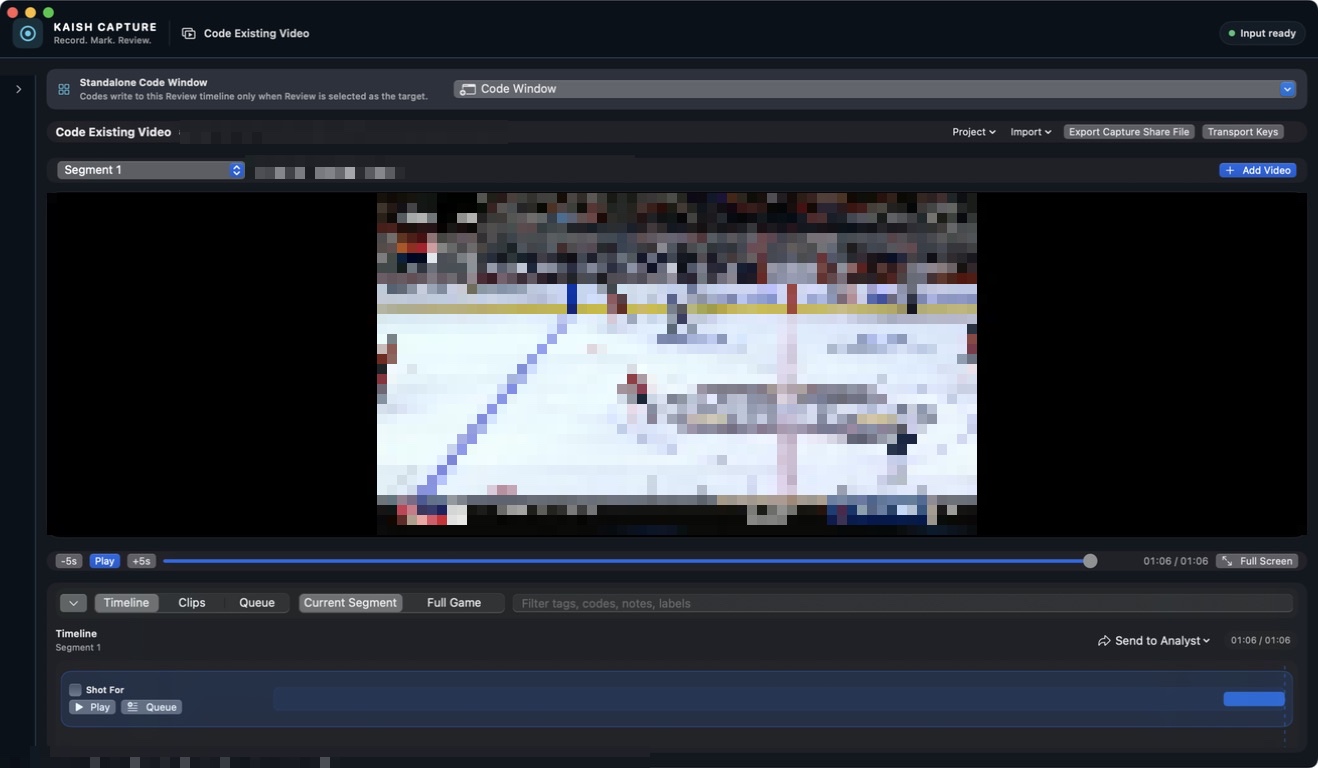
Kaish Capture is the Mac companion included with Kaish App Elite. Use Live Capture for Blackmagic preview, recording, simple markers, notes, and Capture Share File export. Use Code Existing Video for single-video or multi-video review projects with a Full Game timeline, continuous segment playback, clip review, media relinking, XML/JSON review tag import, editable .kaishcode projects, and Capture Share File or Presentation Share File export into Kaish App.

  • Live Capture with Blackmagic preview, recording status, simple markers, and notes
  • Code Existing Video for single-video and multi-video post-game review projects
  • Full Game timeline with continuous segment playback and segment/full-game scope
  • Import XML/JSON review tags into Code Existing Video projects
  • Save and reopen editable local .kaishcode Review projects
  • Relink missing media and review clips before export
  • Full game Capture Share File export into Kaish App
  • Presentation Share File export into Kaish App
  • Built for coaches, video coaches, and team staff

Checking your access…

Requires macOS. A supported Blackmagic capture device is required only for Live Capture hardware workflows, not for Code Existing Video.

Kaish Capture Pro is a separate premium Mac analysis workstation for advanced video staffs. It is not required for Kaish App Elite access. Learn about Capture Pro.

Watch this workflow

Kaish Capture quick demo

See Live Capture, Blackmagic preview/status, Code Existing Video, and Share File export into Kaish App.

Capture overview

Record live or code existing video on Mac, then export Capture Share Files into Kaish App.

Live Capture and Blackmagic

Jump to Live Capture preview/status and hardware workflow context.

Code Existing Video

Jump to the post-game video coding workflow.

Capture Share File export

Jump to export for bringing Capture work into Kaish App.

Detailed Walkthrough

Full Capture walkthrough starts

Use the full walkthrough for deeper help with live capture, Blackmagic preview, Code Existing Video, and Share File export.

Kaish Capture overview

Kaish Capture is the Mac companion included with Kaish App Elite.

Live Capture with Blackmagic preview

Use Kaish Capture with Blackmagic preview and recording workflows.

Code existing video

Load existing video on Mac, tag moments, review clips, and prepare work for Kaish App.

Export Capture Share Files

Export Capture Share Files from Kaish Capture and import them into Kaish App.

Live Capture Hardware

Using Blackmagic UltraStudio Recorder 3G with Kaish Capture

Kaish Capture can work with Blackmagic capture hardware for live video workflows. For UltraStudio Recorder 3G, install the supported Blackmagic Desktop Video runtime, connect the recorder over Thunderbolt, connect HDMI or SDI from your camera/switcher, close Media Express or other apps using the device, then open Kaish Capture and confirm preview/status before recording.

Hardware and software

  • Mac with Thunderbolt 3 or Thunderbolt 4
  • Blackmagic UltraStudio Recorder 3G
  • Thunderbolt 3/4 cable
  • HDMI or SDI cable from camera, switcher, or video source
  • Camera, switcher, or video output source
  • Supported Blackmagic Desktop Video runtime installed
  • Kaish Capture installed

Use a real Thunderbolt cable. Some USB-C charge cables fit the port but will not carry the Thunderbolt video device signal.

Helpful links

Install the supported Desktop Video runtime from Blackmagic Design, then confirm the UltraStudio Recorder 3G appears before opening Kaish Capture.

Blackmagic Design and UltraStudio are trademarks of Blackmagic Design Pty. Ltd. Kaish is not affiliated with Blackmagic Design.

Setup steps

  1. Download the supported Blackmagic Desktop Video runtime from Blackmagic Design Support.
  2. Install Desktop Video.
  3. Restart the Mac.
  4. If macOS prompts for Blackmagic system software/extensions, allow it in System Settings > Privacy & Security, then restart if prompted.
  5. Connect UltraStudio Recorder 3G to the Mac using a Thunderbolt 3/4 cable.
  6. Connect HDMI or SDI from the camera/switcher/video source into the UltraStudio Recorder 3G.
  7. Open Blackmagic Desktop Video Setup and confirm the device appears.
  8. Set the input to HDMI or SDI if needed.
  9. Match the source video format, such as 1080p29.97, 1080p30, 1080p59.94, or 1080p60.
  10. Close Media Express or other apps using the device.
  11. Open Kaish Capture.
  12. Choose Live Capture.
  13. Select the Blackmagic device as the video source.
  14. Confirm preview and status appear.
  15. Start capture and tagging.

If the device does not appear

  • Use a real Thunderbolt cable, not a charge-only USB-C cable.
  • Restart after installing Desktop Video.
  • Open System Settings > Privacy & Security and allow Blackmagic Design system software/extensions if prompted.
  • Confirm the device appears in Blackmagic Desktop Video Setup before opening Kaish Capture.
  • Match the camera/switcher output format.
  • Close Media Express or other apps using the device, such as QuickTime, OBS, Zoom, or Resolve.
  • Try HDMI first if SDI does not show.
  • Reinstall Desktop Video if the device still does not appear.
Support

Need help getting Capture ready?

Sign in with eligible Kaish App Elite access to unlock the current signed and notarized Kaish Capture DMG. For setup help, contact Kaish support.