Player Library Sharing
Give invited players secure access to the games and presentations intended for them, without exposing staff coaching tools.
Player Library walkthrough
Use the steps below to set up access, publish to the intended audience, and review player activity.
Choose the correct publishing path
Use Kaish Web for controlled sharing
Choose the entire team, reusable groups, or individual players. You can also set an expiration date before publishing.
Use Kaish App only for the whole team
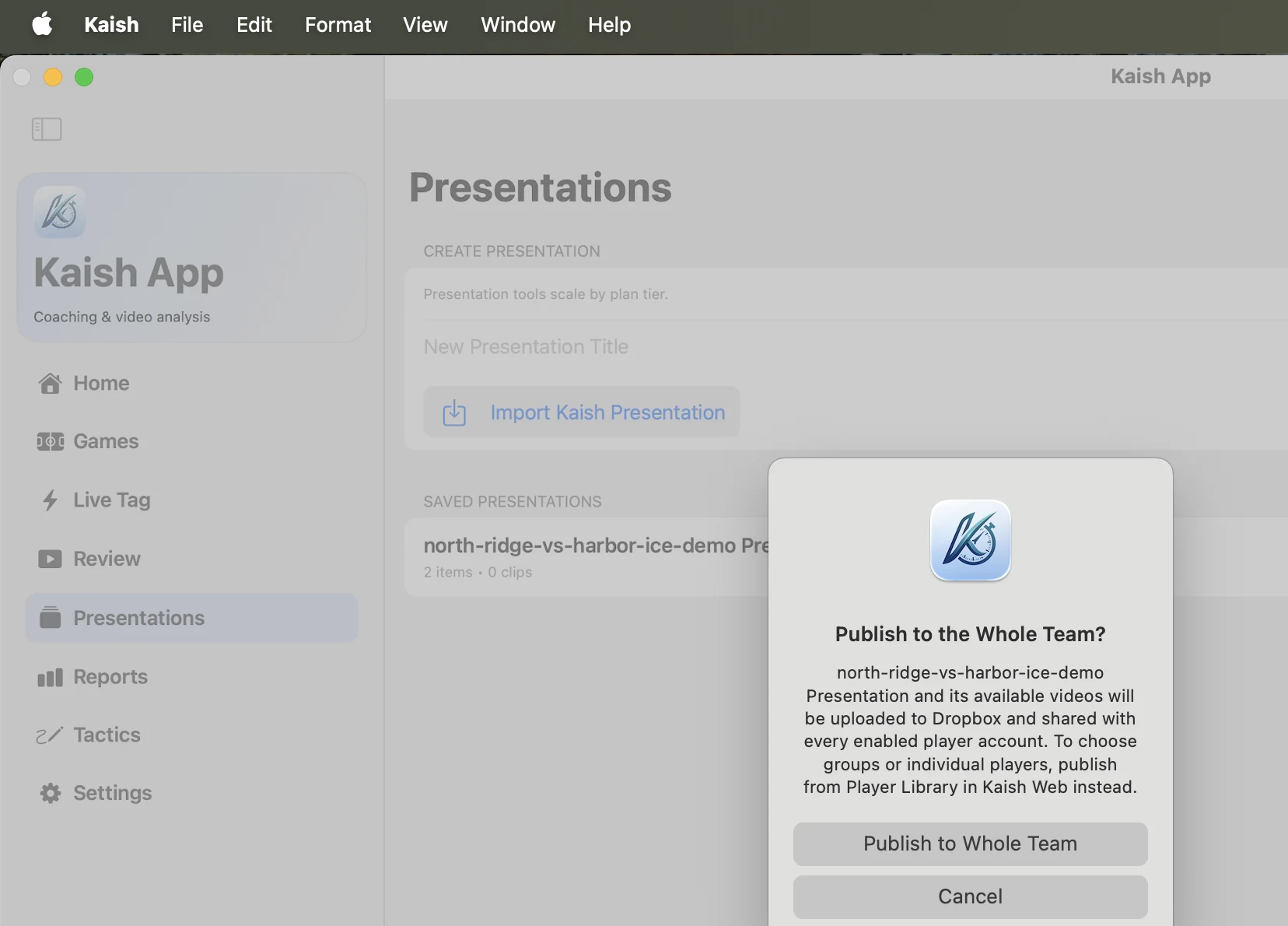
Publish to Whole Team is a fast, explicit shortcut that shares with every enabled player account. It asks for confirmation before uploading.
If even one enabled player should not receive the content, publish from Kaish Web.
One-time owner / admin setup
- Sign in at web.kaish.app with an owner or admin account.
- Open Player Library.
- Connect the team's Dropbox account. Uploads started in Kaish App require Dropbox.
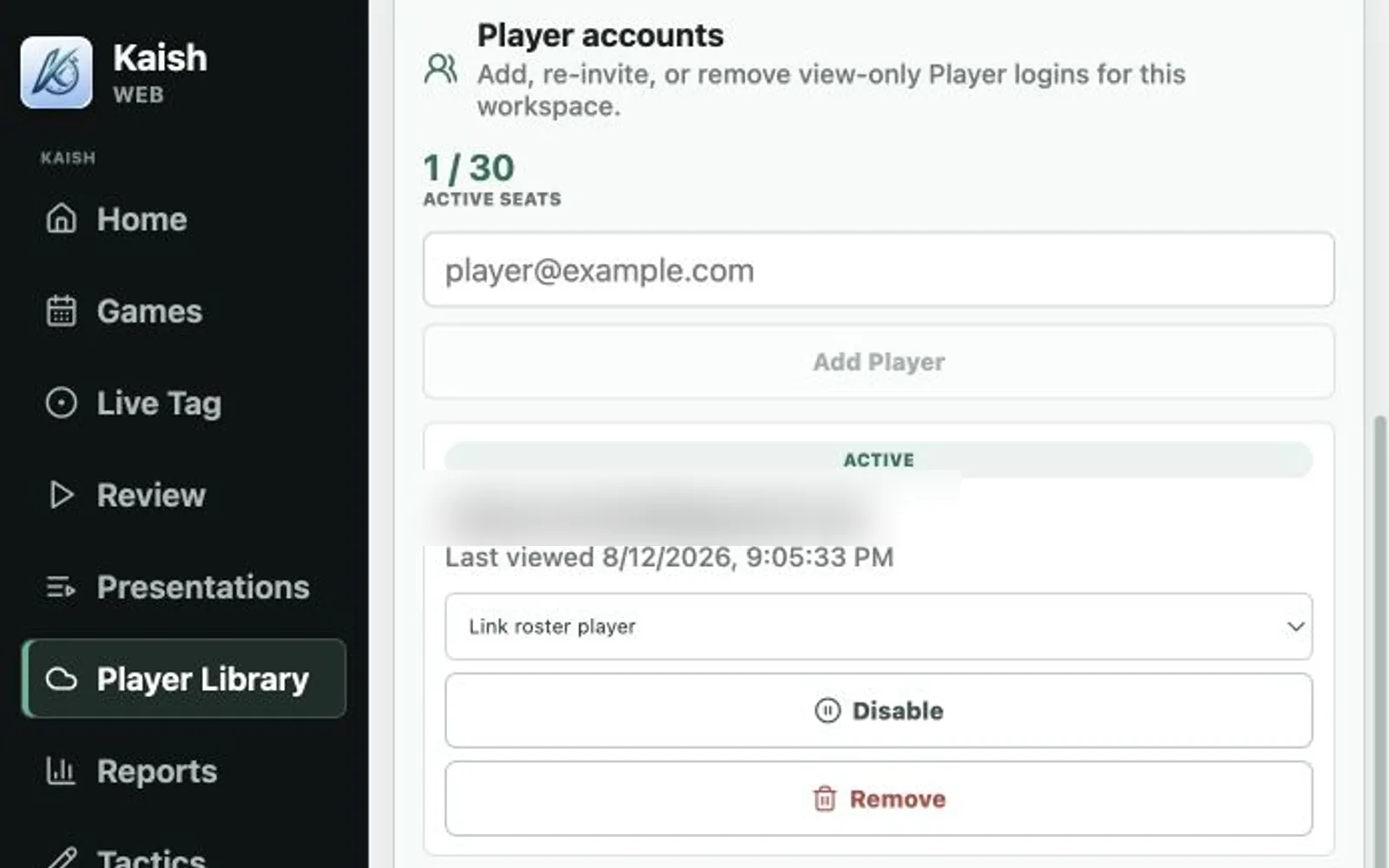
- Open Player accounts.
- Invite each player with a team-approved email address.
- Link the account to the matching roster player when shift filtering is needed.
- Create reusable audience groups such as Forwards, Goalies, Leadership, or Position Group when helpful.
Owners and admins can re-invite, disable, or re-enable player access as the roster changes.

Publish to selected players in Kaish Web
- Open Player Library.
- Choose the game or presentation package and the required video files.
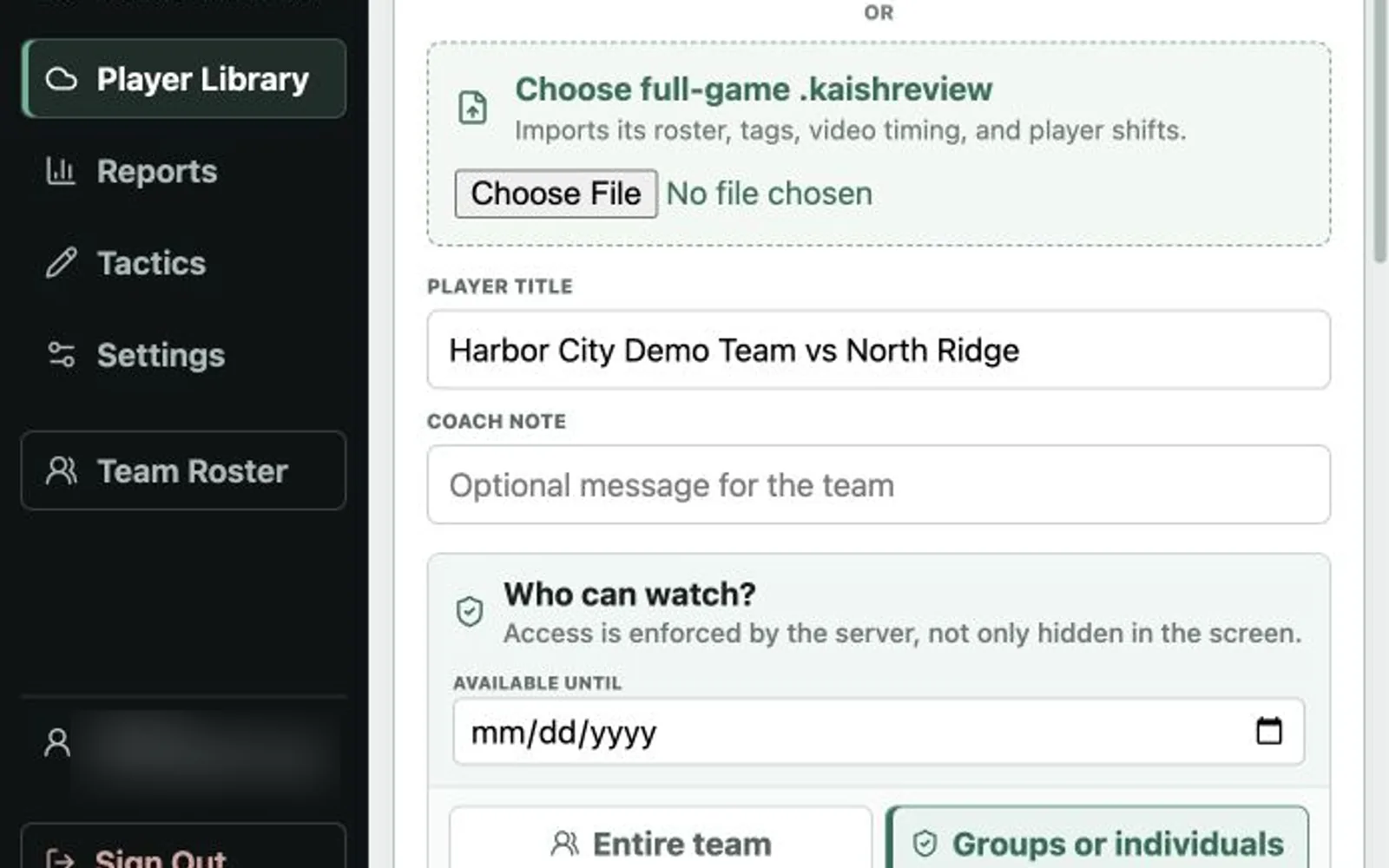
- Choose Entire team or Groups / individual players.
- Select every intended group and player account.
- Add an optional expiration date.
- Publish.
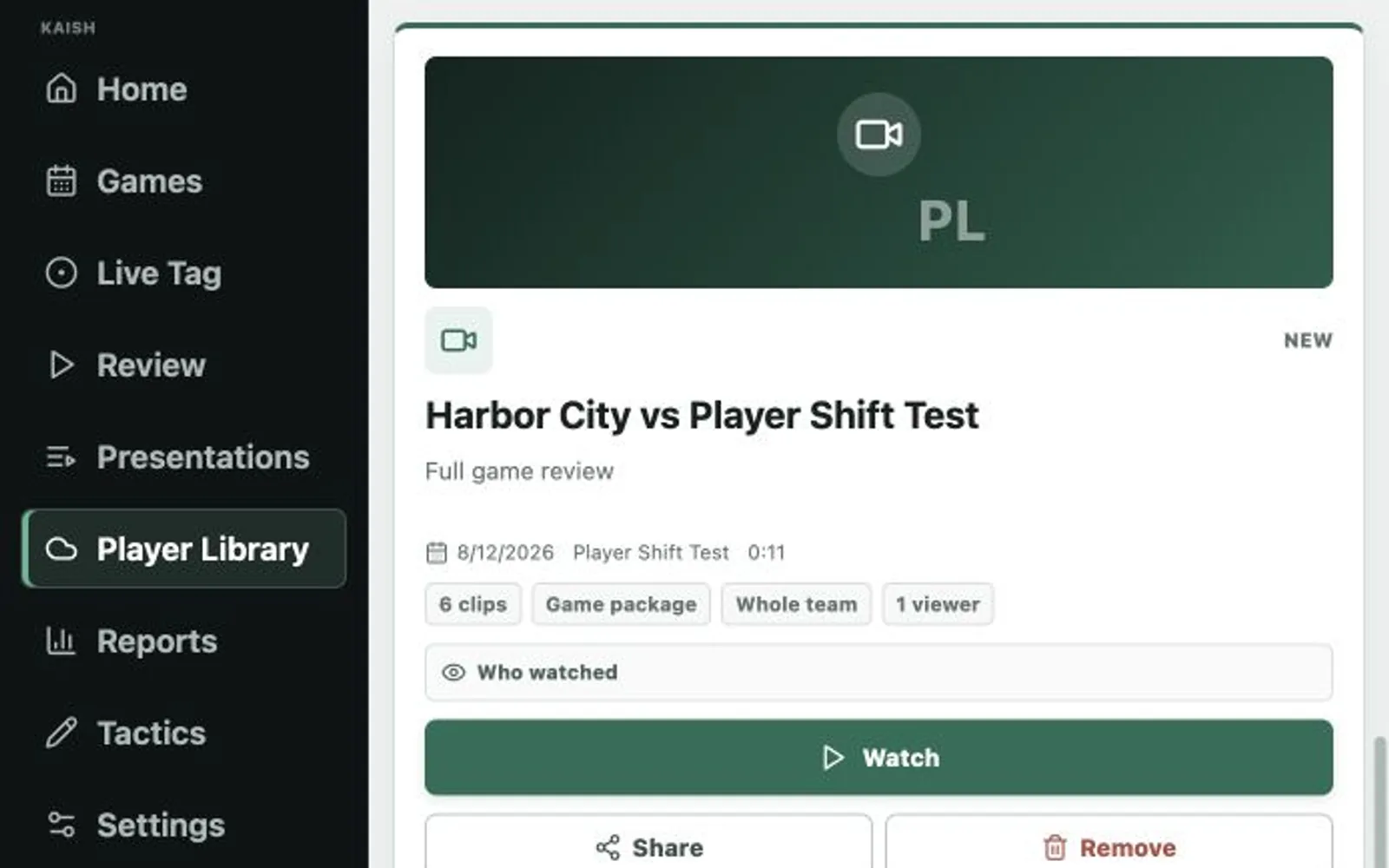
- Read the audience summary on the content card before considering the share complete.
Publish to the whole team from Kaish App
- For a game, attach the full-game video and open Review.
- For a saved presentation, confirm its source videos are still available.
- Choose Publish to Whole Team.
- Read the confirmation. It states that every enabled player account will receive the content.
- Continue only when that audience is correct.
- After publishing, use Kaish Web to change the audience, add expiration, or review progress.
The app uploads the Kaish package and available media to the connected Dropbox before publishing it to Player Library.
What players see
- The player accepts the invitation.
- The player signs in at web.kaish.app.
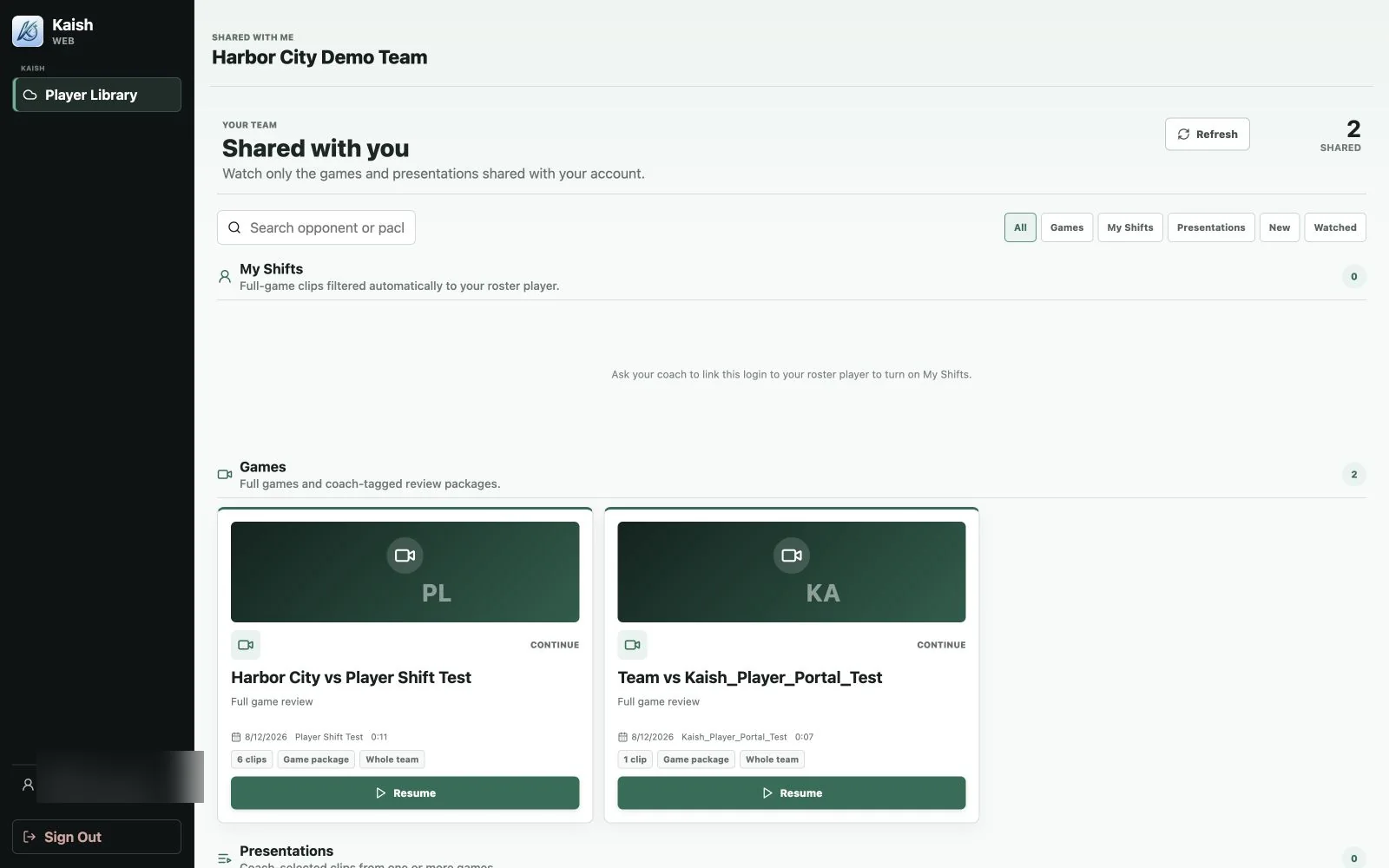
- The account opens Shared with you, not the staff coaching workspace.
- The player opens an assigned game or presentation.
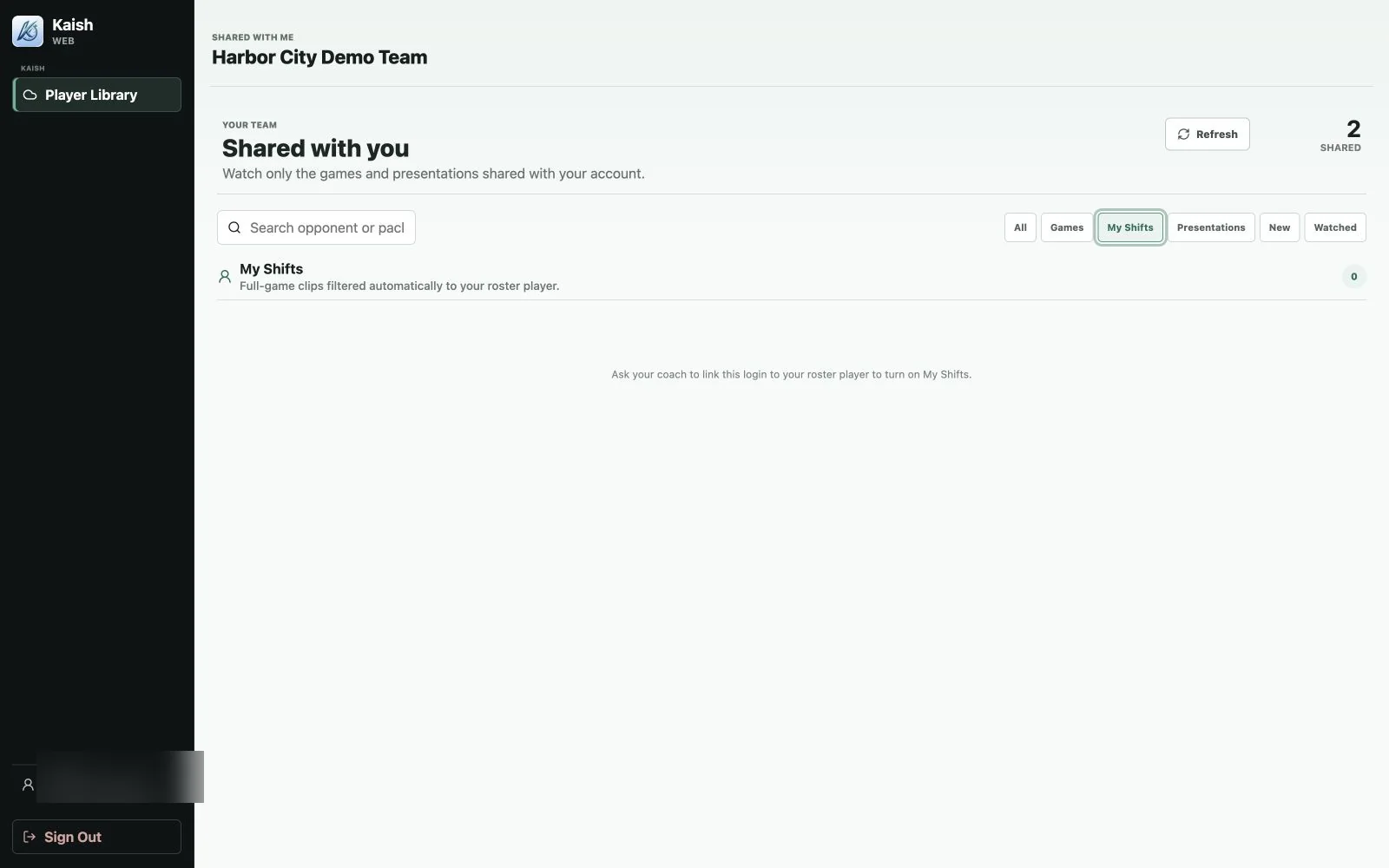
- When the account is linked to a roster player and shift data is included, the player can jump to their shifts.
Player accounts cannot open Kaish App. Expired content and content outside the assigned audience should not appear.
Access and viewing progress
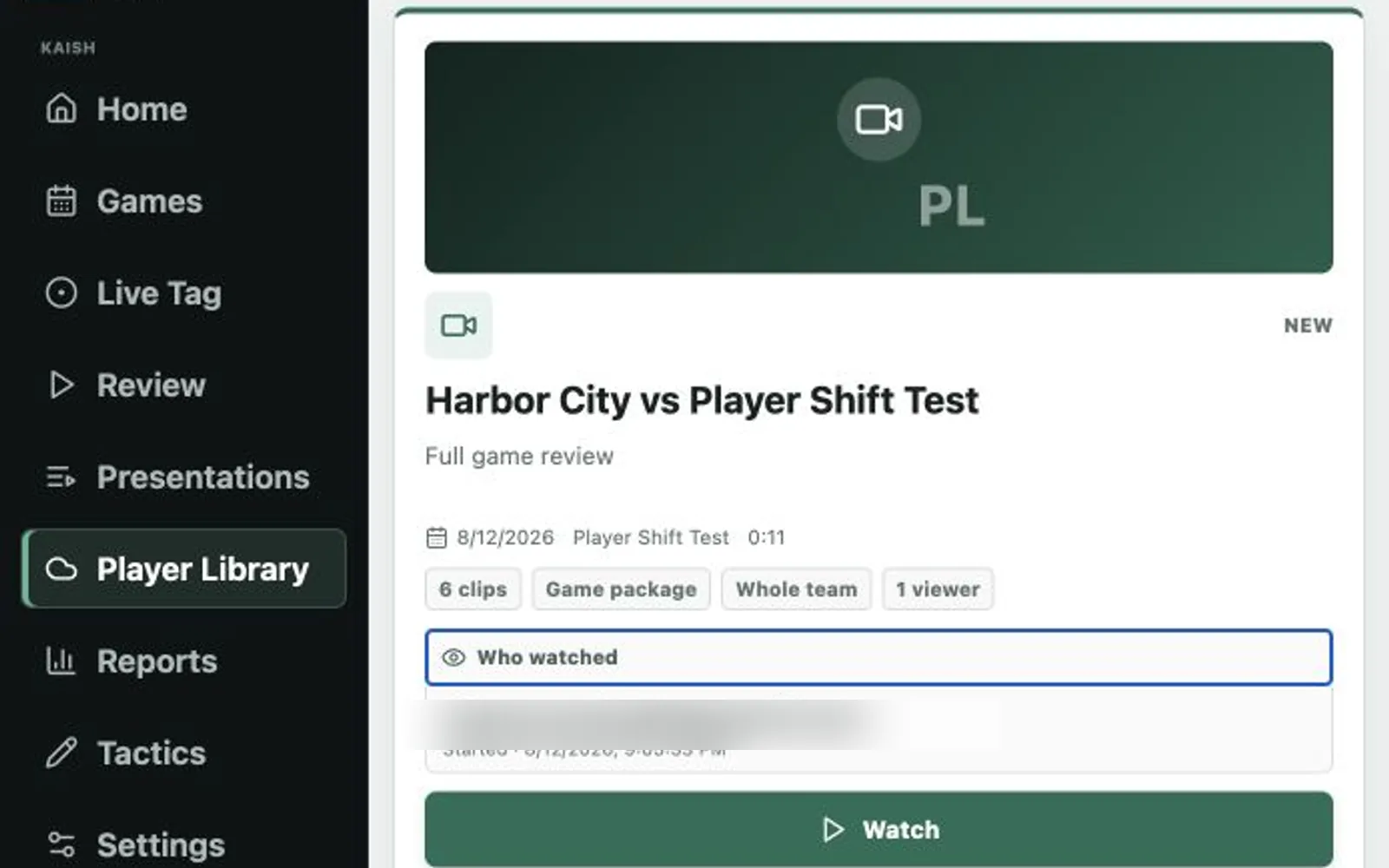
- Open the audience or viewing controls on a published item.
- Review the most recent view and completion state where available.
- Change the audience or expiration when delivery needs change.
- Disable a player account immediately when access should end.
Viewing progress confirms delivery activity; it does not prove that a player understood the coaching material.
Common fixes
The app says Dropbox is not connected
Sign in to Kaish Web as an owner or admin, open Player Library, and connect Dropbox for the active workspace.
A player sees no content
Confirm the player accepted the invitation, the account is enabled, the content has not expired, and the player or one of their groups is in the audience.
A player cannot jump to shifts
Link the player account to the matching roster player and confirm the published game contains player timing data.
The wrong audience received content
Open the content in Player Library immediately, change its audience or expiration, and disable access if necessary.