Kaish Web Manual
Open local or Dropbox-backed Kaish work, review video, build presentations, manage players, and protect the browser’s local data.
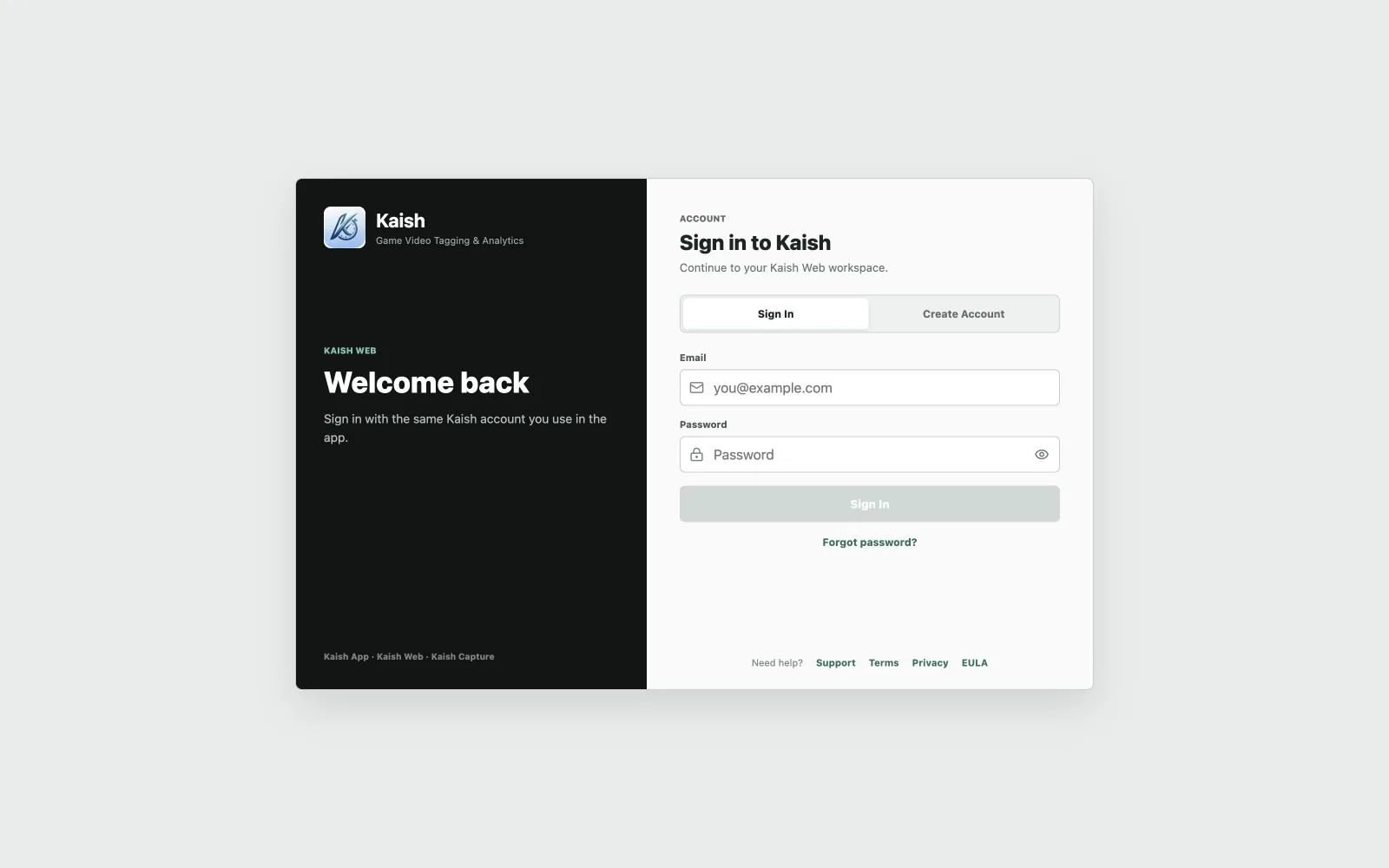
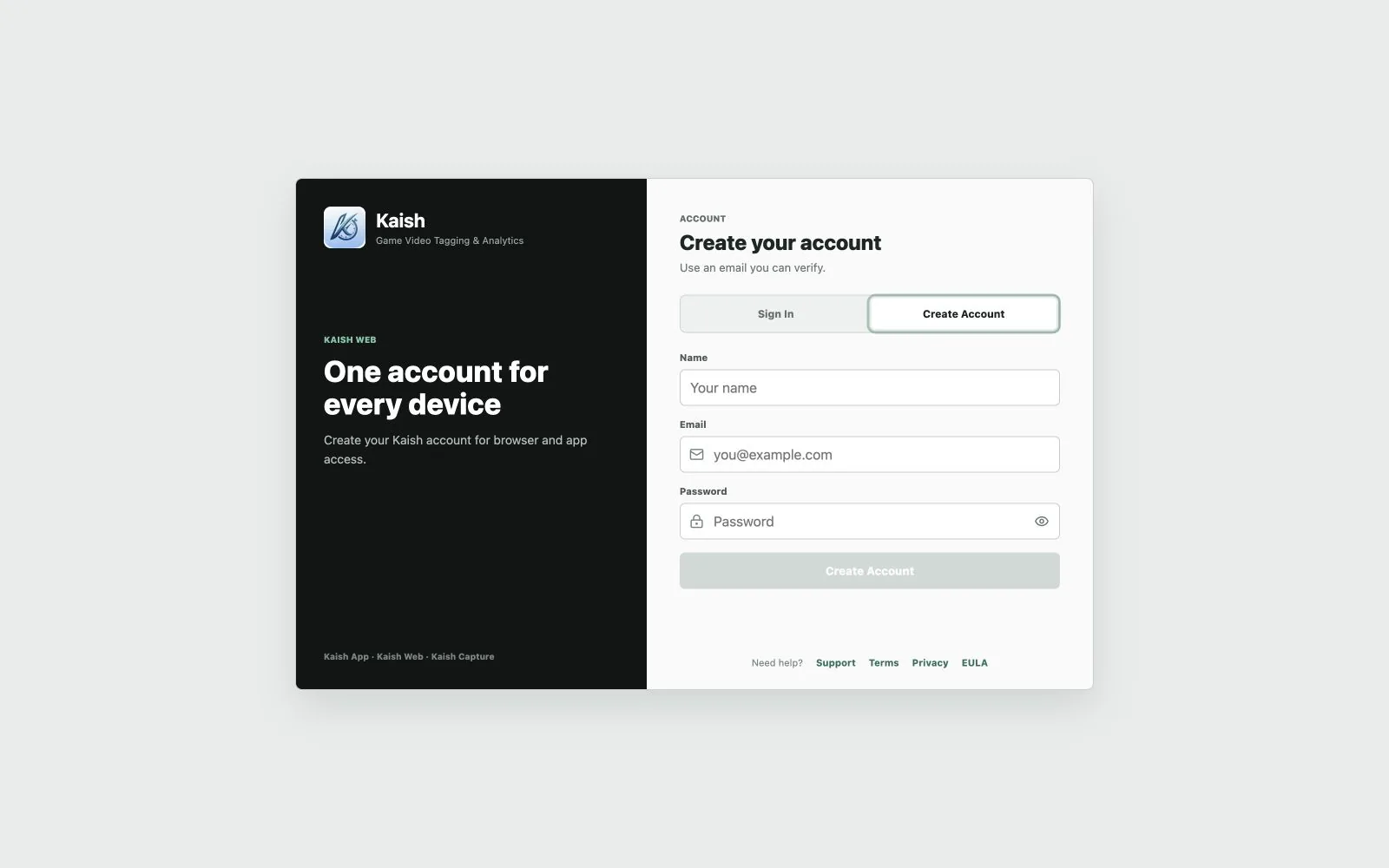
1. Sign in and choose the active workspace
- Open Kaish Web in a supported current browser.
- Sign in with the invited or purchasing email.
- Select the intended workspace at the top of the page.
- Confirm the role shown for that workspace before changing games, members, or shared content.
A browser session does not make one email a proven unified login across every Kaish product. Hockey remains intentionally separate, and product access follows the assigned entitlement.
2. Use Home to check readiness
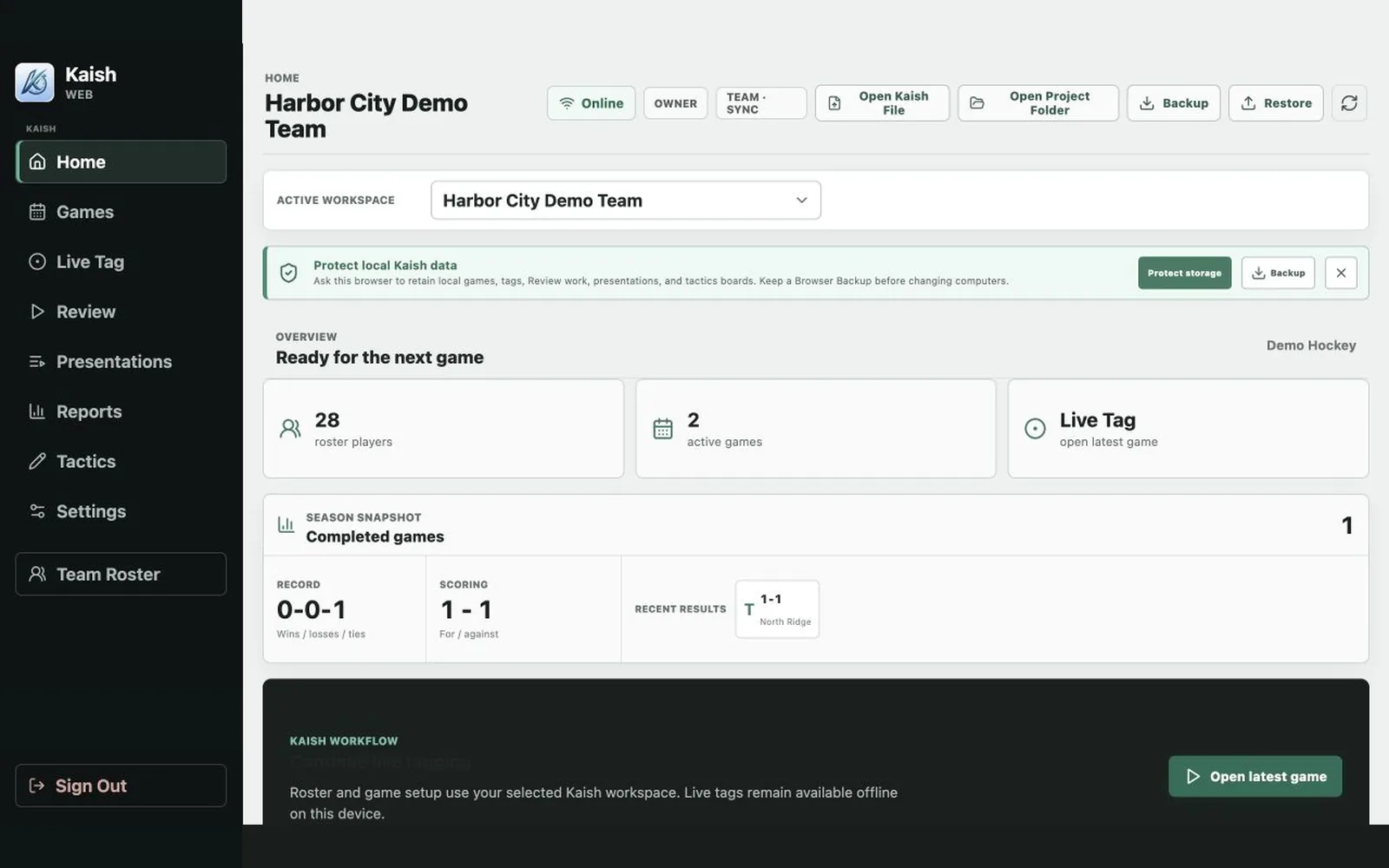
- Confirm the active workspace, device mode, connection state, and any queued work.
- Review recent games or saved work before creating duplicates.
- Resolve a visible sync issue before beginning another large import.
- Use Team Roster only when your role allows membership and roster changes.
3. Create and manage games
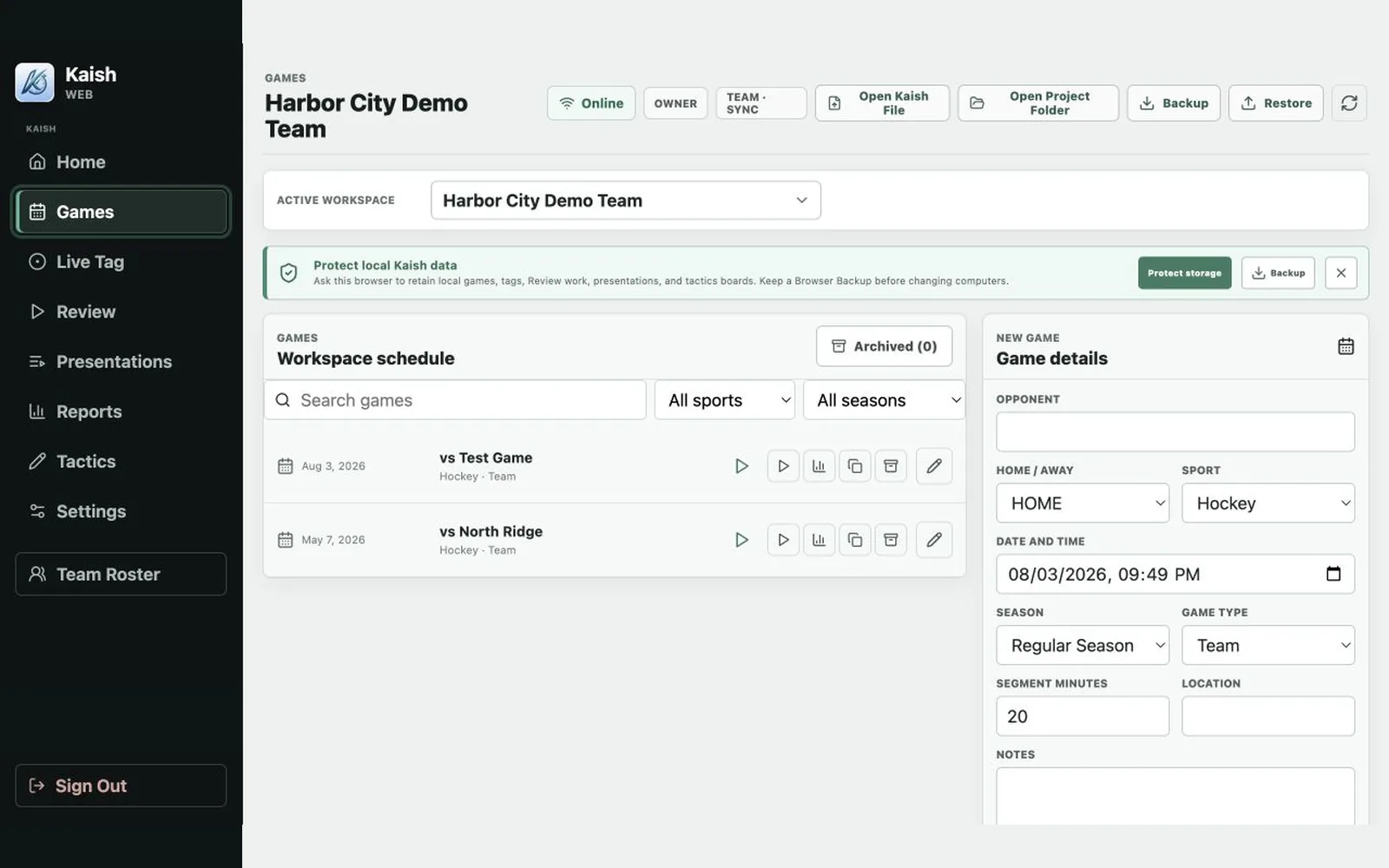
- Open Games and search before creating a new record.
- Confirm opponent, sport, date, game type, and team.
- Open the game and use the roster, live tag, review, report, or presentation path needed.
- Keep test games clearly named and separate from customer or season data.
4. Open a local Kaish package
- Open Review or Presentations.
- Drag the complete supported Kaish package onto the drop area, or choose Open File.
- Select the package document rather than an individual movie when you need tags, rows, sequence, or presentation structure.
- If the package references external media, choose the correct source file or parent folder when prompted.
- Verify at least one early and one late clip before editing.
Current portable .kaishcode and standalone presentation packages may include their required media. Older or reference-style documents can contain metadata and paths only, so the browser may ask you to relink video.
5. Open games and presentations from Dropbox
- Connect Dropbox to the active workspace from Settings.
- Return to Review or Presentations and open the Dropbox library.
- Select a complete Kaish game or presentation package.
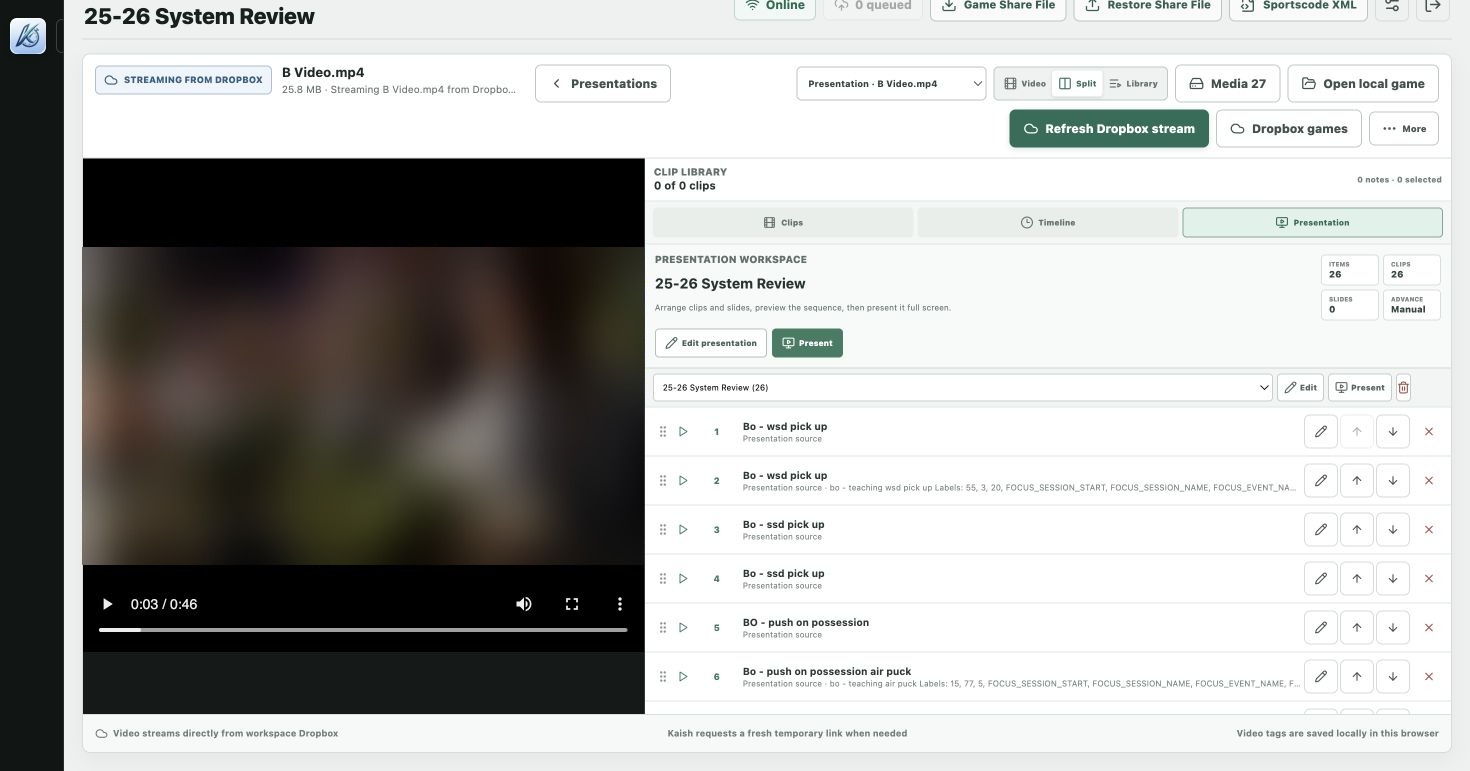
- Wait for its manifest, rows, sequence, and available media to load before pressing Play.
- Confirm the header says the intended package is streaming from Dropbox.
- Use local Open File or drag-and-drop when the package is on the computer.
Open the complete package so review rows, source selection, and available media remain in one workspace. A raw movie alone cannot recreate missing Kaish metadata.
6. Review a complete game
- Confirm the package name, media count, and source selection.
- Choose Video, Split, or Library view as needed.
- Filter the timeline or clip library instead of opening a raw segment by itself.
- Select a row or clip, then confirm the player loads the bounded source range.
- Use notes and drawings only after playback and timing are correct.
If the presentation or player jumps between times, stop playback, confirm the active item and source, then refresh the package once. Repeated jumping is a sync defect to report, not something to work around by changing clip timing.
7. Open and run presentations
- Open Presentations and choose a local or Dropbox-backed presentation package.
- Confirm the full item list appears before entering Present mode.
- Select an item and verify the corresponding clip range and source media.
- Use Edit Presentation to reorder or adjust supported details.
- Present the complete sequence and verify auto/manual advance behavior before the meeting.
Open the package document, not a loose video segment. A standalone package is intended to carry required clip media; a reference presentation may still need its original sources.
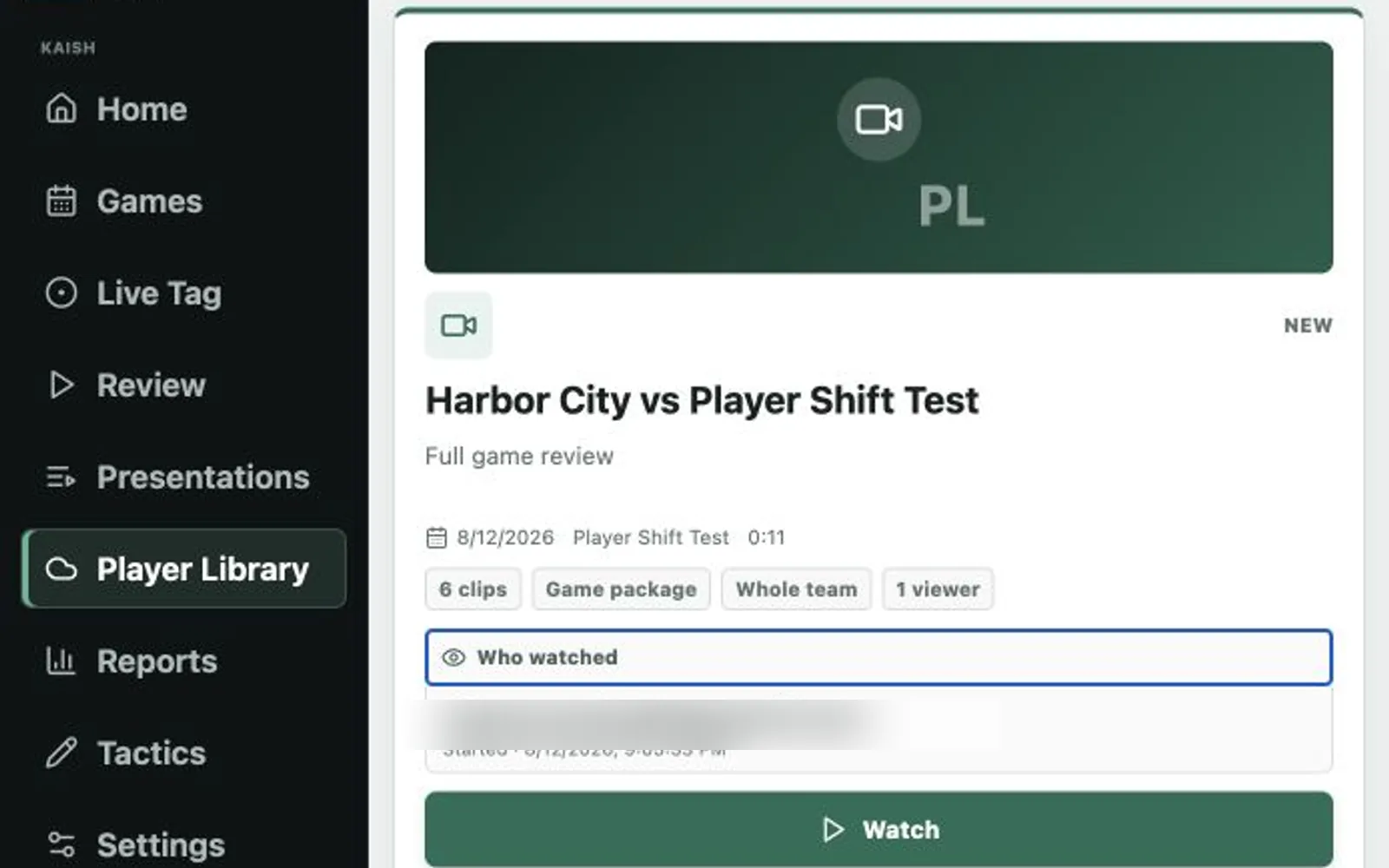
8. Manage the Player Library
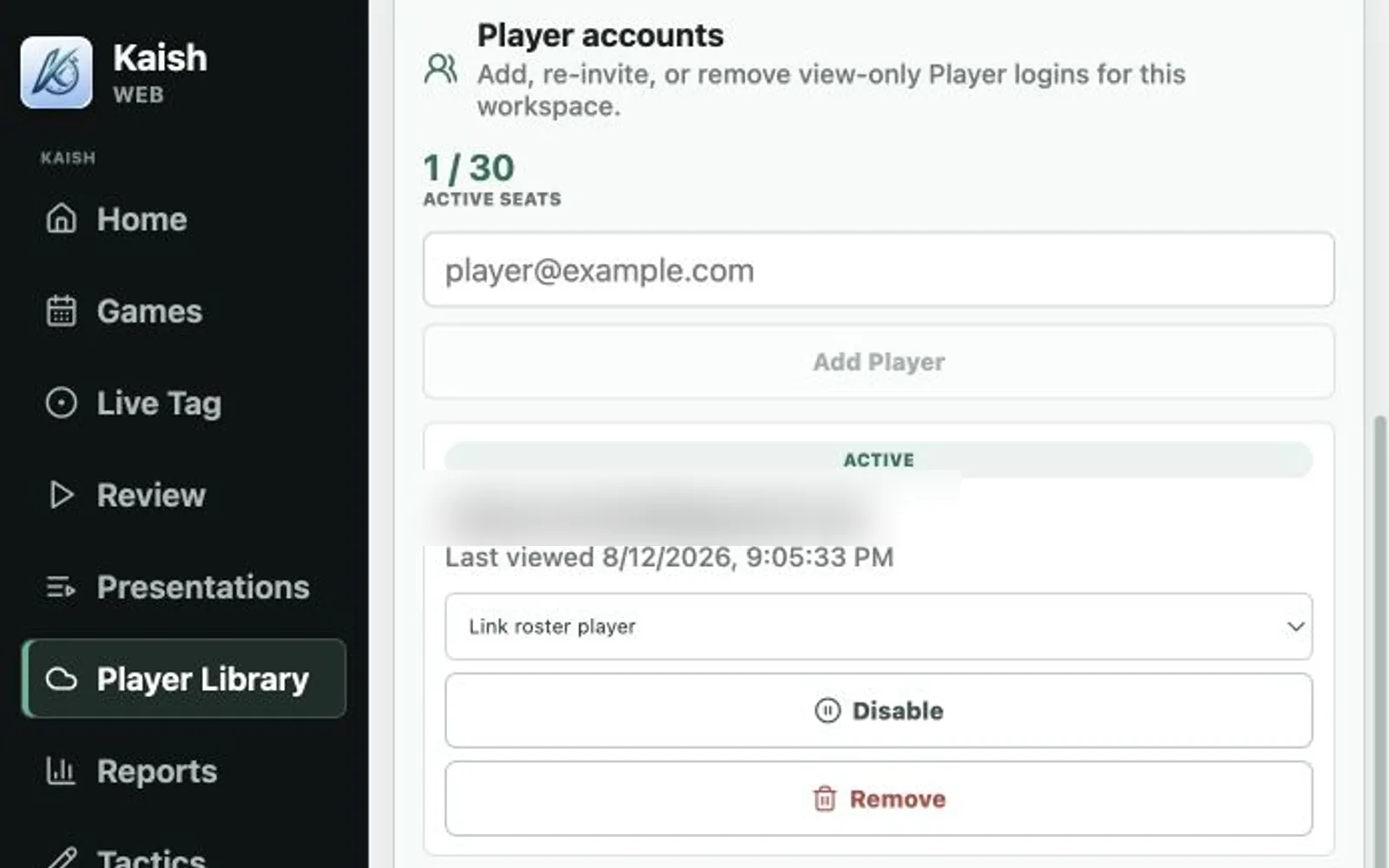
- Invite or enable the intended Player accounts.
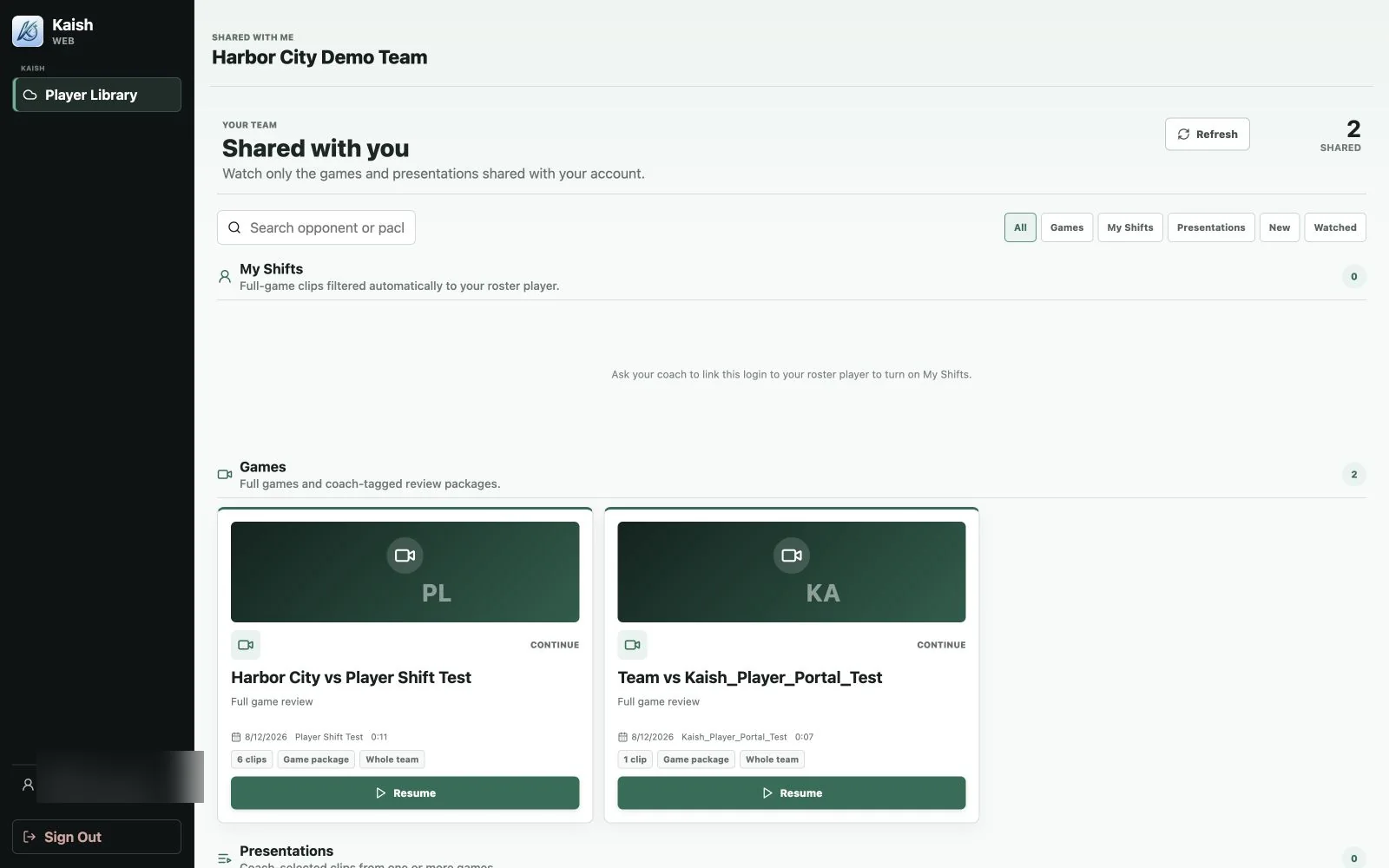
- Link accounts to roster players when My Shifts should be available.
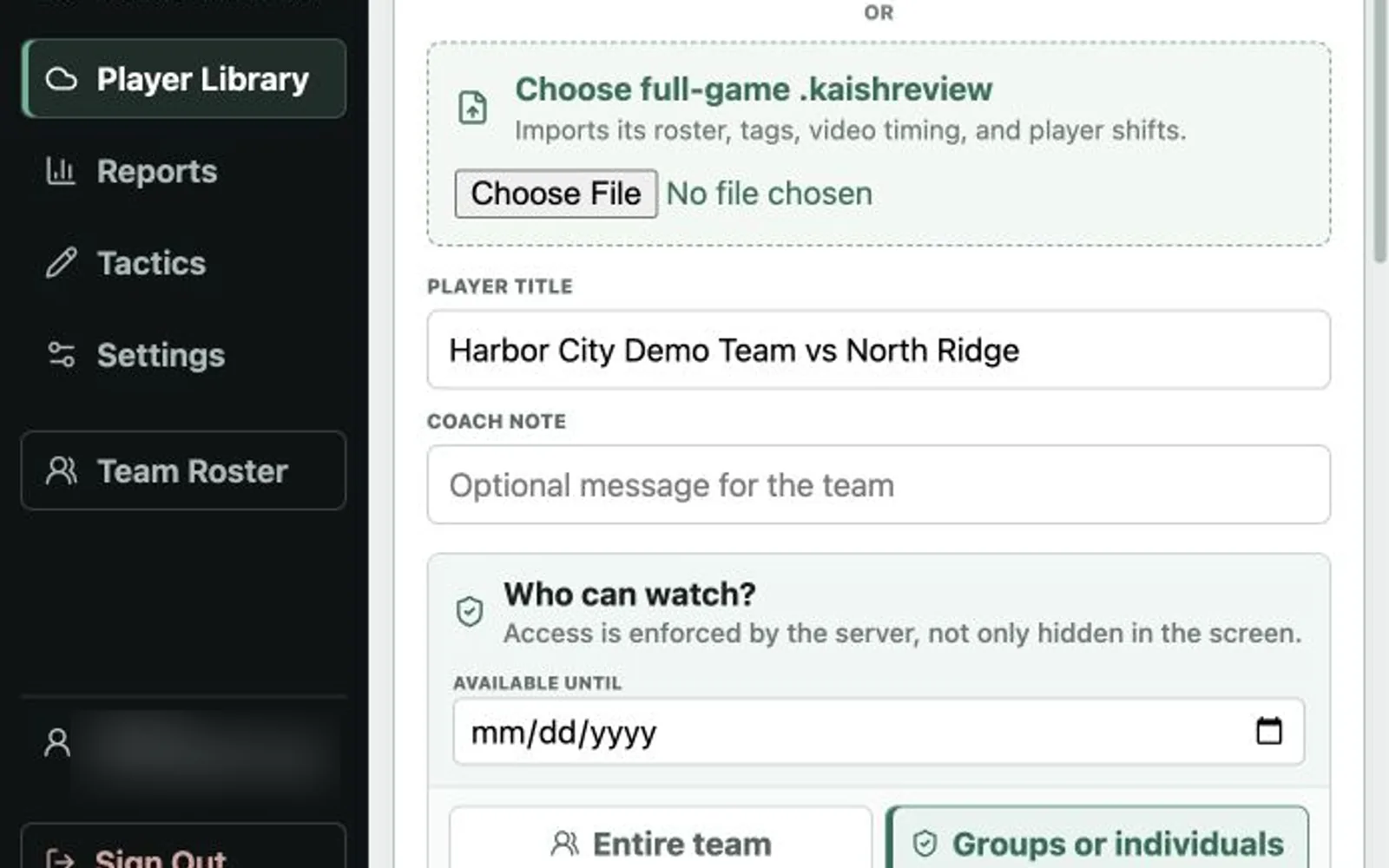
- Choose the entire team, reusable groups, or individual players.
- Set an optional expiration and read the final audience summary.
- Publish, then review delivery and viewing progress.
- Disable stale accounts when access should end.

9. Use reports and tactics
- Reports depend on the selected game, roster, player context, and clean tag data.
- Spot-check known events and players before downloading or sharing an output.
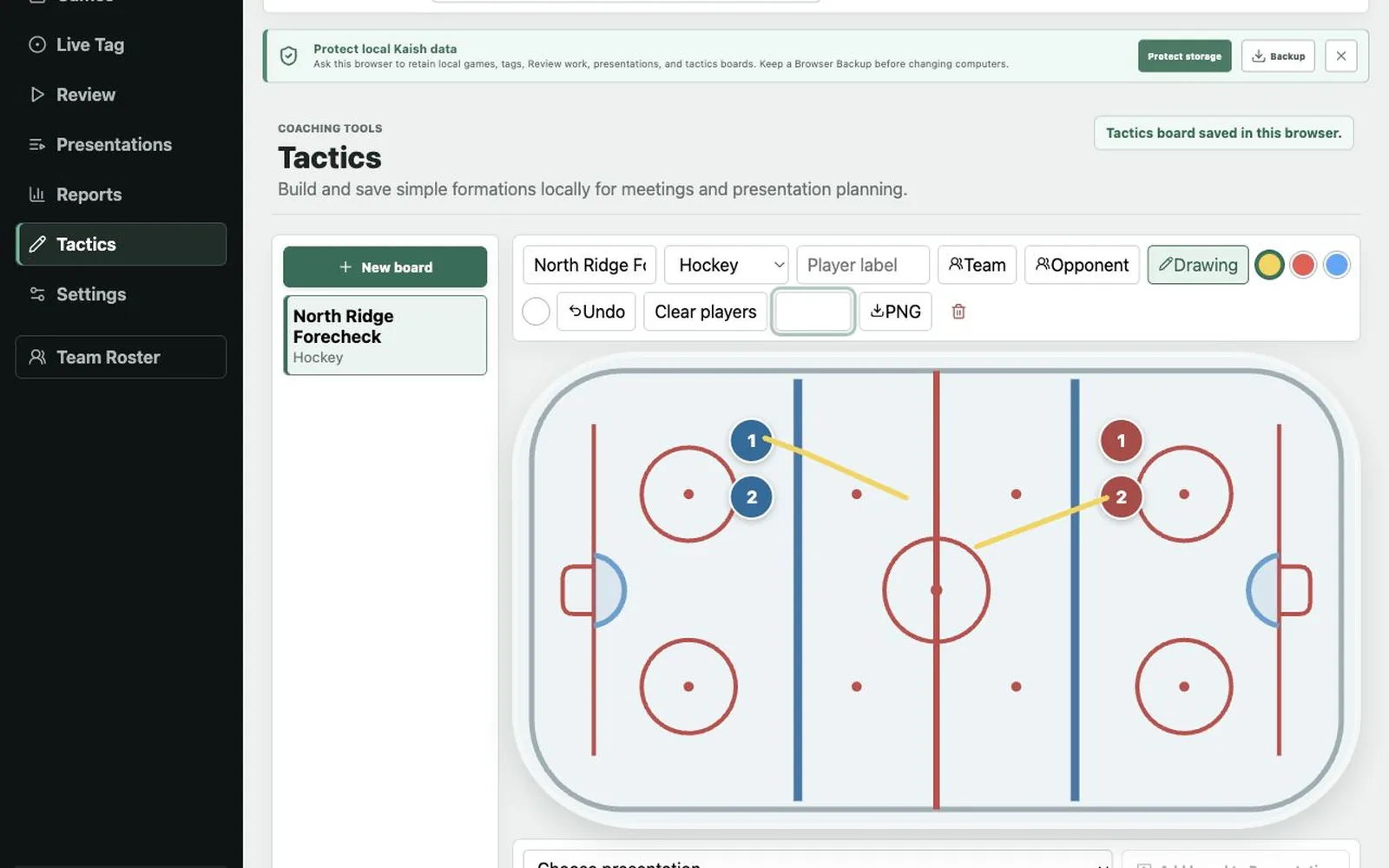
- Tactics boards are coaching assets; verify the selected team and presentation before reuse.
- Do not infer missing stats from an empty report—correct the underlying game data first.
10. Protect browser-local data
- Use Protect storage when the browser offers persistent storage.
- Create a Browser Backup before clearing site data, changing browsers, or moving computers.
- Keep original Kaish packages and source video outside browser storage.
- Do not treat a browser cache, Dropbox connection, or sync badge as the only backup.
Browser data can be removed by privacy tools, operating-system cleanup, profile deletion, or manual site-data clearing.
11. Resolve sync and connection states safely
- Stop editing while a sync issue is visible.
- Confirm internet connection, active workspace, device role, and Dropbox connection.
- Save or export a recovery copy before restoring or replacing local state.
- Refresh once, reopen the exact package, and verify the item count and media.
- Contact support before deleting conflicting work.
12. Troubleshoot the failing boundary
Package will not open
Choose the package document rather than a loose movie, then verify required media exists.
Dropbox library empty
Confirm the active workspace, provider connection, folder authorization, and package upload.
Playback jumps
Stop, verify active item and source, refresh once, and preserve details if it repeats.
Sync issue shown
Pause edits, protect local data, confirm role/device state, and avoid deleting either copy.
Player cannot see content
Check enabled account, roster link, audience, availability, expiration, and publication state.
Browser data missing
Restore from a known Browser Backup or source package; do not overwrite the only remaining copy.
13. Know the browser limits
- Browser storage is not a substitute for source packages and backups.
- Cloud connection does not prove a package contains all required media.
- Dropbox authorization can expire, and the browser may ask you to reconnect a package or source media.
- One signed-in identity does not automatically receive every workspace or product.
- Large packages and network playback depend on browser, bandwidth, provider authorization, and media format.
Browser readiness checklist
- Correct account, workspace, and role shown.
- Local package opens through both drag-and-drop and Open File.
- Dropbox library lists complete game and presentation packages.
- Rows, presentation sequence, and source media load together.
- Early and late clips play without jumping.
- Player Library audience summary matches the intended recipients.
- Browser Backup has been created before cleanup or migration.