Kaish Quick Start
Use this path to prove the connected workflow with a short test before a real game.
Current releases: Download Kaish App from the App Store and use the current public Kaish Capture or Kaish Analyst installer from kaish.app.
1. Choose the product
- Kaish Capture: simple Mac recording and live markers.
- Kaish Analyst: advanced Mac coding, multiple timelines, presentations, reports, and exports.
- Kaish App: iPad coaching, live tags, review, presentations, and eligible Elite or Team Bench DVR.
- Kaish Web: browser review, presentations, Dropbox libraries, and Player Library sharing.
- Kaish Scout: player evaluations, reports, watchlists, and permitted team/organization work.
- Kaish Hockey: separately assigned Hockey organization, team, season, trial, and historical-data scope.
- Team/Admin: identity, workspace, member, role, entitlement, and billing-boundary setup.
2. Verify the account first
- Sign in with the assigned email through the product’s own sign-in path.
- Choose the correct workspace.
- Confirm that the intended product, role, and protected tools unlock.
- Verify Scout separately from Main Kaish, and verify Hockey in its separate account/data scope.
- Do not begin a game while the app says access is missing or expired.
The same email or Team/Elite plan name does not prove every product entitlement was delivered.
3. Run a 60-second Capture test
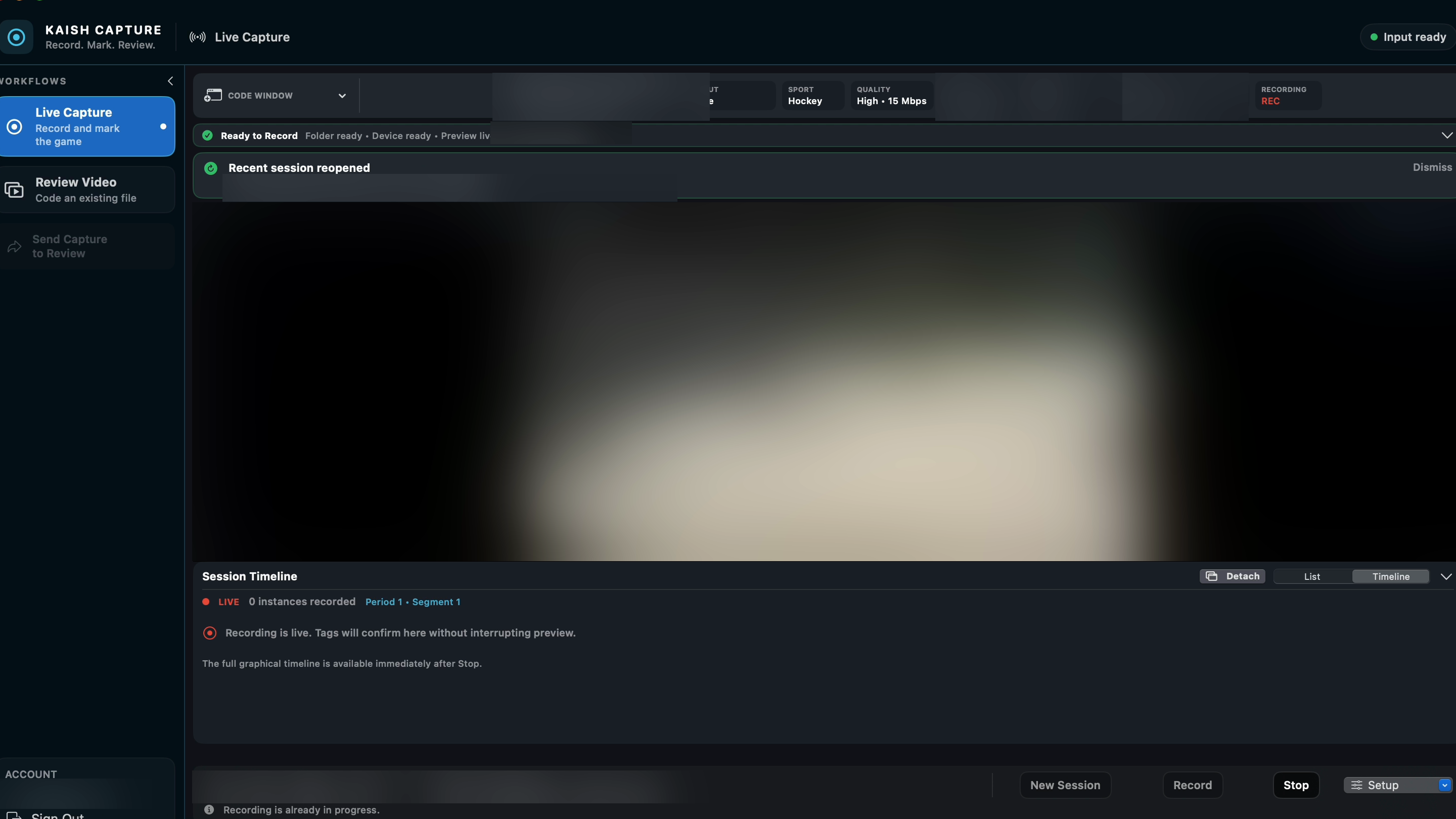
- Connect Blackmagic or choose FaceTime, a compatible USB camera, or OBS Virtual Camera.
- Create a new session and choose a destination with enough free space.
- Confirm picture and audio, then record for one minute.
- Hit several tags with the same lead and lag you plan to use.
- Confirm preview stays continuous, then Stop and wait for finalization.
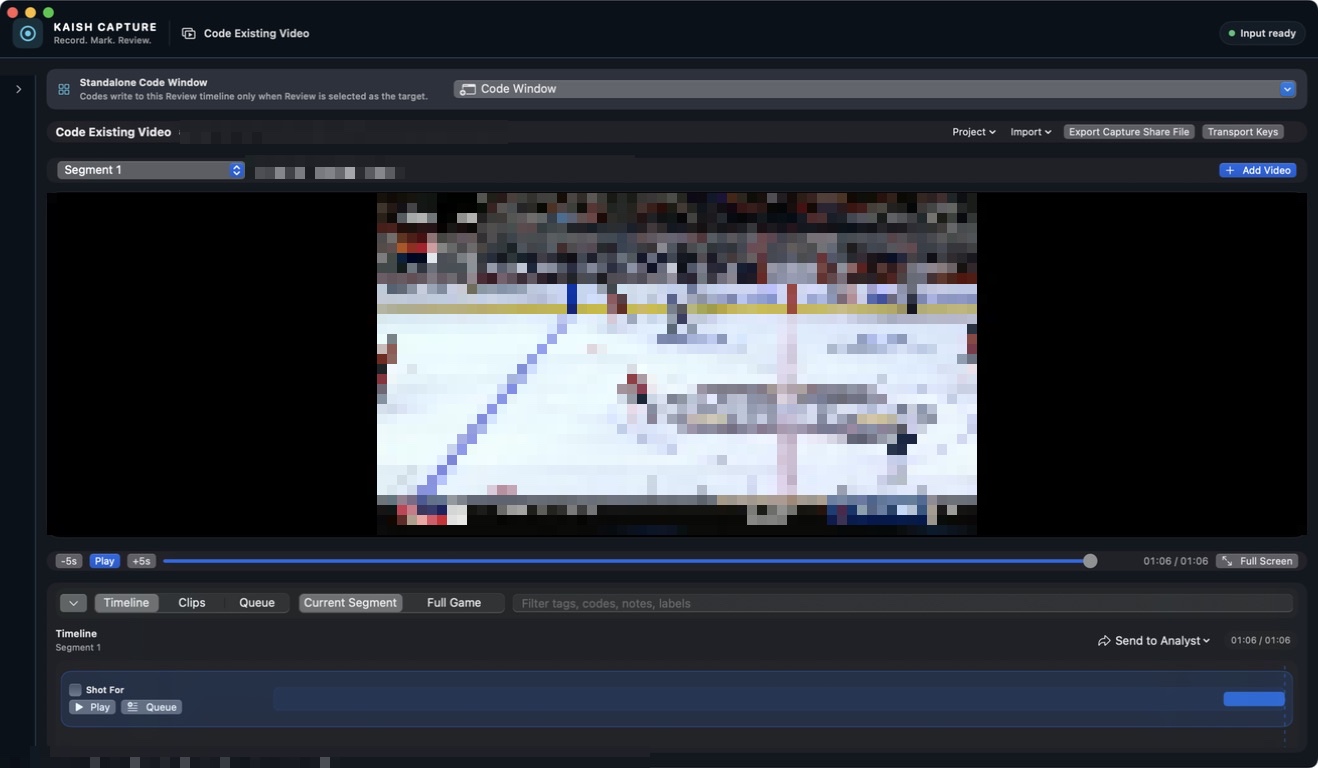
- Open the resulting
.kaishcodeand play at least one clip.
Bench DVR requires the Blackmagic capture path. Generic camera and OBS sources can record but do not provide the protected DVR stream.
4. Test Bench DVR when needed
- Enable DVR before starting the Blackmagic recording.
- Wait for the first finalized DVR media.
- Open DVR Review on the Mac and scrub or replay a tag.
- On an iPad with Kaish App, open Bench DVR, choose the Mac on the same Wi-Fi, and enter the current six-digit code.
- Replay a tag, use Back 15s, and Return to Live.
- If the Mac DVR server restarts, use the new six-digit code to pair again.
5. Review and build one presentation
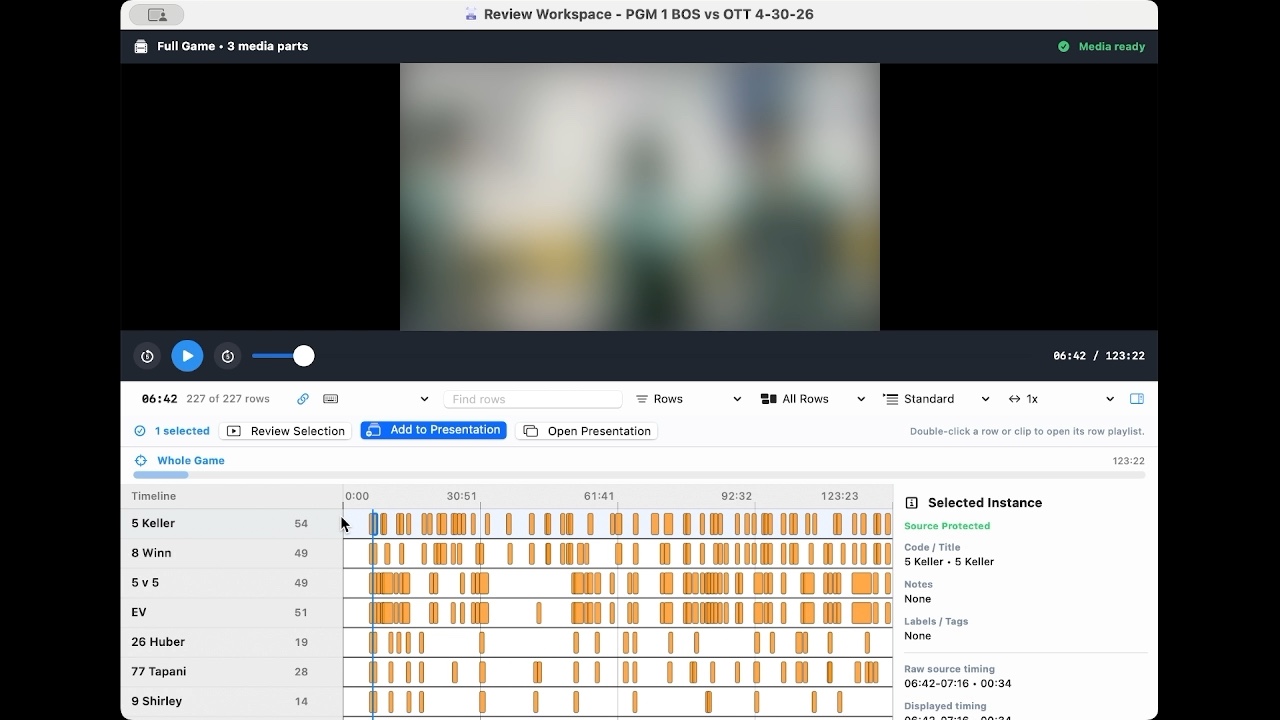
- Open the
.kaishcodein Analyst or use Review in Kaish App/Web. - Play a row or selected clip.
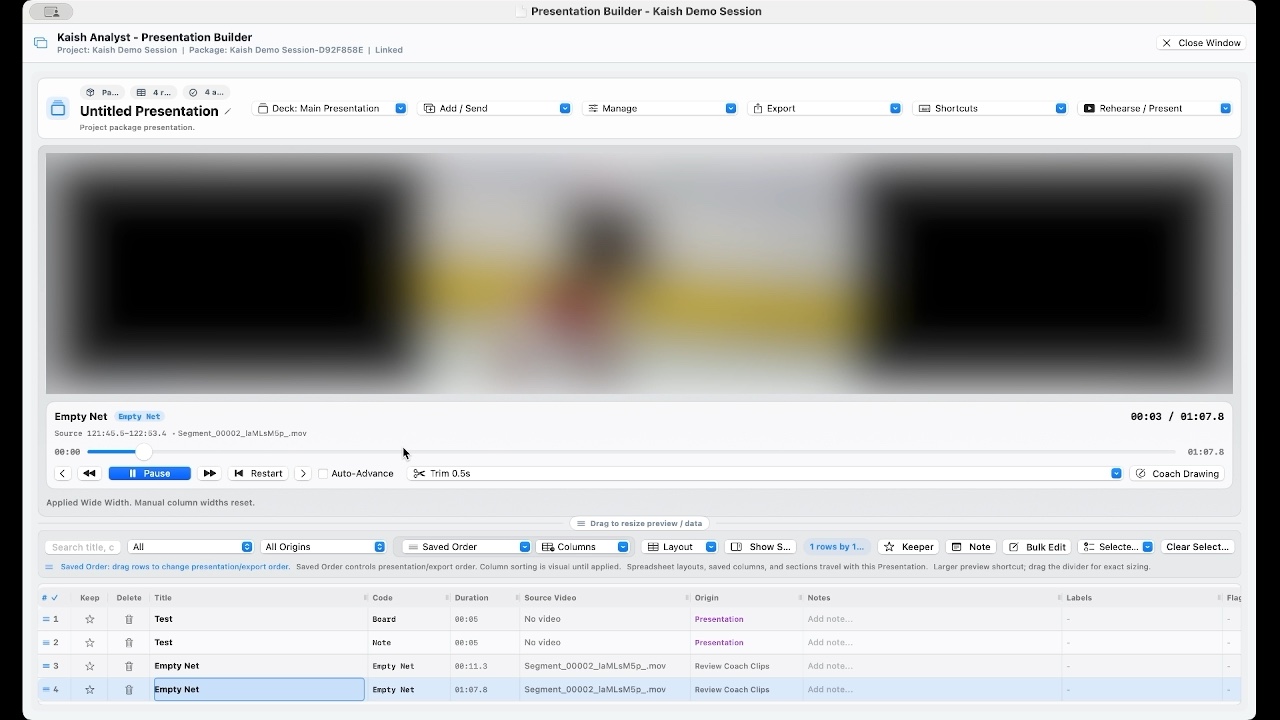
- Open or focus the intended presentation.
- Add one or more clips and confirm only the chosen clip ranges appear.
- For a portable handoff, save a Standalone
.kaishdeckpack, move a copy to another folder, and verify that only the selected clip ranges were packaged. - Export one or two items first and open the result in the exact receiving application before a full job.
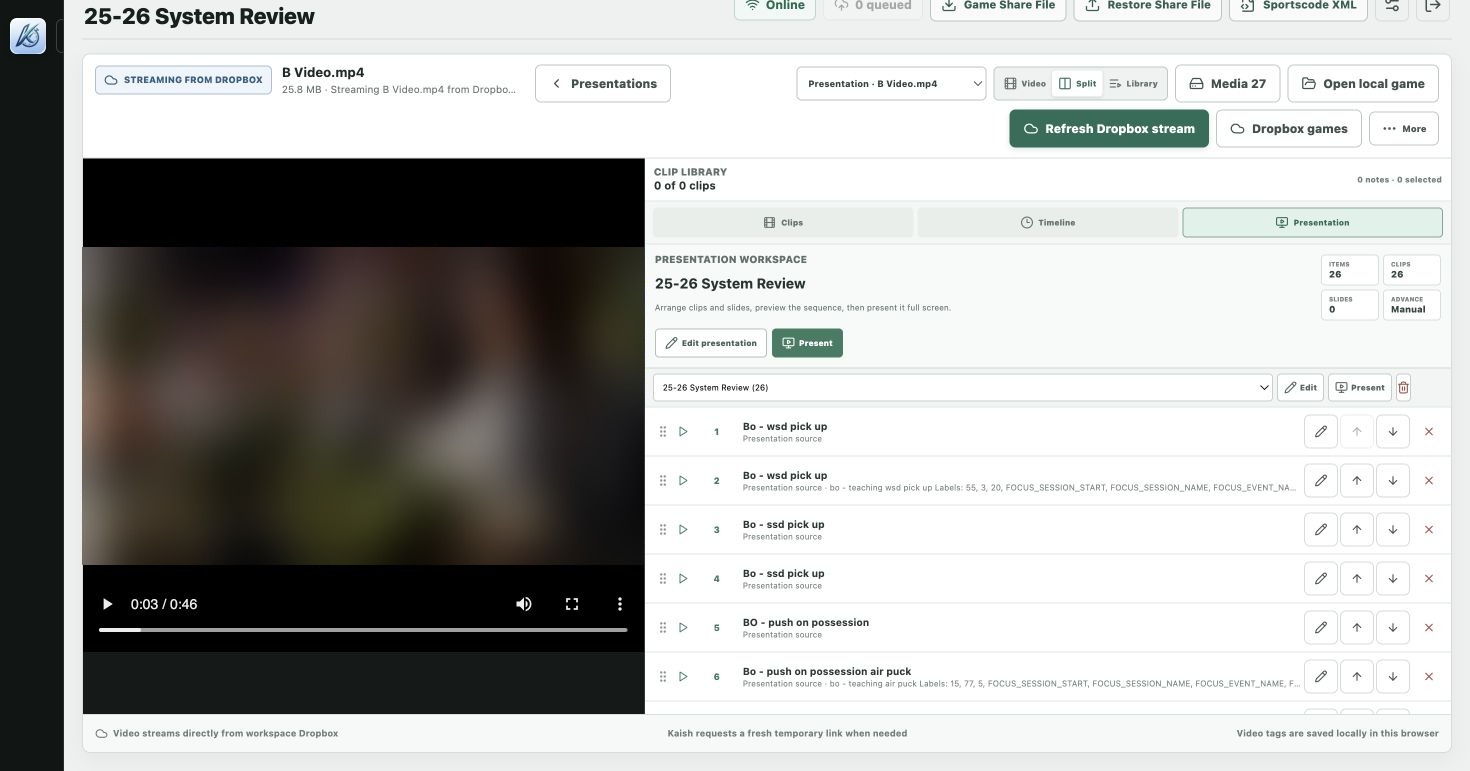
6. Use Dropbox or local files in Web
- Keep using drag-and-drop or Open File for a package on the computer.
- For cloud work, connect Dropbox to the active workspace.
- Open the Dropbox game or presentation library.
- Select the complete Kaish package so tags, rows, sequence, and available authorized media load together.
- Reopen the same package to confirm its authorized Dropbox stream is still available.
If a Dropbox stream does not resume, refresh the Dropbox stream or reopen the item. The local Open File and drag-and-drop path remains available.
7. Share to the correct audience
- Invite and enable the intended Player accounts.
- Choose the whole team, selected groups, or individual players.
- Add an expiration when appropriate.
- Read the final audience summary before publishing.
If any enabled player should not receive the content, use Kaish Web and select the audience explicitly.
Before a real game
Hardware
Picture, audio, frame rate, cable, power, and fallback source tested.
Storage
Destination selected, free space confirmed, and external drive awake.
Workflow
Tags, preview continuity, Stop/finalize, playback, and presentation tested.
Network
Mac and iPad on the same LAN, Local Network allowed, DVR paired.
Need help?
Send the product, version/build, device, operating-system version, video source and format, storage location, exact error, and the last action that worked.