Kaish App Manual
Run the coaching workflow from game setup and live tagging through video review, presentations, reports, sharing, and Bench DVR.
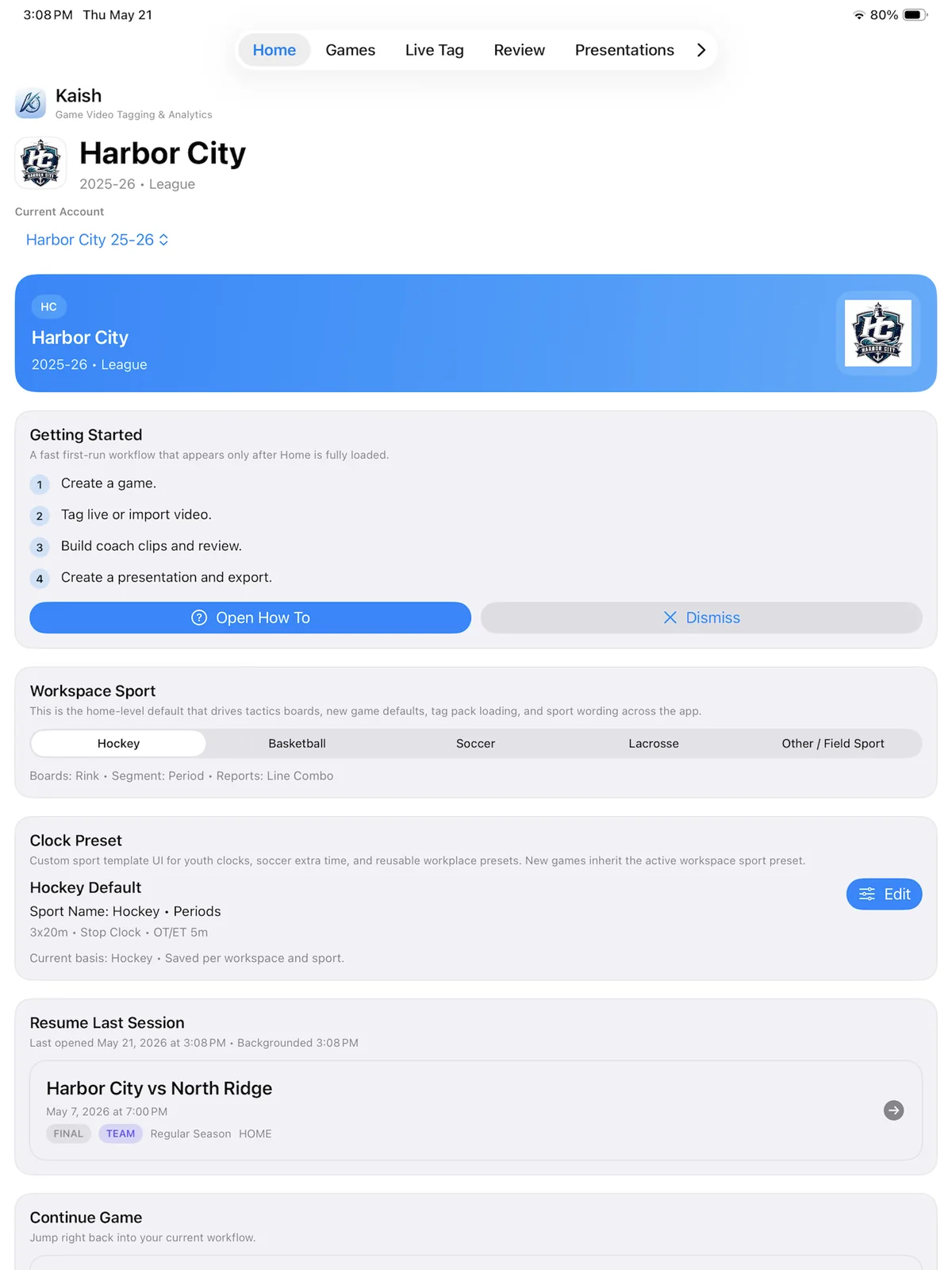
1. Sign in and choose the workspace
- Open Kaish App and sign in with the email that was invited or purchased.
- Complete verification or password recovery if asked.
- Choose the intended Team Space when more than one is available.
- Open Settings and confirm the account, sport, team, and access status before creating a real game.
Do not share logins. Workspace membership, product access, saved games, and Player Library delivery belong to the signed-in identity.
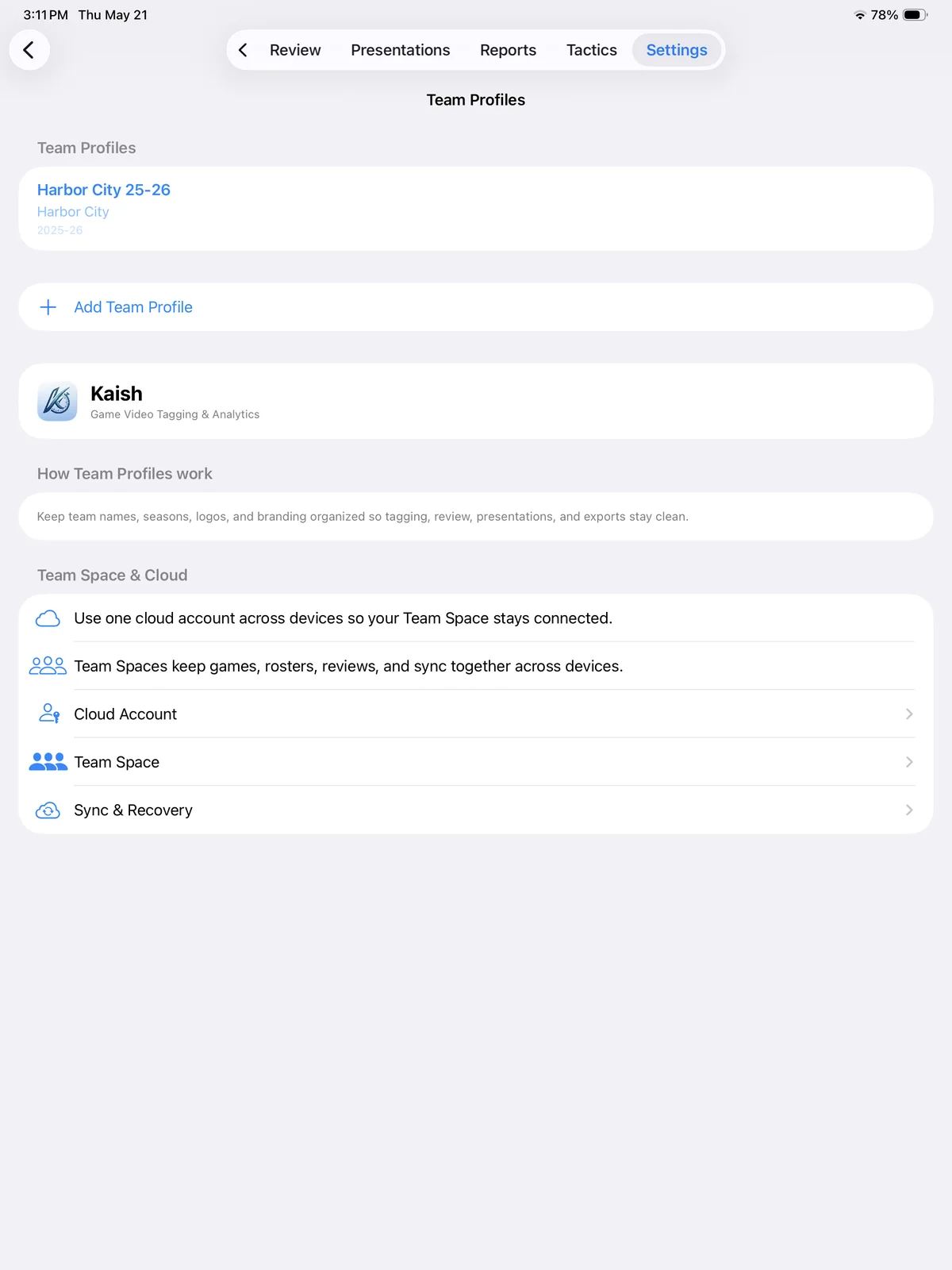
2. Create and prepare a game
- Open Games and choose New Game.
- Enter the opponent and confirm sport, date, time, home/away, season, game type, location, and segment structure where offered.
- Save, reopen the game, and correct any setup detail before tagging.
- For a Capture import, use the correct receiving game and segment; do not import into a similarly named test game.
Use periods for hockey, quarters for basketball or lacrosse, halves for soccer, or the flexible segment structure intended for the selected sport.
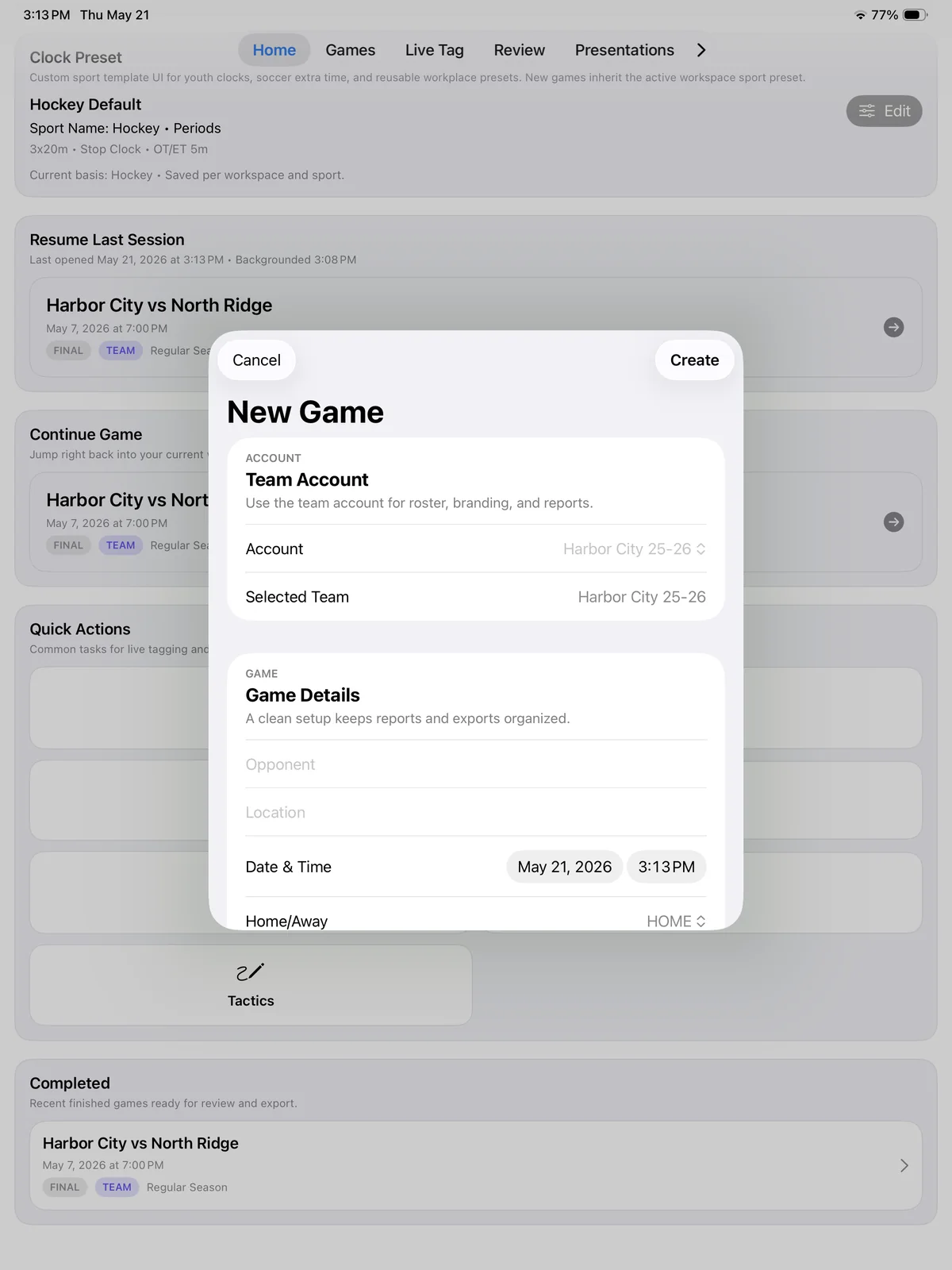
3. Build the roster and lineup
- Add or import roster players with names, numbers, and positions.
- Create the lines, pairs, units, groups, or formation needed by the sport.
- Choose the active lineup for this game.
- During the game, keep active-player and unit state current when player-time reports depend on it.
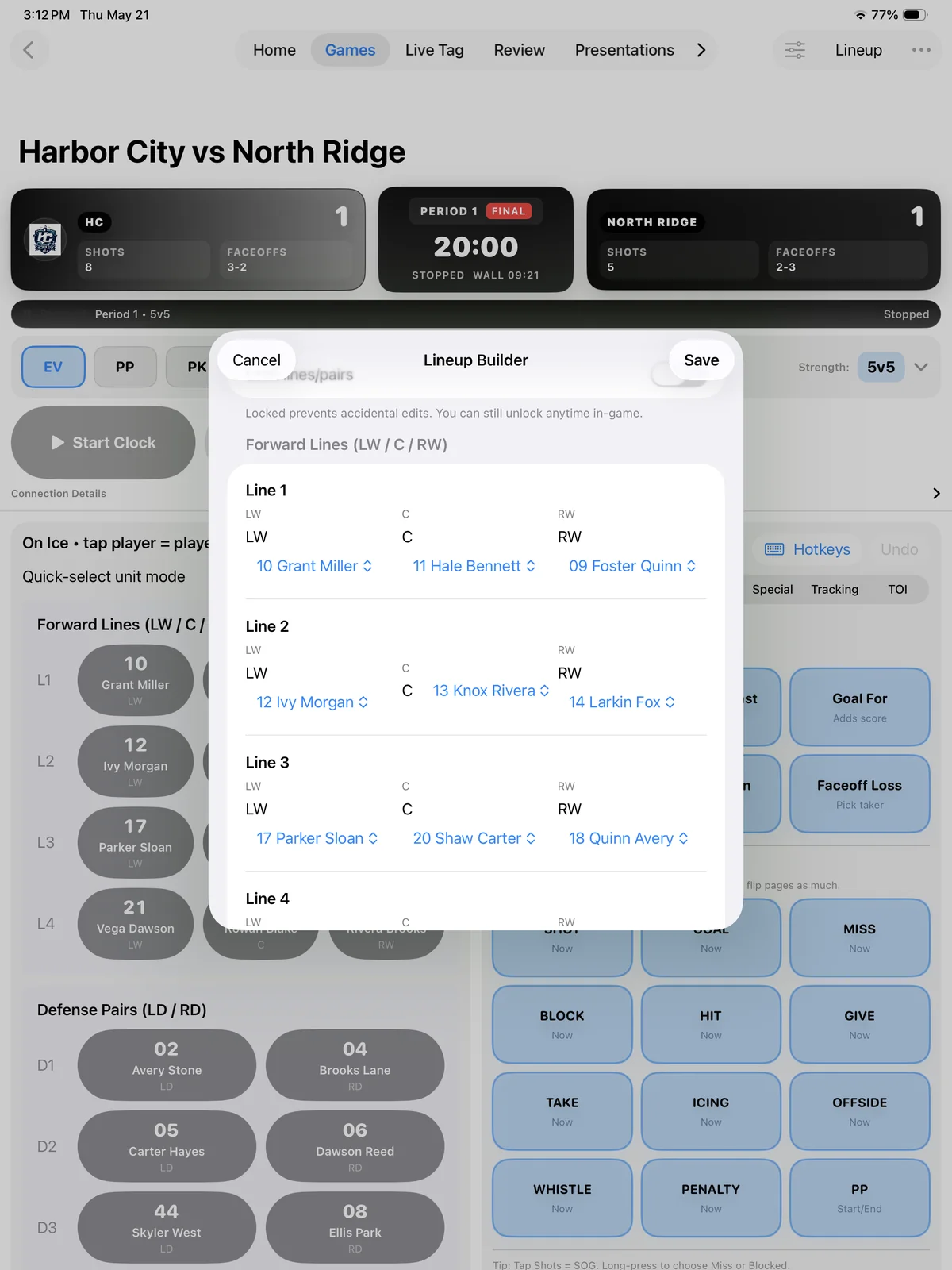
4. Live tag the game
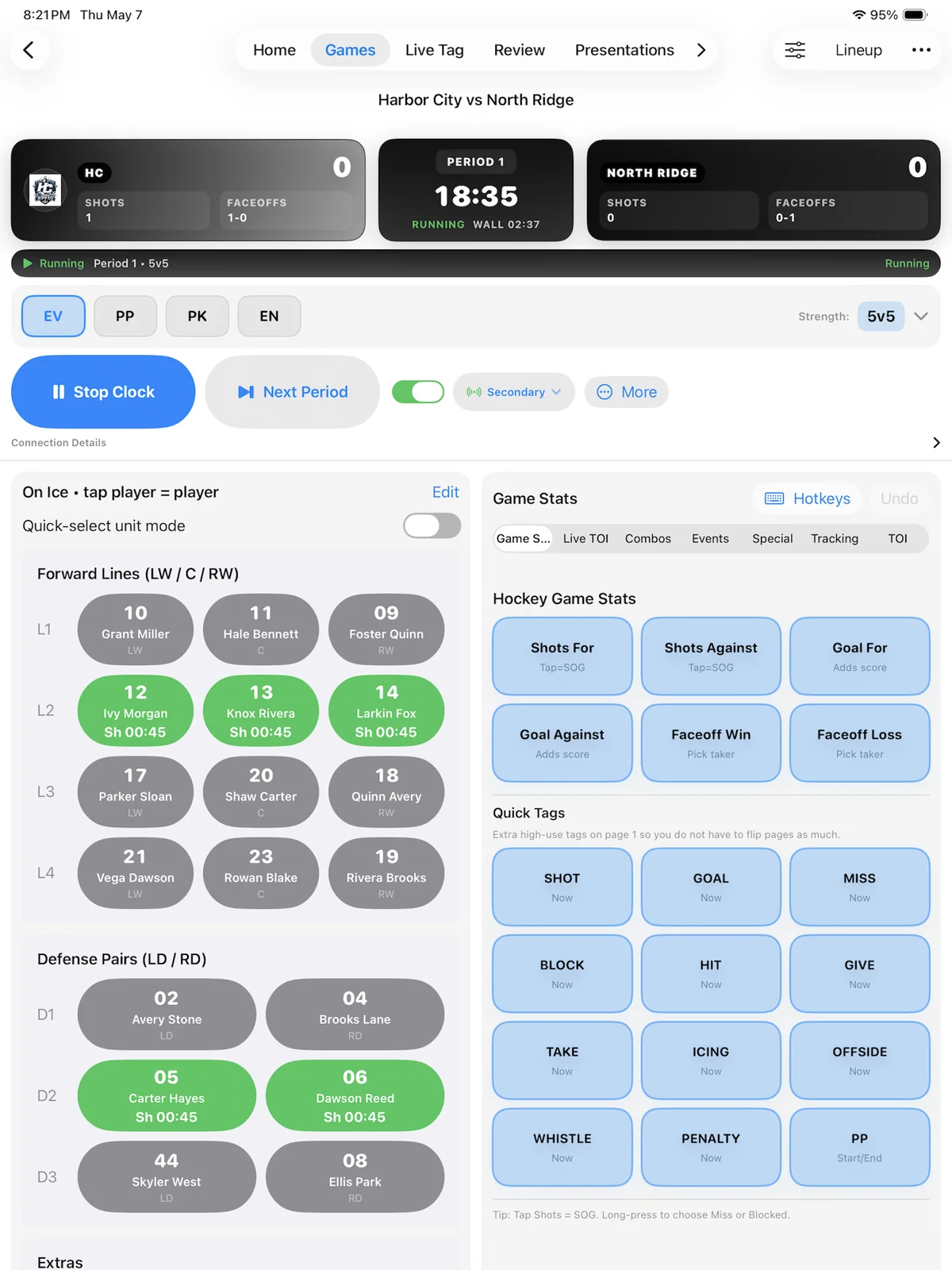
- Open the intended game and segment, then open Live Tag.
- Confirm the game clock and segment before starting.
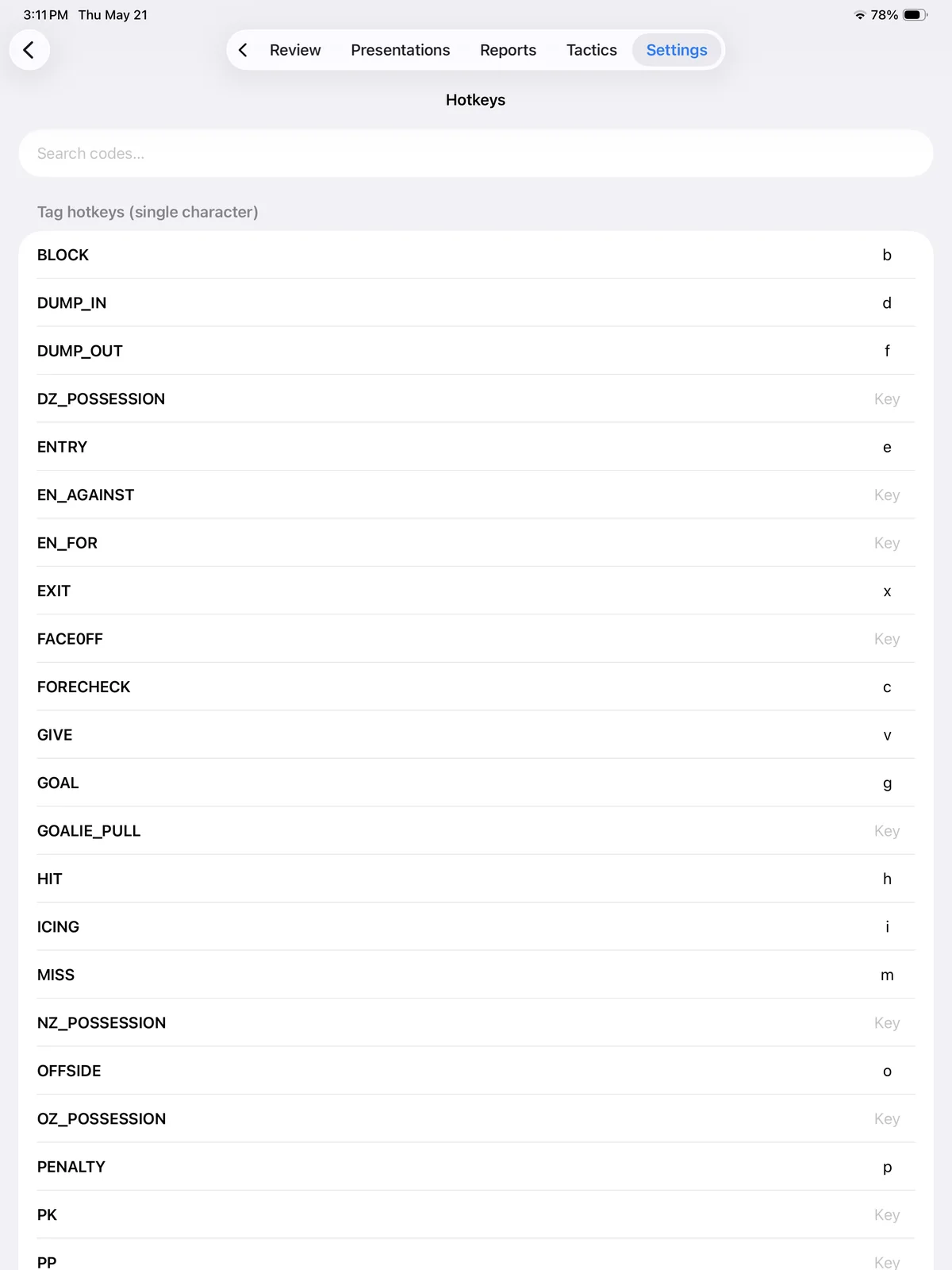
- Use the sport buttons, player context, notes, and undo carefully.
- Advance to the next segment only when the current one is complete.
- End and save the game before importing postgame work or moving to final review.
Live tags created in the App preserve when the event happened in the game workflow. They may require a later sync anchor when video is attached.
5. Attach video and set sync
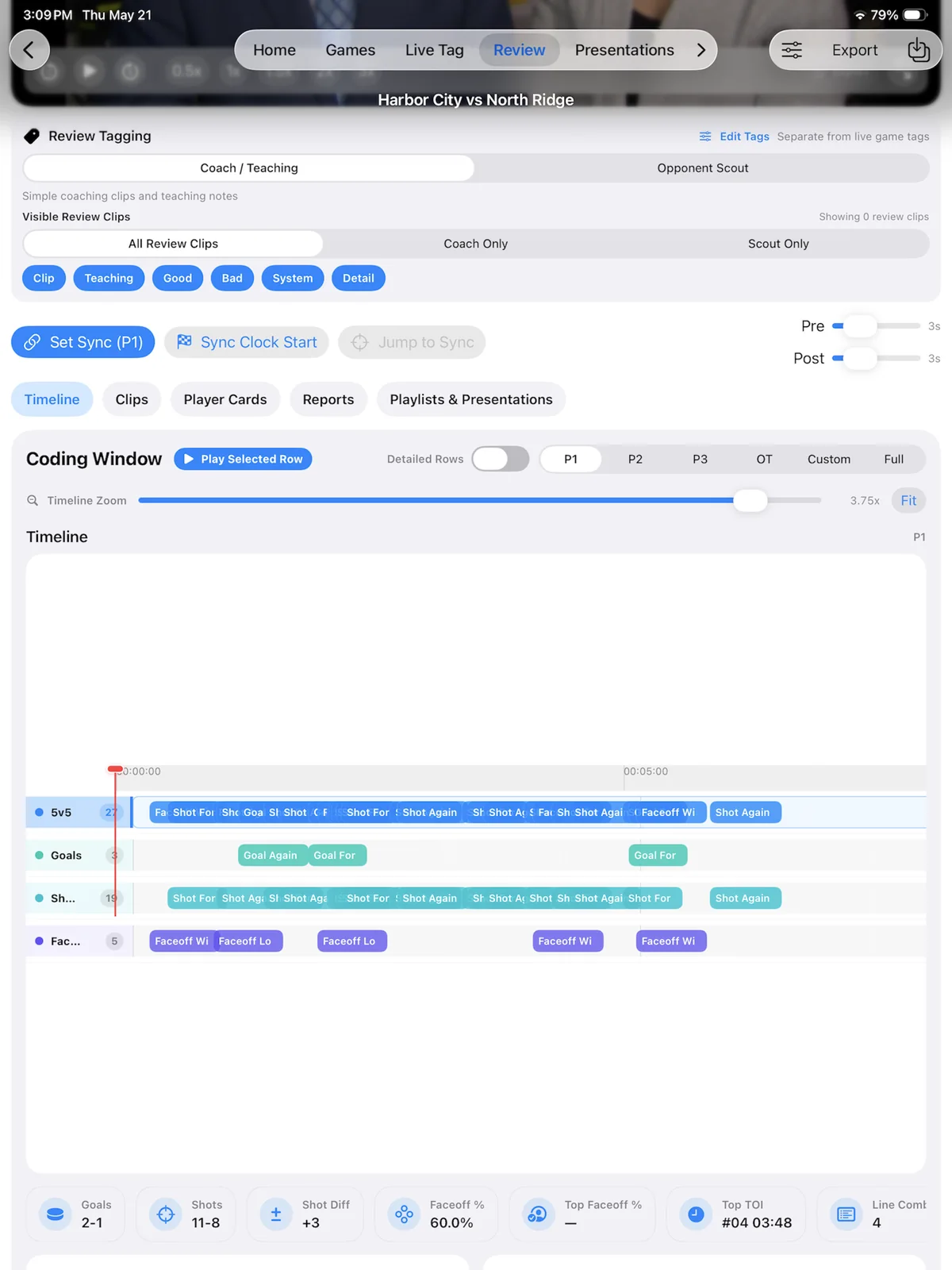
- Open Review for the correct game.
- Attach the full-game video or the correct ordered segment files.
- Choose a clear event with a known game clock.
- Use Set Sync to align App-created tags to the attached video.
- Play several early, middle, and late clips before editing or presenting.
Capture-imported events already carry source-video timing. Do not add a second sync offset unless the imported media or timing is demonstrably wrong.
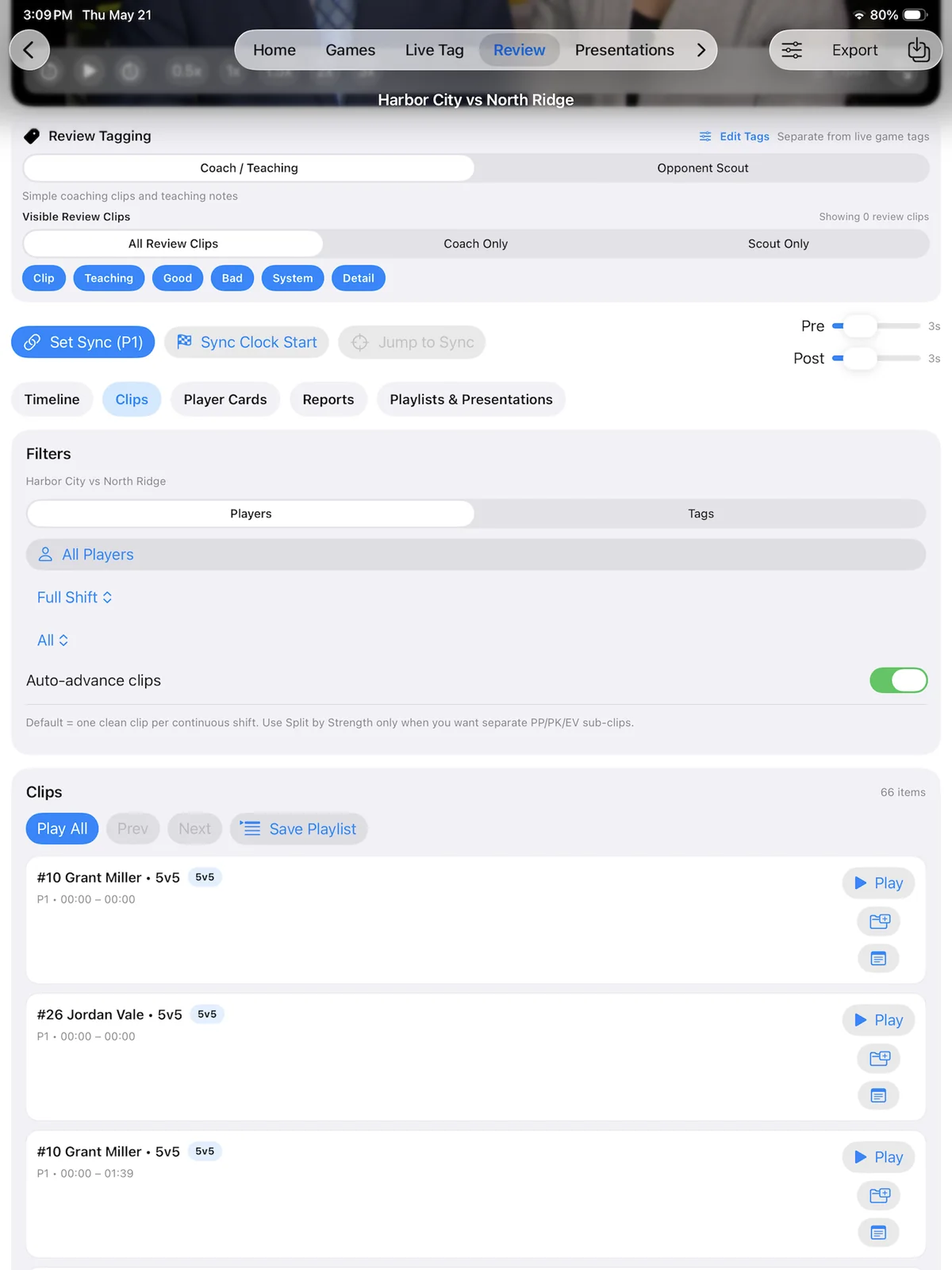
6. Review the timeline and clips
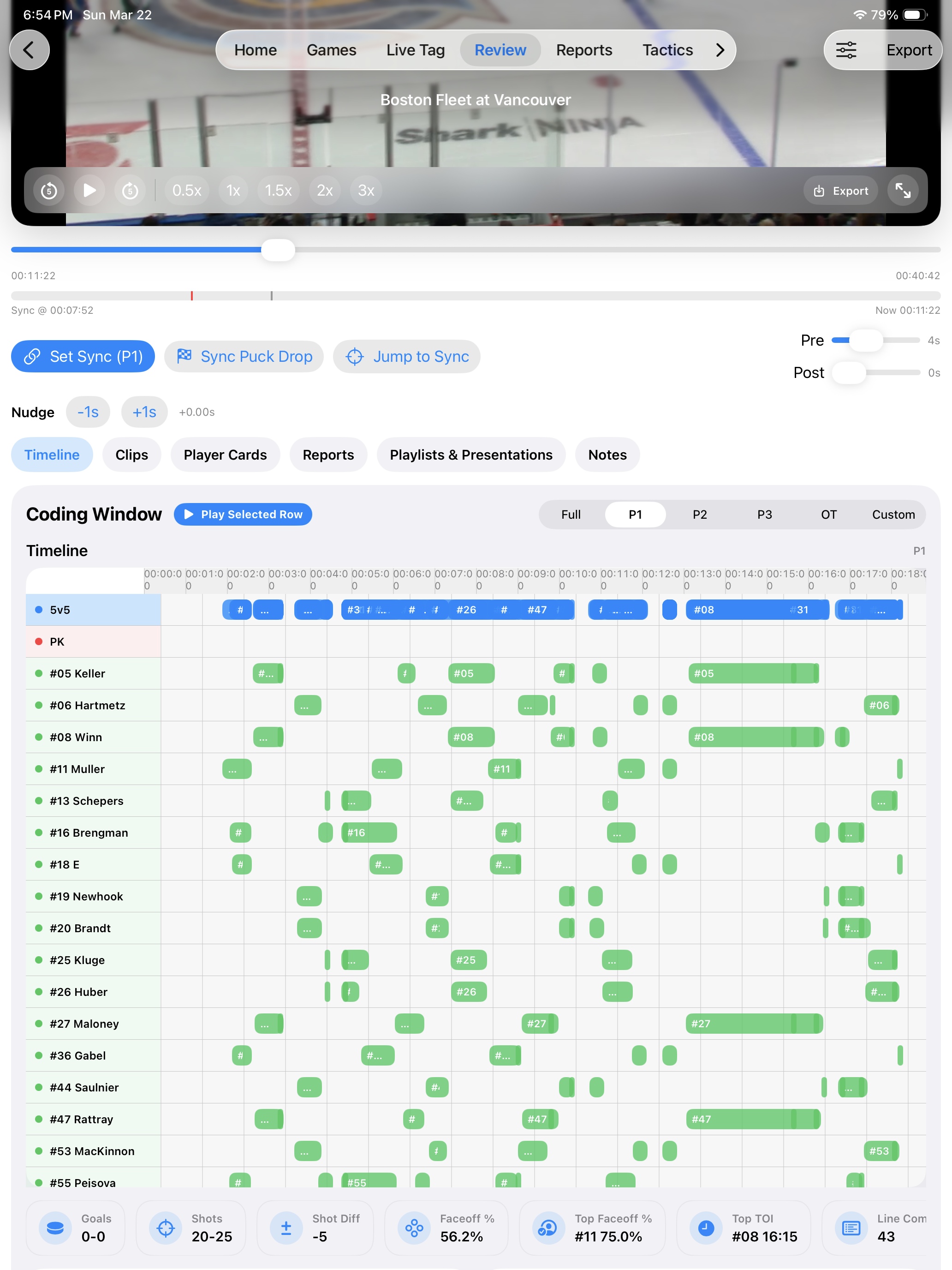
- Choose Timeline, Clips, or the available filtered view.
- Filter by event, player, unit, strength, period, or other available context.
- Select a row and play its bounded clip; use full-video playback when surrounding action matters.
- Add or revise notes, labels, and coach clips without changing the source movie.
- Use fullscreen review for teaching and return to the timeline when finished.
If the playhead and rows drift apart, stop and correct media attachment or sync before building presentations.
7. Build and run a presentation
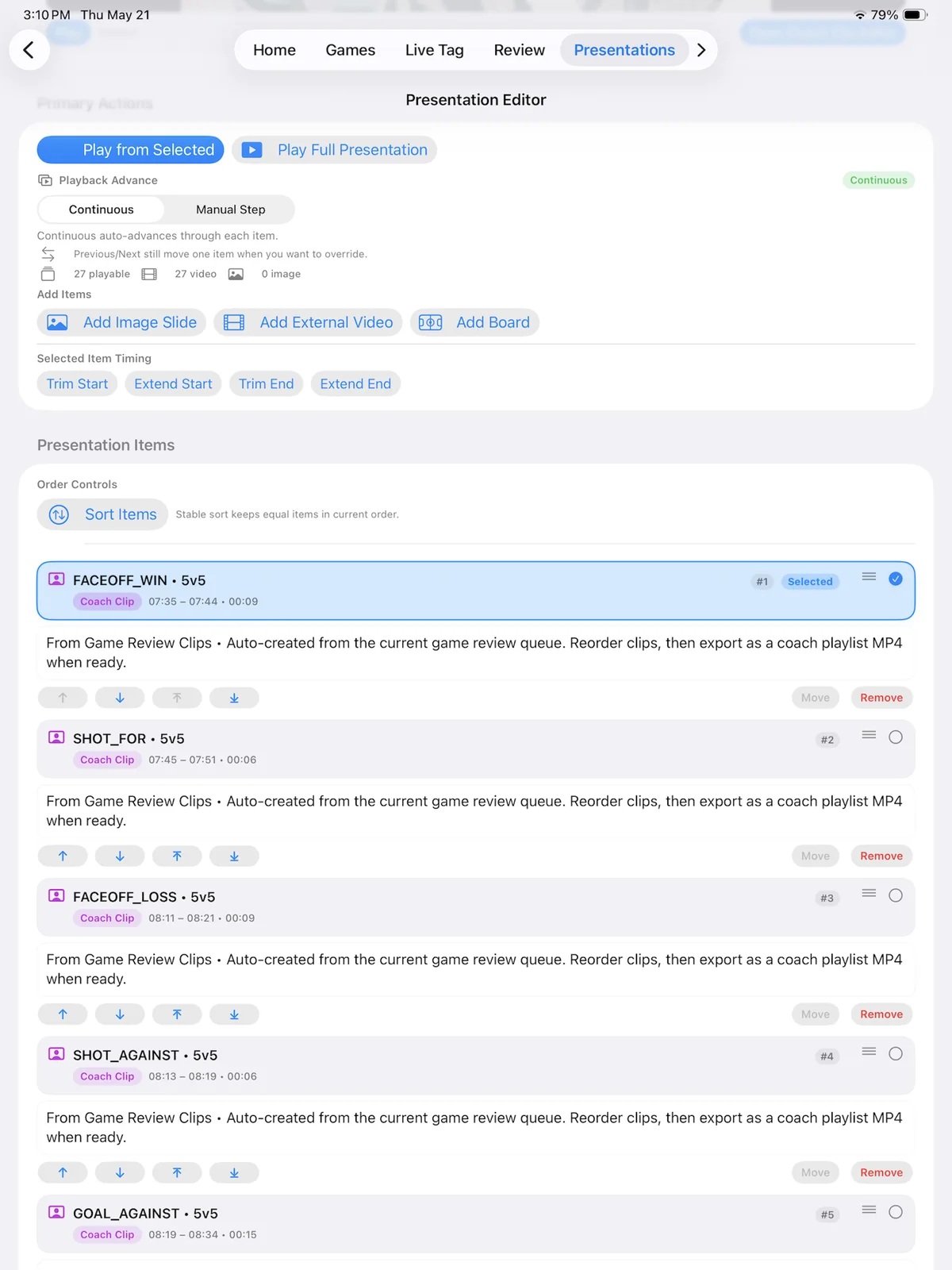
- Create or open the presentation that should receive clips.
- Add selected review clips in the intended order.
- Trim presentation timing where needed and add titles, notes, images, or supported boards.
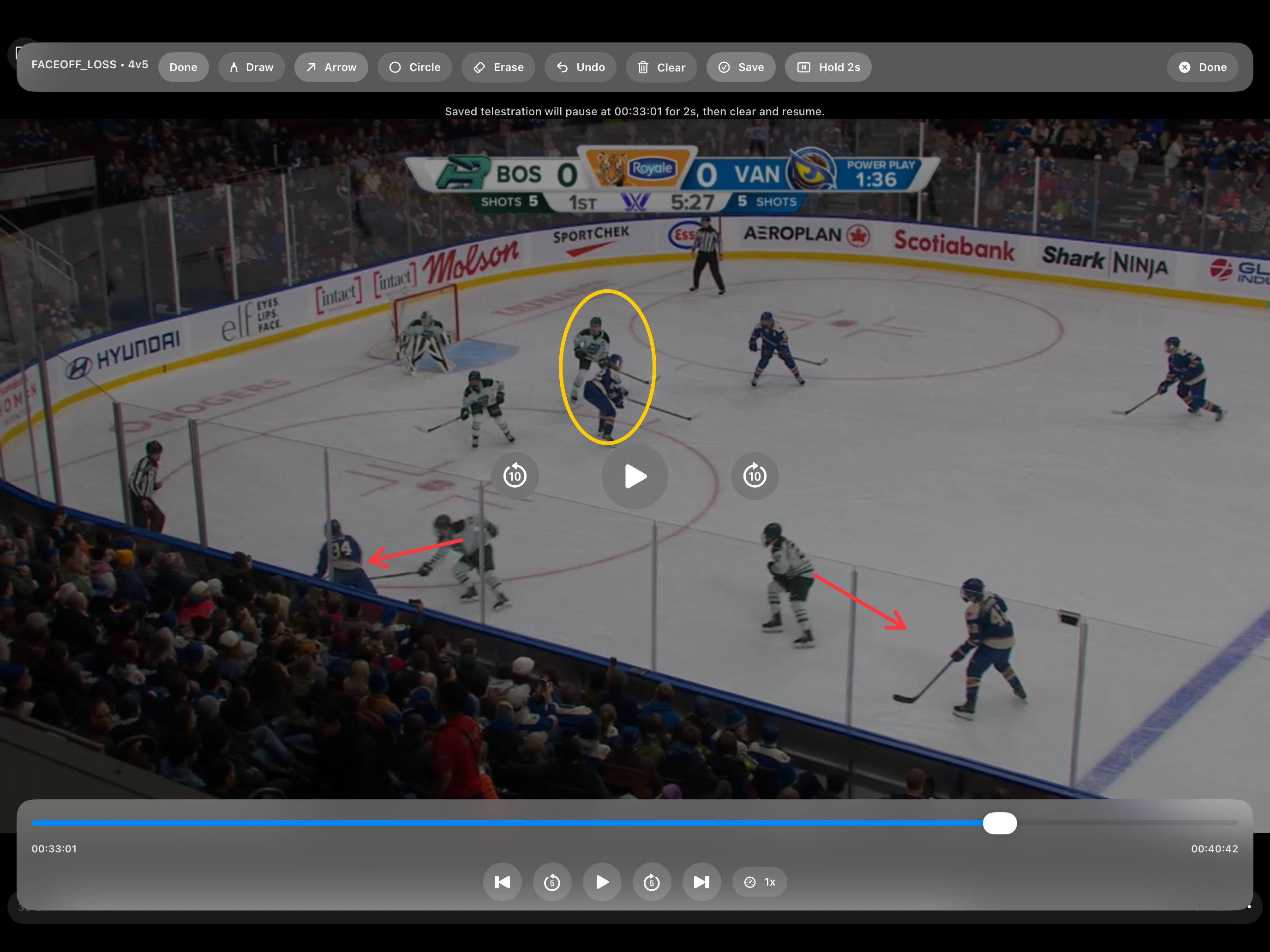
- Use telestration during preparation or presentation where available.
- Preview the full sequence, including every transition, before the team meeting.
Keep source media on the device while the presentation depends on local video. Use the supported share or publish path when the presentation needs to move.
8. Check reports before sharing
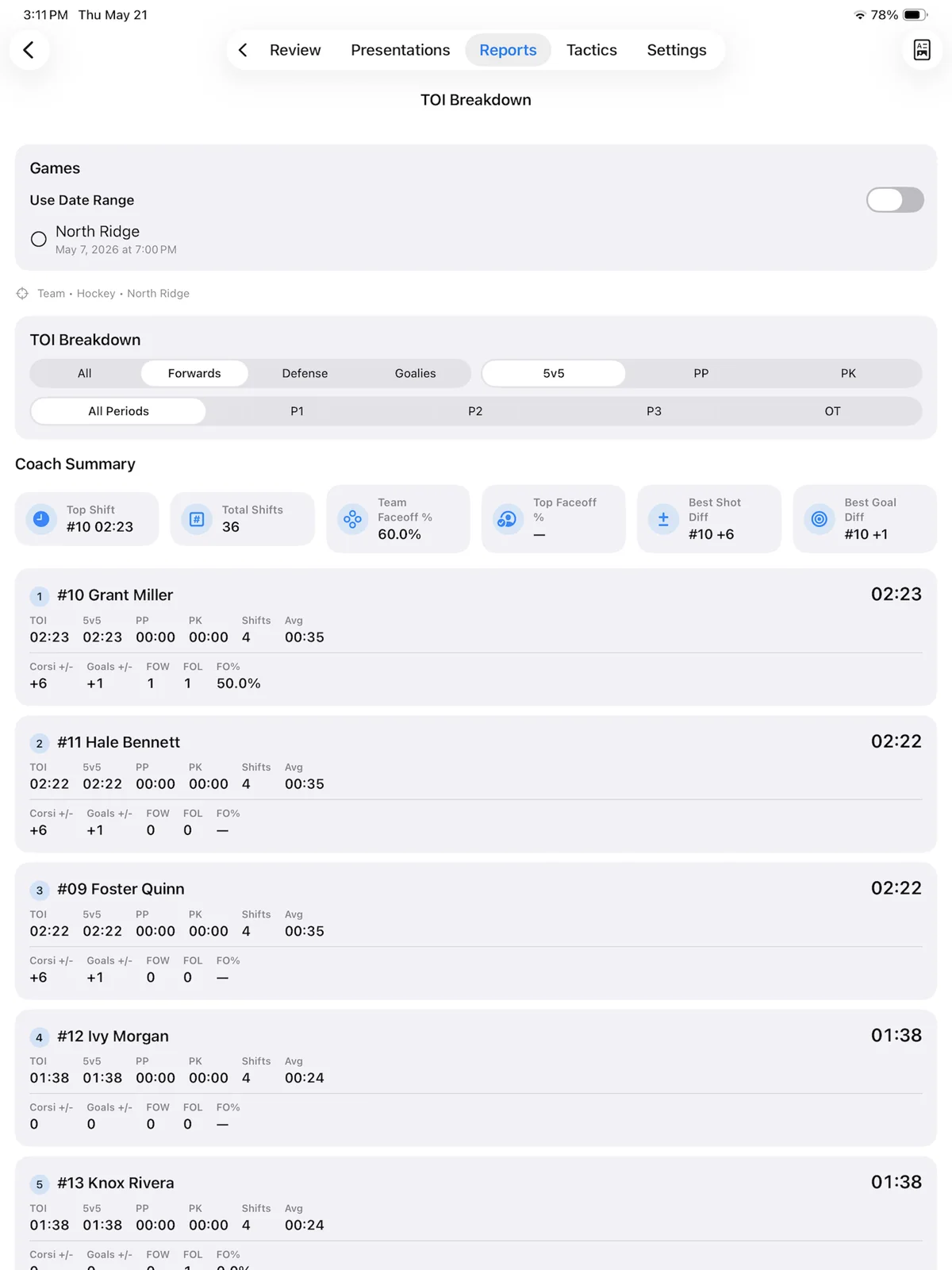
- Open the game’s report or summary area.
- Confirm score, game metadata, roster, active-player timing, and coding first.
- Review a known player and a known event as a spot check.
- Export or share only after the on-screen totals make sense.
Correct the underlying game, lineup, or tag data instead of editing around a bad result.
9. Share safely with staff or players
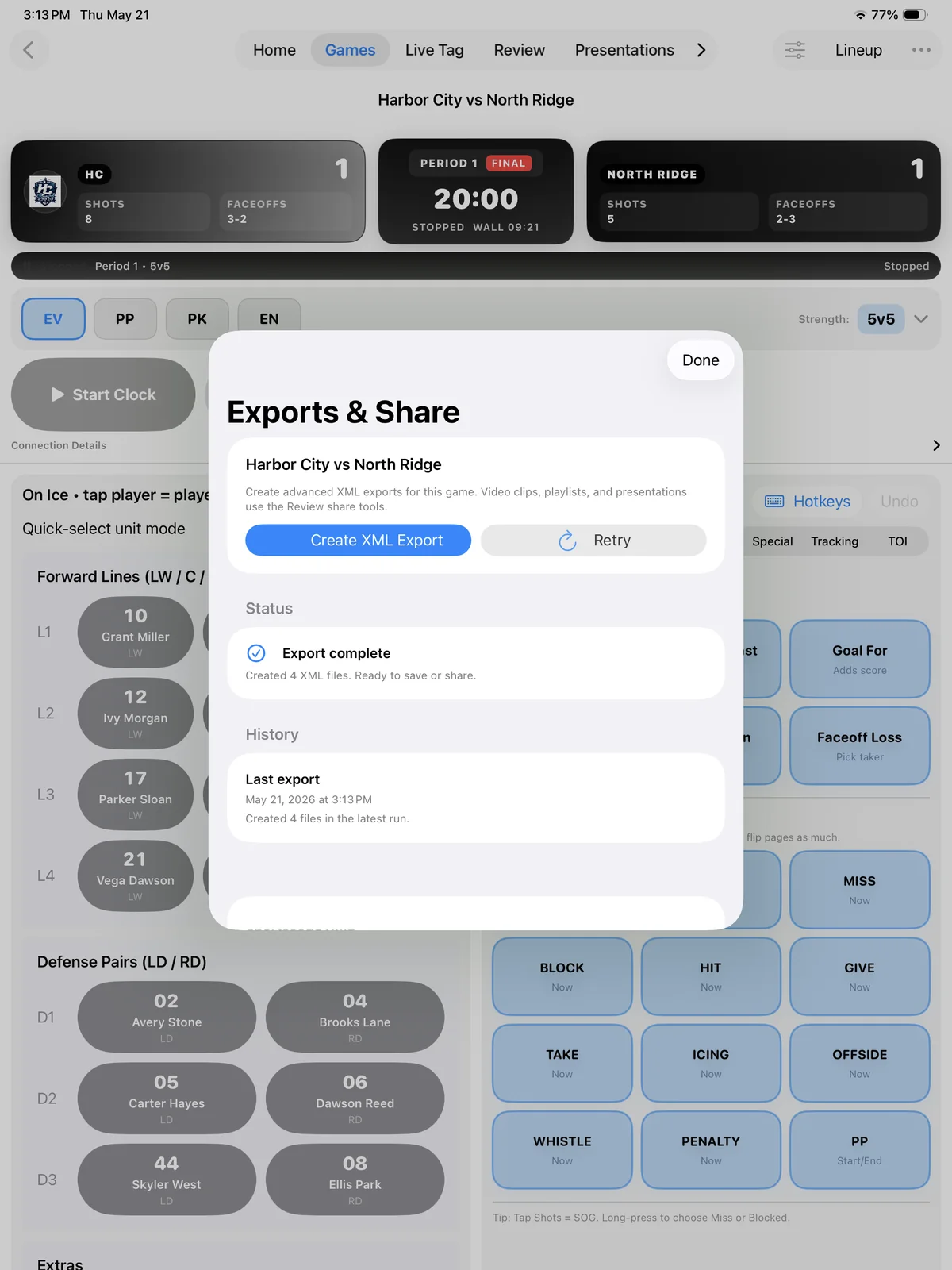
- Kaish files: use the matching Game, Review, Presentation, or Capture handoff for staff workflows.
- Player Library: publish from Kaish Web when you need a selected group, individual players, an expiration, or delivery progress.
- Whole-team shortcut: confirm that every enabled player account should receive the item before publishing from the App.
10. Use staff sync and backups deliberately
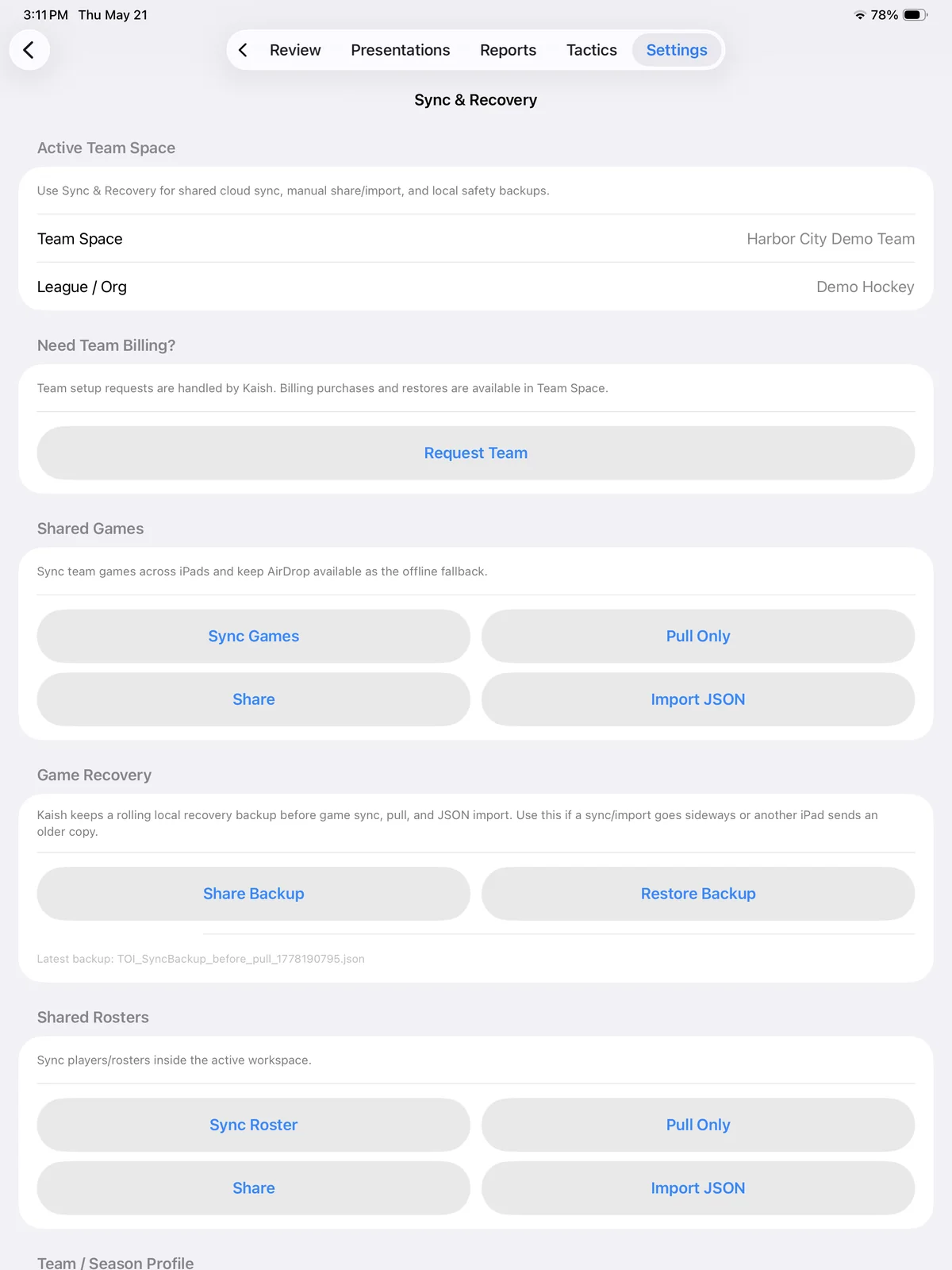
- Choose the Primary, Secondary, or Viewer role intended for each device.
- Keep all staff devices in the correct workspace and game.
- Confirm connection state before relying on another device’s updates.
- Create a recovery backup before changing computers, restoring a package, or attempting a major sync repair.
Do not erase the only local copy merely because a cloud or staff-sync status appears current.
11. Use Bench DVR on iPad
- On the Mac, enable the supported Blackmagic DVR workflow before recording.
- Keep the iPad and Mac on the same local network and allow Local Network access.
- Open Bench DVR in the App and choose the available Mac.
- Enter the current six-digit code and wait for finalized DVR media.
- Replay a tag or use the transport controls, then return to live.
Pairing may need to be repeated after the Mac DVR server restarts, so keep the current six-digit code available.
12. Recover without losing the original
Video is missing
Relink the correct full game or ordered segment files, then verify early and late clips.
Tags are out of sync
Confirm tag origin, attached media, segment, and sync anchor before applying a new offset.
Workspace is wrong
Stop editing, switch to the intended Team Space, and reopen the correct game.
Access is locked
Confirm the signed-in email, workspace membership, and current product entitlement. Never create a second account as a workaround.
13. Know the release and platform limits
- Use the current Kaish App release from the App Store.
- Bench DVR requires a compatible, visible Mac DVR server on the same network and finalized ready media.
- Pairing may need to be repeated after the Mac DVR server restarts.
- Reference media can require relinking after files move or devices change.
- Reports cannot infer player, lineup, label, or event context that was never recorded.
Game-day readiness checklist
- The current App Store release is installed.
- Account access and the correct workspace, sport, roster, lineup, game, and segments confirmed.
- One-minute tagging test saved and reopened.
- Video attached, sync checked at three points, and clips playable.
- Presentation receives the intended clips and plays in order.
- If used, Bench DVR pairs and replays finalized media on the venue network.
- A local recovery copy remains available.